🔌 The big one: connect Claude, ChatGPT and your AI apps (private beta)
Your AI assistant can now work with your email, from your own computer. More and more of my day happens in Claude, and every time I needed an email there, I copied and pasted it by hand. So Talanoa now speaks MCP, the standard AI apps use to reach your tools. Ask Claude “Summarize my unread emails” or “What did Marie say about the contract?”, and it asks Talanoa.
- One click for Claude. In Settings → MCP, pick an app and click Connect Claude (or the name of your app). For the Claude app, Talanoa opens its install window and you click Install. Claude Code, ChatGPT, Codex, Cursor and any other MCP app get a ready-to-paste config with their own key.
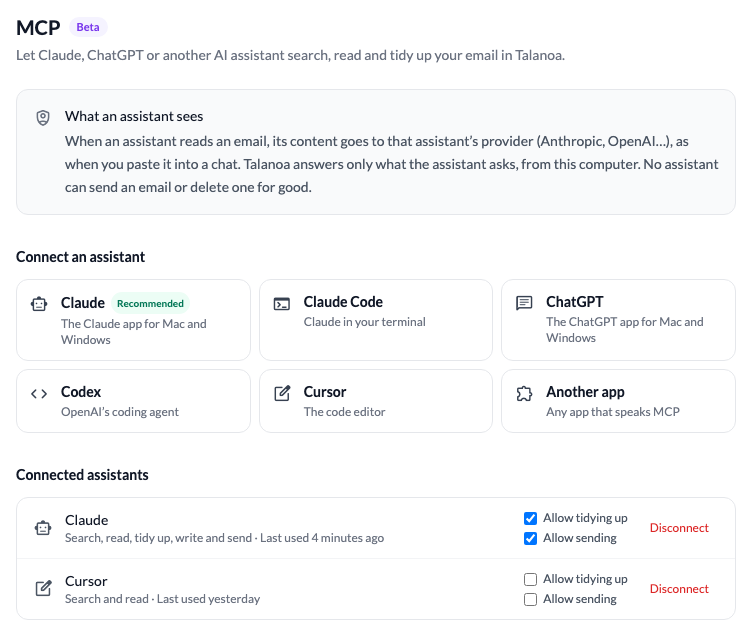
- You choose what it may do. Search and read is the base: inbox, search, conversations, attachments, labels, drafts, todos and calendar. Tidy up adds archive, read or unread, trash, labels, snooze, pin and your todos. Write and send lets it prepare drafts and replies.
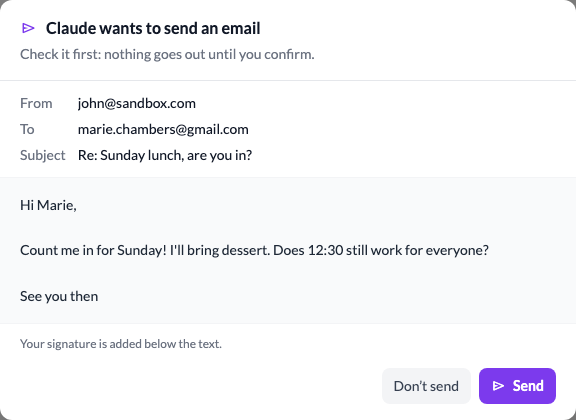
- Nothing leaves without you. When an assistant wants to send an email, Talanoa comes to the front and shows it exactly as it will go out, with Send and Don’t send. No assistant can delete an email for good.
- It stays on your computer. Talanoa answers from this machine, and only while an assistant is connected. Each app shows when it was last used, and you can disconnect it at any time. When an assistant reads an email, its content goes to that assistant’s provider, as when you paste it into a chat.
MCP is part of Pro and in private beta for now. To take part, open Settings → MCP and click I want to be a beta tester.
✨ New & improved
- An AI recap of each day (private beta). With AI set up, an AI Recap button appears when you hover a day in the email list. It writes a short recap of that day: who is Waiting for your reply, what is Worth a look, a few words on everything else, and cards for your trips and deliveries. One click marks the whole day as read and archives it. Yesterday’s recap is written for you in the background.

- Snoozes follow you everywhere. A snooze is now saved on your mailbox and synced across your devices: snooze an email on your computer and it leaves your phone’s inbox within seconds, and the other way around. Other email apps see it leave the inbox too. When it is time, your phone brings it back even if your computer is off.
- Change or cancel a snooze where you see it. The Snoozed list shows when each email comes back and lets you Change the wake-up time or Unsnooze now. A snoozed conversation carries a banner with the same two actions.
- Ask AI can now act for you. Ask AI can browse your folders, read attachments (text, spreadsheets, Word documents), archive, snooze, label, add notes, block a sender, answer an invitation, and create or move todos on your board. Every action shows up as a card you confirm first, and everything still runs on your computer.
- Images in your signature. Drop or paste an image into the signature editor, or use the new Insert image button. Dropping an image there used to open a new email instead. Imported signatures (with tables and styles) can now be edited in place instead of being read-only. Thanks to the users who reported both.
- Undo a send with
Cmd+Z. (Ctrl+Z on Windows and Linux.) Escape no longer cancels a send, so leaving the reply box can’t undo it by accident. A one-time hint reminds you of the change. Thanks to the user who reported this one.
🐛 Fixes & polish
- One meeting, drawn once. A meeting that sits in several of your calendars used to show up twice. It now appears once, with a stripe for each calendar it belongs to. Events you haven’t answered yet have a dashed border.
- Short events no longer pile up. Two short events at the same time were drawn on top of each other, and their text looked faded. They now sit side by side, and a short event shows its title before its time. Thanks to the user who reported this one.
- Chat bubbles only in real conversations. A stream of notifications or a newsletter series no longer shows as chat bubbles. The chat view is offered in threads you wrote in, or that a person started with you.

