There’s a moment in Talanoa where my hands always left the keyboard, and it annoyed me for months.
Reading is fine. Sorting is fine. You can move through senders, archive, snooze, and jump around the inbox without ever touching the trackpad. Then you hit reply, and suddenly you’re aiming a cursor at a row of small icons: the paperclip, the little clock, the template thing, the calendar thing, the dropdown that changes which address the message goes out from.
Every one of those is one click. Together they’re the reason writing an email in a “keyboard-first” client still felt like operating a toolbar.
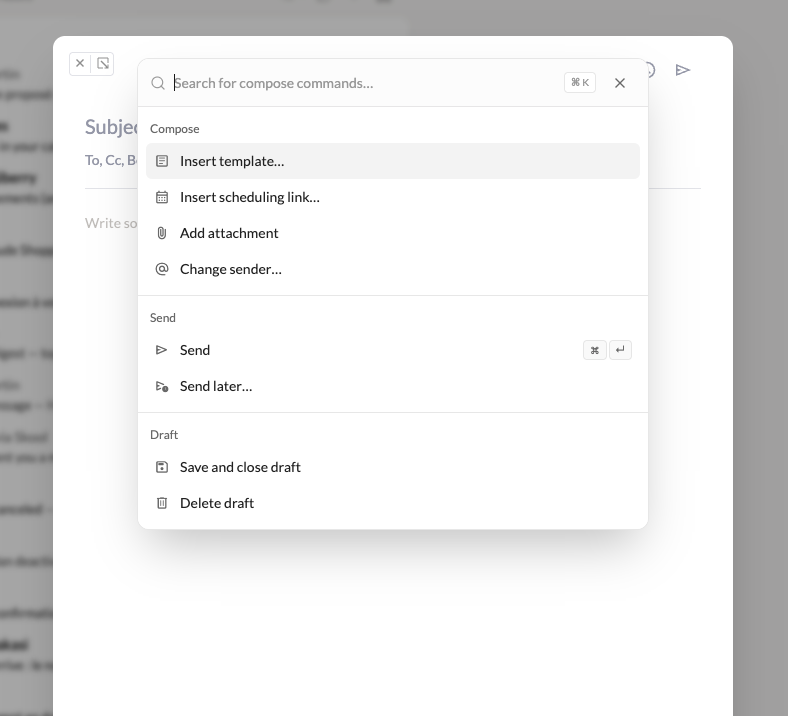
Talanoa v0.10.7 fixes that. Press Cmd+K (Mac) or Ctrl+K (Windows and Linux) while you’re writing, and everything the toolbar does is one search away.
Send. Send later. Insert a template. Drop in a scheduling link. Add an attachment. Change the sender. Type two or three letters, hit enter, keep writing.
The obvious alternative was a shortcut per action. Cmd+Shift+A for attach, Cmd+Shift+L for send later, and so on down the list.
I’ve used apps like that. They’re wonderful once you’ve learned them and mildly hostile until then, because the knowledge lives in a documentation page you read once and forgot. Adding six of those would have made Talanoa faster for me and no faster at all for anyone who doesn’t want to memorise a table.
One shortcut you can search is a different deal. You only have to remember Cmd+K. After that you type what you want in plain words, and the app does the remembering.
The honest trade-off: a palette is invisible until you press it. A toolbar teaches you what’s possible just by sitting there. So the toolbar hasn’t gone anywhere — nothing was removed, nothing moved, and if you like clicking, keep clicking. The palette is the fast lane, not a replacement road.
Two of the entries are smarter than a button would be. Send later proposes real slots rather than a generic “tomorrow morning.” Scheduling links propose times you’re actually free. Both read your calendar, both stay on your machine, and neither of them is trying to write the email for you.
Second thing in this release, and it’s the one I expect people to notice by accident.
Pictures inside a message now behave like attachments. Hover any image and you get a small toolbar — Download, Copy, Show original. Right-click gives you the same three. “Show original” opens the picture at full size, and you can click to zoom in.
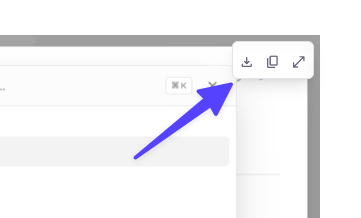
This sounds tiny. It replaces one of the dumbest rituals in email: someone sends you a screenshot inline, you need the file, and your options are a right-click menu that saves a mangled thumbnail, or forwarding the whole message to yourself and hoping. A logo, a signed page, a photo of a whiteboard — you should be able to take it out of the email in one move.
Third: if someone proposes a new time for a meeting, you can accept it directly from the email.
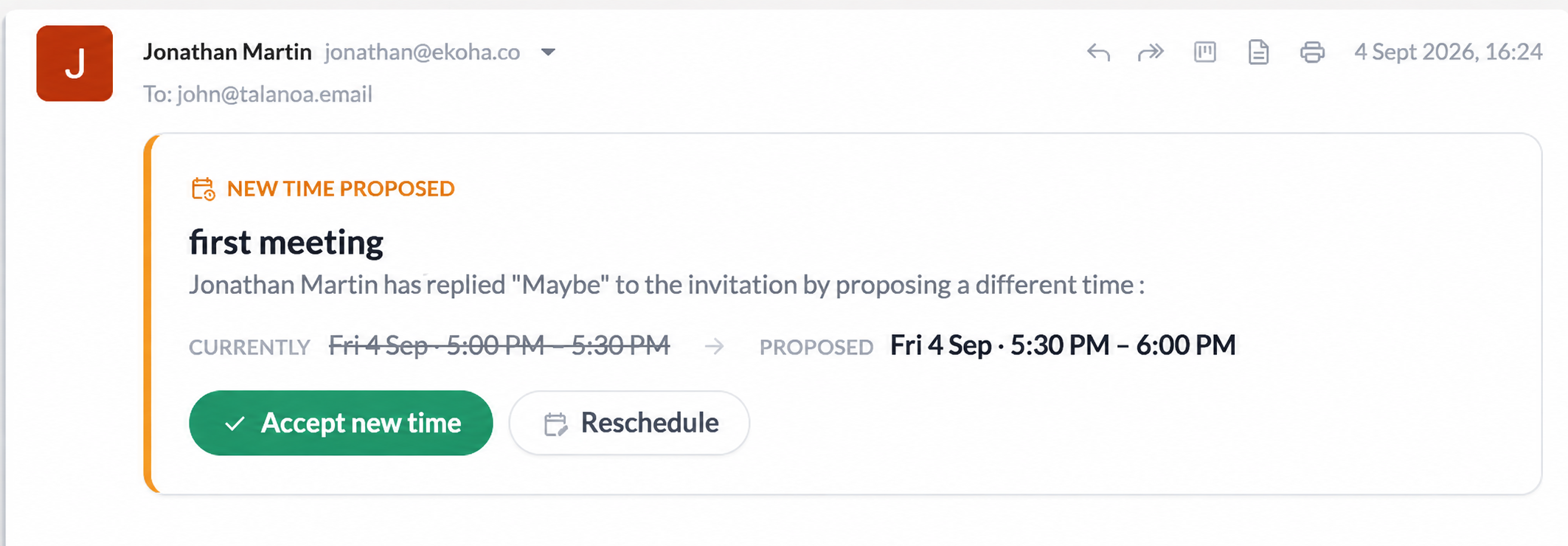
Before, that was a browser tab. You’d click through to a calendar page, log in if you’d been logged out, confirm, come back. Four steps to say yes to something you’d already decided in the two seconds it took to read the sentence.
Now it’s a button in the message. Same answer, none of the round trip.
Also in this release: Gmail inline images, forwards carrying their attachments properly, and the Windows installer. Unglamorous, all three, and all three were breaking real mail for real people.
If there’s a theme to v0.10.7, it’s that all three changes remove a context switch. The trackpad reach mid-sentence. The forward-to-yourself dance. The browser tab for a meeting you already agreed to.
None of them are big features. Nobody switches email clients because images have a hover toolbar. But this is most of what email actually is — dozens of small interruptions a day, each one costing you a few seconds and a bit of attention. Take enough of them away and the app stops feeling like something you operate.
Update from within Talanoa and press Cmd+K the next time you write something. Then tell me which action you looked for and couldn’t find — that list is how the palette gets good.
— John
Try Talanoa
Why spend hours managing your inbox when you can focus on what matters?
Get started free