Same emails, a different day
Your emails do not move. They are at Gmail, Outlook or iCloud, and Spark and Talanoa are two windows onto them. What changes is what you see when you open the window.
You open your inbox
Before · Spark
Your mail is sorted by kind: personal, notifications, newsletters. You work down the list, group after group.
- Personal
- Notifications
- Newsletters
After · Talanoa
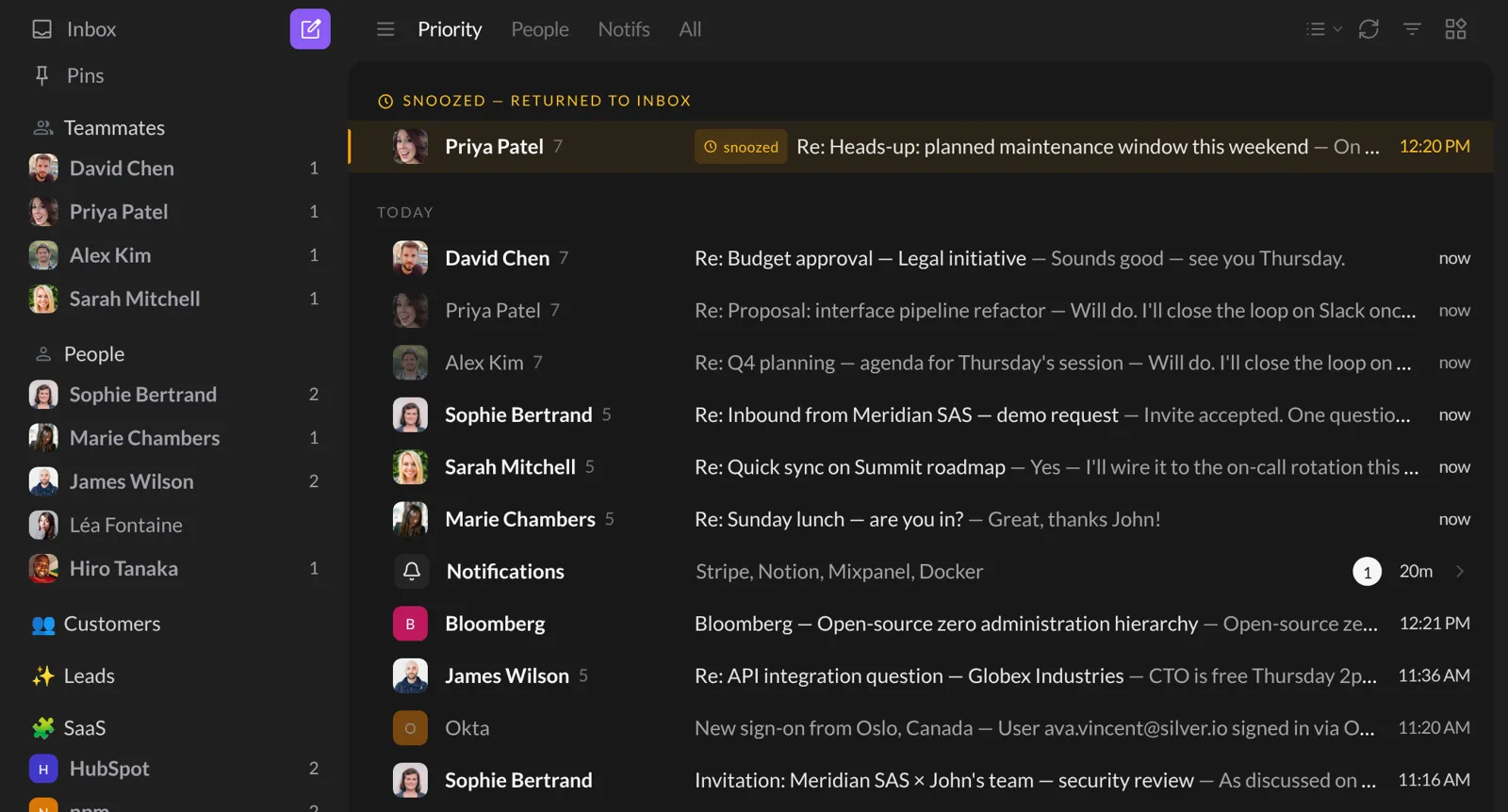
You see people: teammates, everyone else, then the sections you made. Notifications are folded into one row.
You answer a long thread
Before · Spark
You expand the thread, skip the quotes and the signatures, and find the two lines that matter.
- On Monday, David Chen wrote:
- Best regards, David Chen, Finance
- Sent from my phone
- Can you approve by Thursday?
- On Friday, you wrote:
After · Talanoa
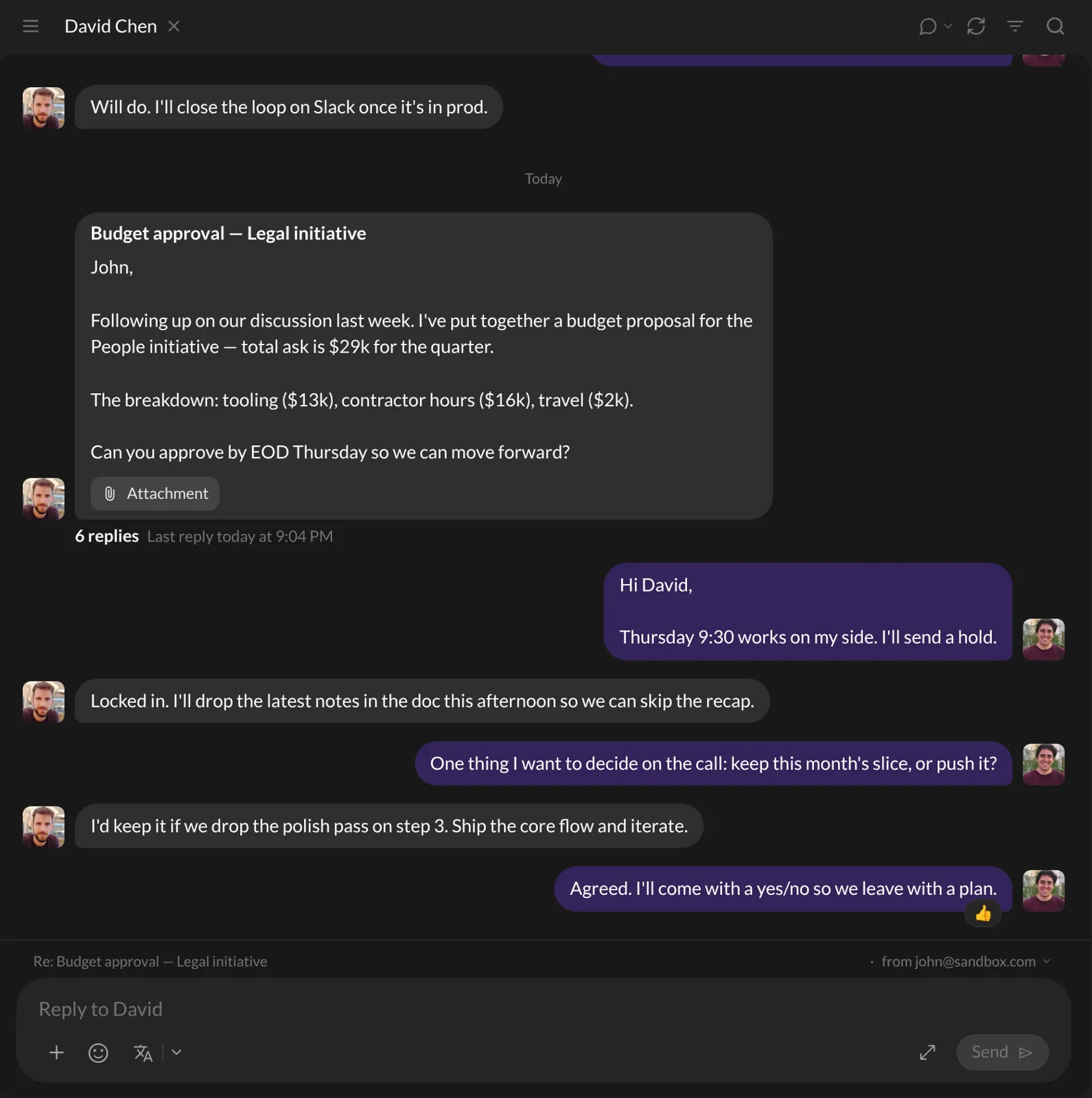
The thread reads like a chat. Each bubble holds what that person wrote, and you answer underneath. The other person still receives a normal email.
An email asks you to do something
Before · Spark
You pin it, set it aside, add a reminder, or send it to Todoist. Four places to check tomorrow.
- Pins
- Set Aside
- Reminders
- Todoist
After · Talanoa
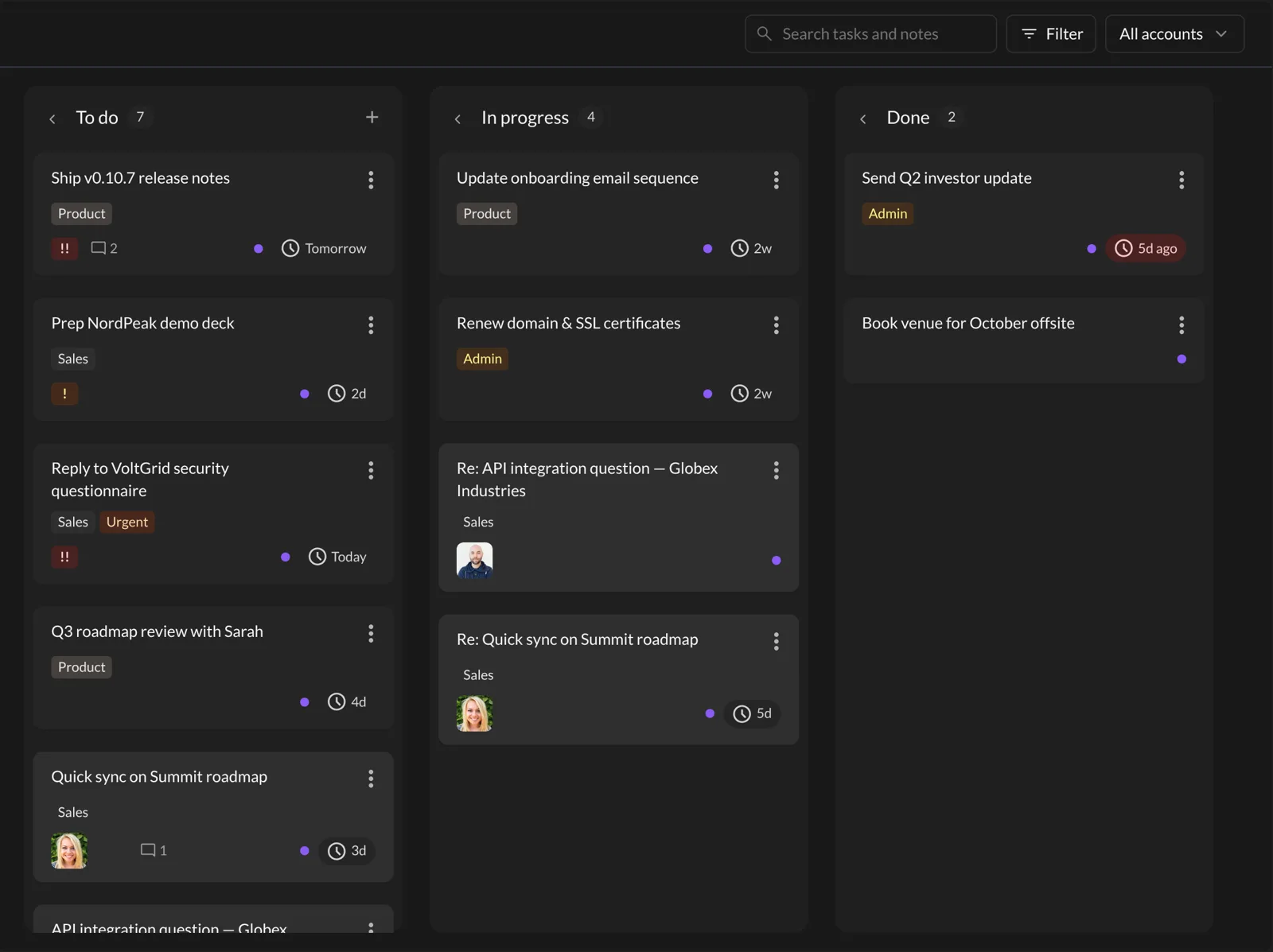
You press T. It becomes a card on your board, with a due date, still linked to its email. Archive the email, the card stays.
You ask AI for help
Before · Spark
The text goes to an AI provider online, and each request draws on a monthly quota.
After · Talanoa
A model downloaded to your computer answers. The email stays there, and there is no quota to watch.
What happens to your things
Anything that lives in your mailbox follows you without a click. Anything that lives in Spark needs a minute of your time before you leave.
Moves on its own
- Every email, sent and archived ones included
- Folders and Gmail labels
- Emails marked as Done: Spark archives them in your mailbox
- Read and unread
- Gmail signatures, brought in when you connect Gmail
- Calendar events: they are at Google, Microsoft or iCloud
Copy it first
- Snoozed emails: they sit in a folder named Later
- Scheduled emails: they wait on Spark’s server
- Signatures and templates written in Spark
- Set Aside and reminders
- Pins and Priority senders
- Blocked senders
Stays in Spark
- Shared drafts and team comments: teams are coming soon to Talanoa
- Assignments and shared inboxes: soon too
- AI meeting notes: save the ones you need
- Autopilot rules: rebuild them as rules, without the AI
- Links you shared from Spark
The steps, in order
1 In Spark
Bring back your snoozed emails
Spark moves a snoozed email to a folder named Later at your provider. Open Snoozed in the sidebar (under More if you do not see it), open each email and click Discard Snooze. They return to your inbox, where Talanoa will find them.
2 In Spark
Empty the Outbox
Scheduled emails wait on Spark’s server, and Spark says they will not leave once it is removed from all your devices. Open Outbox and either let them go out, or click the sending time, choose Discard Sending Later and send them now.
3 In Spark
Copy your signatures and templates
Signatures are in Settings → Composer → Signatures. Keep the HTML if yours has some: Talanoa accepts it as is. Copy your templates into a note too.
4 In Spark
Write down what Spark was remembering
Look at Set Aside (Cmd+G), Pinned (Cmd+D), your Priority senders and the Blocked list. Finish what takes two minutes. The rest will become tasks and sections.
6 In Talanoa
Make it yours
- Priority senders become a section: create one and drag them in.
- Set Aside and reminders become tasks: press
T on each email and give it a date.
- Pins: look in Pins first. Talanoa uses your provider’s star or flag. Pin again what is missing.
- Blocked senders: block them again, and unsubscribe at the same time.
- Signatures and templates: paste them in Settings, under Signatures and Templates.
- Calendar: connect it in Settings → Calendar Accounts. It starts 15 days of Basic, no card.
7 In Talanoa
Add your phone and make it the default
Scan one code in Settings → Devices: your accounts, rules, sections, signatures and calendars come over to your phone. Then make Talanoa your default email app.
8 In both
Keep both for a week
Both apps work on the same mailbox: archive an email in one and it is archived in the other. Use Talanoa every day, and open Spark only to check you forgot nothing. Do not snooze in both.
9 In Spark
Close the door behind you
Do this last, and in this order.
- Cancel a paid plan: Settings, your email at the top of the sidebar, then Manage. If you paid through the App Store or Google Play, cancel there.
- Remove your data: Settings → Remove your data. Your emails are not touched, they are with your provider.
- Take back the key: remove Spark from the apps that can access your Google or Microsoft account. For iCloud and other accounts, delete the app password you made for Spark.
Your habits, translated
Most keys are the same. Two will trip you in the first hour: D and S.
| In Spark | Its key | In Talanoa |
|---|
| Mark as Done | E | Archive, E |
| Compose | C | C |
| Reply to all | R | R: replies to everyone when there are several people |
| Forward | F | F |
| Label | L | L |
| Command Center | Cmd+K | Command palette, Cmd+K |
| Pin | D | Careful: D moves to the trash here. Use the pin button |
| Snooze | S | The clock on the email |
| Set Aside | G | Add to todo, T |
| Search | Cmd+F | /. Cmd+F looks inside the open conversation |
| Gatekeeper | Cmd+B | Block sender, on any email |
| AI Assistant | Cmd+Shift+C | Ask AI, Cmd+J |
Every key can be changed in Settings → Shortcuts, so you can keep your reflexes.
What you will miss
Better to know before than after.
- Free accounts. Spark gives you as many as you like for free. In Talanoa, several accounts are part of Pro.
- Sending while you sleep. A scheduled email leaves when Talanoa is open. If your computer is off, it goes out when you open it again.
- Working on an email together. Shared drafts, comments and shared inboxes are coming soon to Talanoa. If your team lives in them every day, keep Spark for that until they are here.
- Meeting notes. Talanoa does not record or transcribe calls.
- A desk with nothing to install. The AI model weighs 1 to 6 GB, and an older computer may not run it well.
Questions people ask
Will I lose emails when I leave Spark?
No. Your emails are stored by your provider. Spark says that removing an account from Spark does not delete them, and Talanoa reads them from the same place.
Is there an import button?
There is nothing to import: you connect the account and your mail appears. What Spark keeps for itself (templates, snoozes, set-aside emails) is copied by hand, in steps 1 to 4.
Can I try Talanoa without leaving Spark?
Yes. Connecting Talanoa does not disconnect Spark. Both can stay open on the same account.
I have four accounts in Spark. Do I have to pay?
To have the four in Talanoa, yes: several accounts are part of Pro, $96 a year or $10 a month. You can start with one for free and decide later.
Can I go back?
Yes. Your mail is still with your provider, so connecting Spark again brings it all back. Tasks you made in Talanoa stay in Talanoa.
Steps in Spark checked in its help center on November 25, 2026. Comparing features first? Read Spark Mail vs Talanoa, line by line.

 Guillaume Morel
