
How to move a sender to another section
Someone landed in Notifications but they're a real person? Move them to People, Teammates or one of your own sections. Every way to do it, on your computer and on your phone.
- Time needed
- About 2 minutes
- What you need
- Talanoa, and a sender sitting in the wrong place
A sender in the wrong place? Move them 🚚
Talanoa sorts every sender by itself: Teammates, People, Notifications and your own sections (here’s how that works). It’s a good guess, but still a guess. Sometimes a real person ends up in Notifications, or a newsletter sneaks into People.
The fix takes two seconds, and you only do it once:
- All their emails move, the old ones included.
- Talanoa remembers. Their next emails go straight to the new place.
Pick the way you like best below. They all do exactly the same thing.
On your computer
1. Drag the sender in the sidebar (the quickest)
- In the left sidebar, find the sender’s name, for example under Notifications.
- Grab it with your mouse and drop it on another group: People, Teammates, or one of your sections.
- The group lights up with a dotted border when you’re over it. Let go.
A small message confirms the move. That’s it.
2. Drag an email from your inbox
Don’t see the sender in the sidebar? No problem. Drag the email itself.
- Open the Notifs tab at the top of your inbox (or any other tab).
- Grab the email in the list and drop it on a group in the left sidebar, like People.
The email’s sender moves, with all their emails. You can do the same with a message inside an open conversation: drag it by its header onto a group.
3. Use the Move to section menu
If you’d rather click than drag:
- Open the sender’s view. Click their name in the sidebar, or click the sender’s name on an email in your inbox list.
- On the right, under More, click Move to section.
- Pick the new home, for example Move to People.
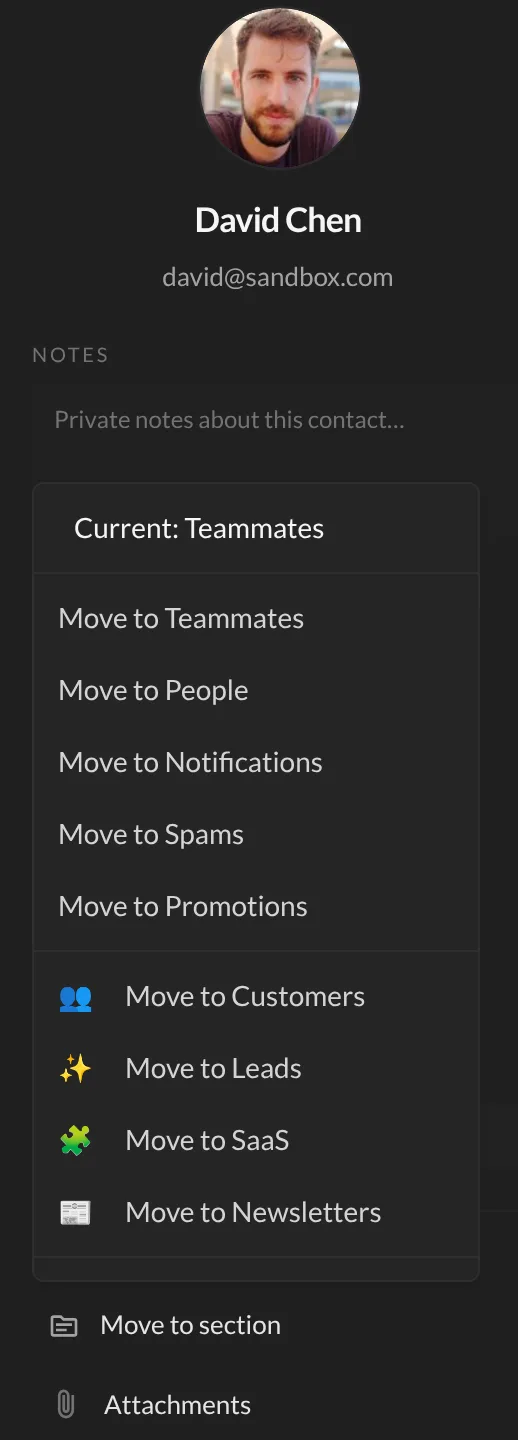
This menu has two extras:
- Create a section, at the bottom: creates a new section and moves the sender into it, in one go. (More on your own sections.)
- Spams and Promotions: two drawers for unwanted mail that don’t show in the sidebar.
4. With a rule
Each time you move a sender, Talanoa writes a rule for you. You can also write it yourself, or change it later:
- Open Settings (
Cmd+,on Mac,Ctrl+,on Windows and Linux), then Rules. - Create a rule for the sender, or open the one that’s already there.
- Choose the Category: Teammates, People, Notifications, Spams, Promotions or one of your sections.
Rules can do more, like adding labels or archiving. See Rules.
On your phone
5. From the sender’s screen
- Open the sender’s screen: swipe an email from them to the right and tap Sender, or press and hold the email and tap View sender.
- Tap the sender’s name at the top of the screen.
- Tap Move to another section, then pick the new home. New section… creates one on the spot.
6. From an email
- Open an email from that sender.
- Tap the sender’s name at the top of the message.
- Under Section, tap the new home.
Questions you might have
“I moved someone by mistake.” Just move them back, any way you like. Talanoa follows your last choice.
“I have several accounts.” A move applies to the account the email arrived in. In the unified inbox, dragging a sender’s name in the sidebar moves them in every account where they show up.
Still stuck? Write to us at [email protected]. A real human will answer.
