
How to move emails to folders
Used to sorting your emails into folders? You can in Talanoa too. Drag an email into a folder, file it from the email itself, or let rules do the sorting for you.
- Time needed
- About 3 minutes
- What you need
- Talanoa, and a few emails you'd like to put away
Yes, there’s a “Move to” 📁
Some people like an empty inbox and a neat row of folders: “Invoices”, “Travel”, “Clients”. Every email gets put away in its drawer once it’s handled.
Good news: Talanoa does that. In Talanoa, folders are called labels. You’ll find them in the left sidebar, just below your sections (Teammates, People, your own sections, Notifications).
- With Outlook, iCloud, Yahoo and most other providers, they are your folders. The same ones you see on your phone or in webmail.
- With Gmail, they’re your Gmail labels. Same idea, with a bonus: one email can sit in several of them at once.
Step 1: Call them “Folders” (optional)
Prefer the word you’re used to? Change it in one click.
- Open Settings (
Cmd+,on Mac,Ctrl+,on Windows and Linux), then click Labels. - Pick the Account at the top, if you have several.
- Next to Sidebar display, choose Folders.
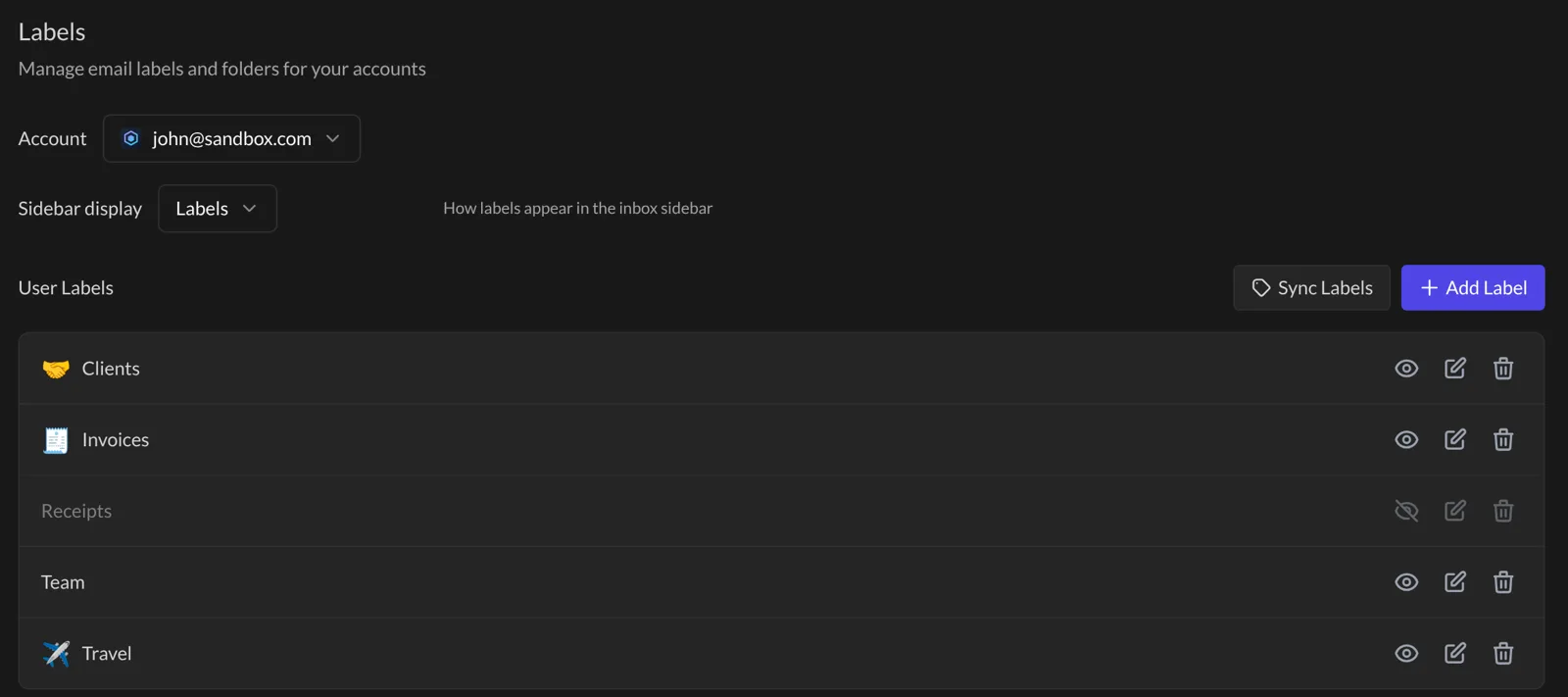
Your sidebar now says Folders. From here on, this guide does too.
Need a new folder? Click Add Label on that same page, give it a name and an emoji if you like, then click Create. More on that in Organize with labels.
Step 2: Drag an email into a folder
The quickest way to put an email away.
- In your inbox, click and hold an email.
- Drag it onto a folder in the left sidebar. The folder lights up in purple.
- Let go.
Talanoa says Moved to Invoices. The email leaves your inbox and waits for you in the folder, like a letter you just filed.
Already inside a folder? Drag an email from there onto another folder, and it moves from one to the other.
Or use “Move to”
Reading an email and want to file it without dragging it anywhere?
- Click the ⋯ button at the top of the email, then Move to. Or simply press
M. - Pick the folder. Type a few letters to find it in a long list.
The email leaves your inbox and goes into that folder, exactly like dragging it. Already inside a folder? It moves from that one to the new one.
In your inbox list, you can also right-click an email and choose Move to.
Keep it in your inbox too
Sometimes you want the email filed and still in your inbox, because you’re not done with it yet.
- Click the label button at the top of the email (a tag with a little +), or press
L. - Click the folder you want.
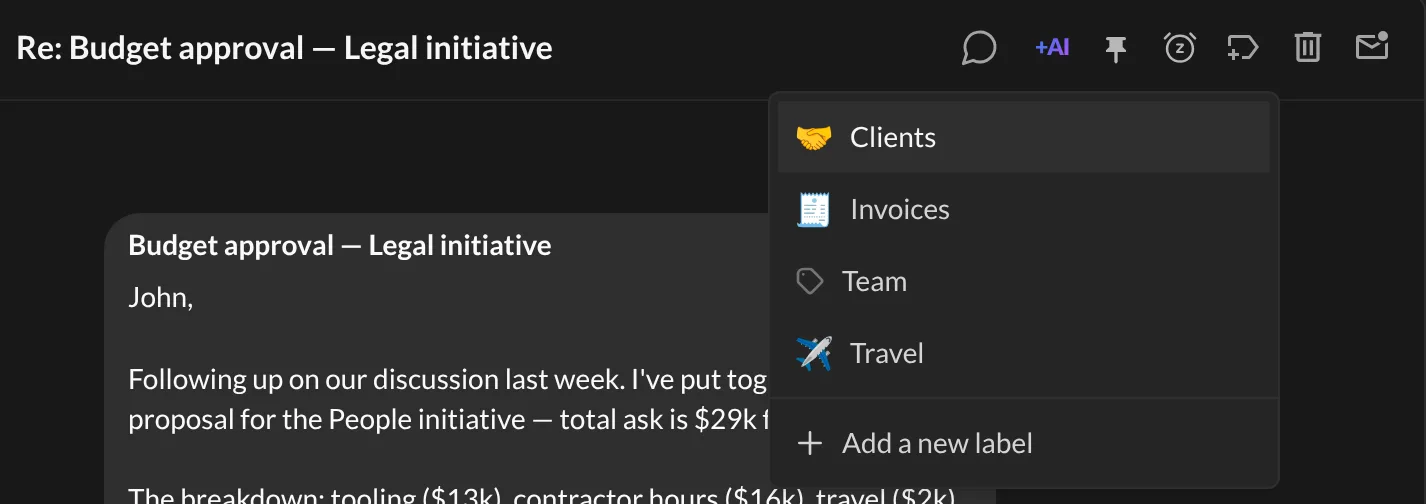
The email gets the folder and stays in your inbox. Done with it? Press E to archive it, and it’s only in its folder.
This works with Gmail (one email, several labels) and with iCloud, Yahoo and the other IMAP providers (the email is kept in both places, Talanoa shows it once).
With Outlook, an email can only sit in one folder at a time: that’s how Outlook works. So for an Outlook account, the label menu shows your Outlook categories (the coloured tags), and folders are in Move to.
Let rules do the filing 🤖
Always filing the same emails in the same folder? Hand the job over to Talanoa.
- Open Settings, then click Rules.
- Click Create Rule.
- Type the Sender Email, for example your phone company’s billing address.
- Under Labels, tick the folder, for example Invoices.
- Under Actions, tick Archived so the email skips your inbox and goes straight to its folder.
- Click Create.
From now on, every new email from that sender is filed on its own. Even while you sleep. The full tour is in Sort emails automatically with rules.
Shortcut: when you file an email from the label menu, Talanoa may ask “Do you want to apply this label automatically for next email from this sender?” Click Yes and the rule is made for you.
Going further with your own AI
Sorting rules a bit more subtle than “this sender, that folder”? Talanoa connects to AI assistants like Claude through MCP. Your assistant can then search your emails, put them in folders and archive them for you.
You simply ask, in your own words:
“Find every invoice I got this year, put them in Invoices and archive them.”
“Every email about the Lisbon trip goes into Travel.”
MCP comes with the paid plans. See Free, Basic and Pro and the MCP page to set it up.
Folders or sections?
Before you make twenty folders, a little tip. 💡
A folder sorts emails. A section sorts people. If what you really sort is who writes to you (customers, leads, partners, newsletters, the travel agency…), a section may suit you better:
- Every email from those senders lands there on its own.
- You see each person as a conversation, not a pile of emails.
- They sit right in your inbox sidebar, with a name and an emoji.
You can use both, of course. Sections for the people, folders for the paperwork.
Something went wrong?
“I dropped an email on a folder and it left my inbox.”
That’s the move. Click the folder in the sidebar to find it. Want it in a folder and in your inbox? Use the label menu (L) instead of dragging (Gmail and IMAP accounts).
“I don’t see my Outlook folders in the label menu.”
That’s expected: on Outlook, the label menu holds your categories. Use Move to (M) to put an email in a folder.
“The folder doesn’t light up when I drag an email.” Drop it on the folder’s name, in the Folders part of the sidebar. Emails scheduled to send later can’t be dragged.
“I don’t see the folders I made in Outlook (or Gmail).” Open Settings → Labels and click Sync Labels. If one is still missing, check that it isn’t hidden (the eye is crossed out).
Still stuck? Write to us at [email protected]. A real human will answer.
