How to rephrase and proofread your emails with AI
Polish a draft in one click, change its tone, let the AI keep writing, or get a ready-made reply to edit.
- Time needed
- About 2 minutes
- What you need
- Talanoa Pro, with AI set up in Settings → AI
A friend who reads over your shoulder ✍️
Some emails are easy. Others take twenty minutes and three coffees, because you want them to sound just right.
Talanoa’s AI is like a kind friend reading over your shoulder. It can make your email clearer, fix the typos, change the tone, or even write the first draft of a reply. You stay the boss: you see every change, and you can always go back.
These helpers are part of Talanoa Pro. They use the AI you set up in Settings → AI (see Private AI that stays on your computer).
Step 1: Write your email
Write your email as usual, even a rough version. (See Write a new email.) The AI needs something to work with.
Step 2: Open the AI menu
In the toolbar at the top of your email, click the +AI button (AI actions). Three choices appear:
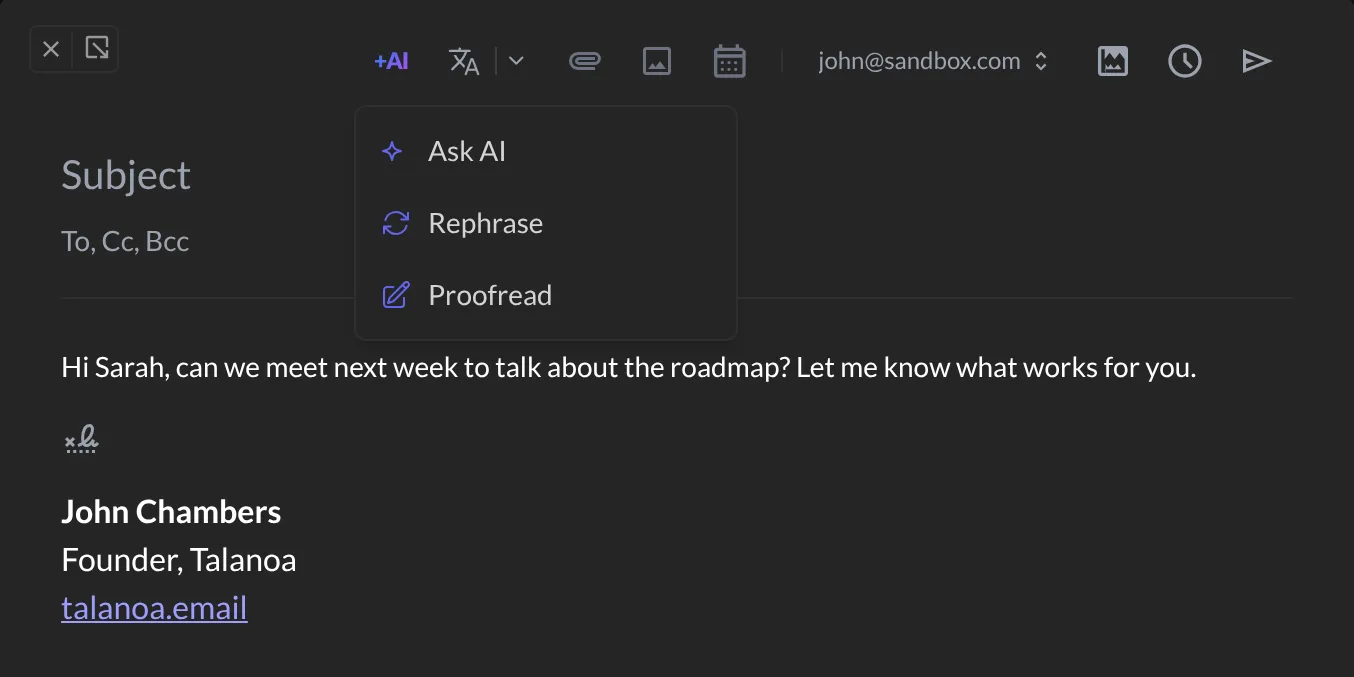
- Rephrase: rewrites your email so it reads more smoothly, and keeps what you meant.
- Proofread: fixes spelling, grammar and clumsy sentences. Nothing more.
- Ask AI: tell the AI exactly what you want (see Step 3).
A few seconds later, your email is updated, and a bar says AI updated this email. Don’t like it? Click Restore original and your own words come back, untouched.
Step 3: Ask for exactly what you want
Click +AI, then Ask AI. A box opens next to your email.
- Type what you’d like, in plain words: make it shorter, add a thank-you at the end, sound less stiff.
- Want a certain feel? Click Tone and pick Professional, Friendly, Casual, Confident, Concise or Persuasive.
- Press
Enter.
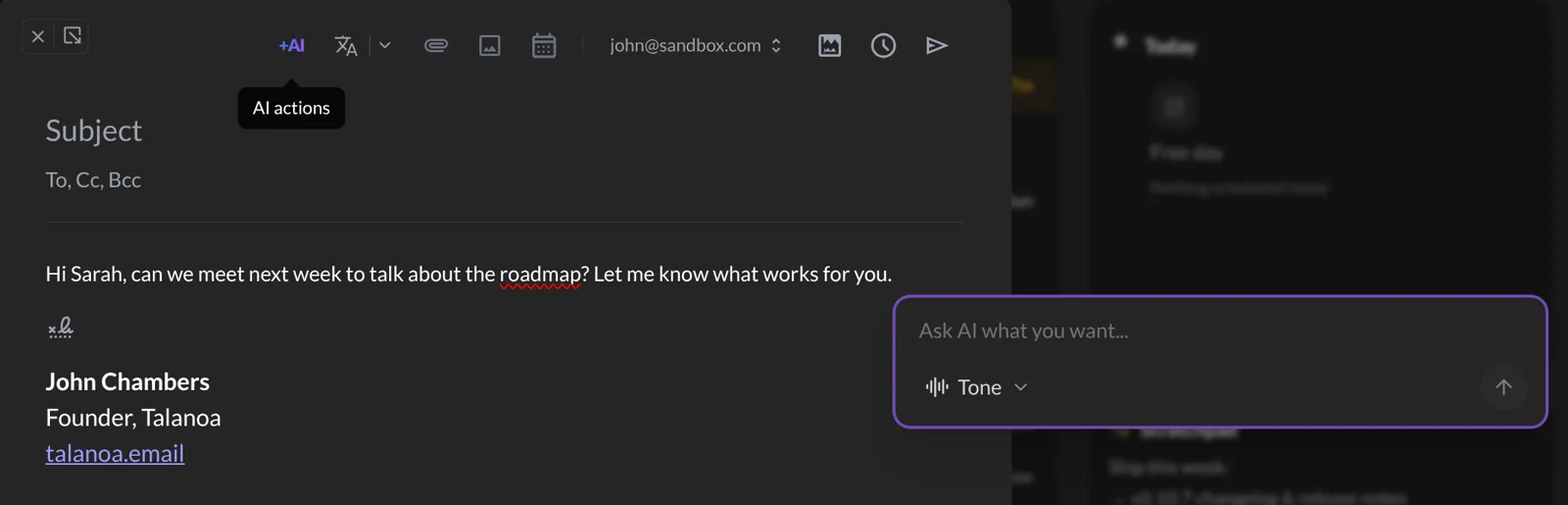
Tip: Concise is the magic word when your email has become a novel.
Step 4: Let the AI keep writing
Stuck in the middle of a sentence? Type / in your email. The menu that opens has an AI section:
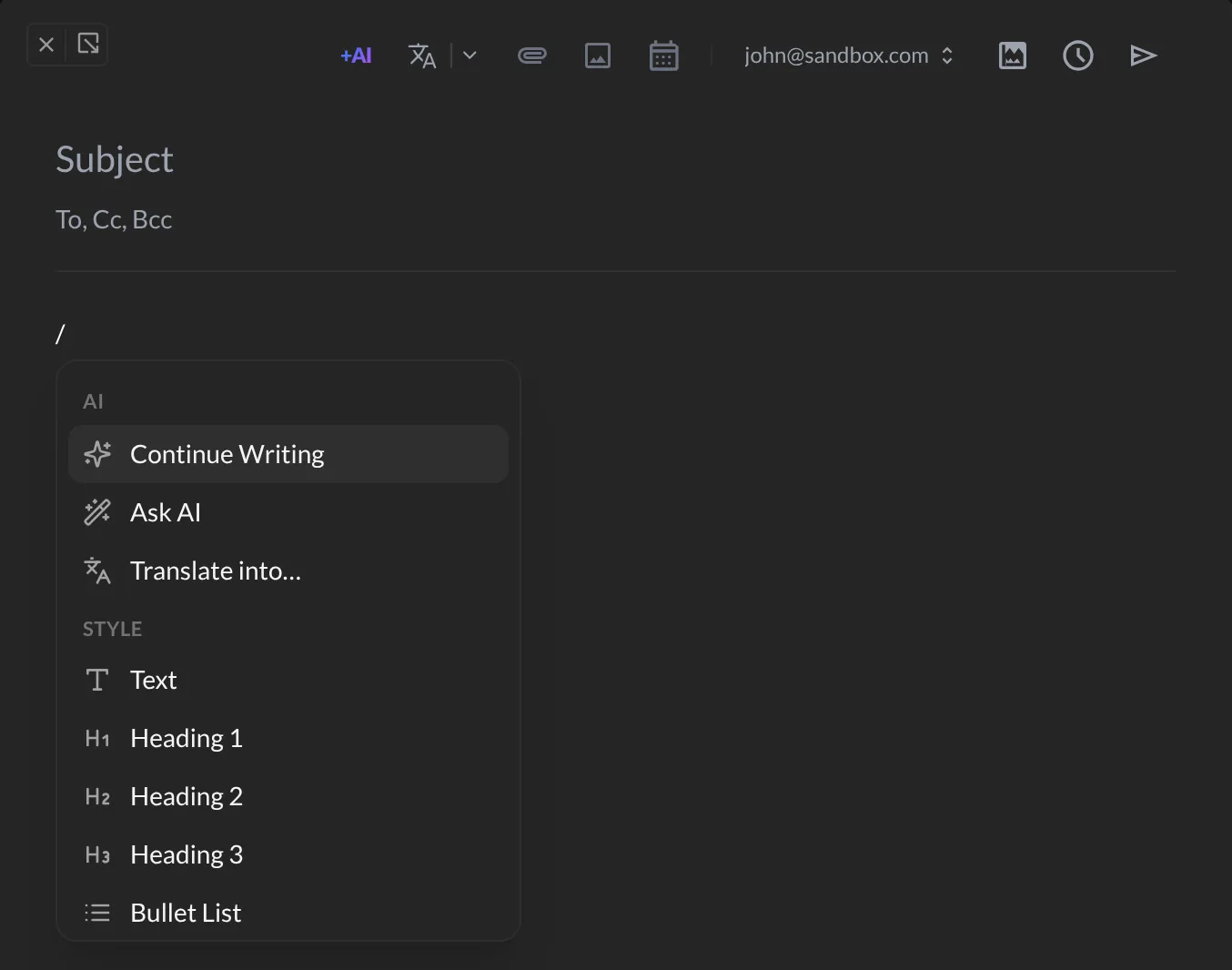
- Continue Writing: the AI picks up where you stopped.
- Ask AI: the same box as in Step 3.
- Translate into…: turns your email into another language. More in Summaries & translations.
Bonus: get a reply drafted for you
Open a conversation with a person or a teammate. Under their latest email, click AI Reply.
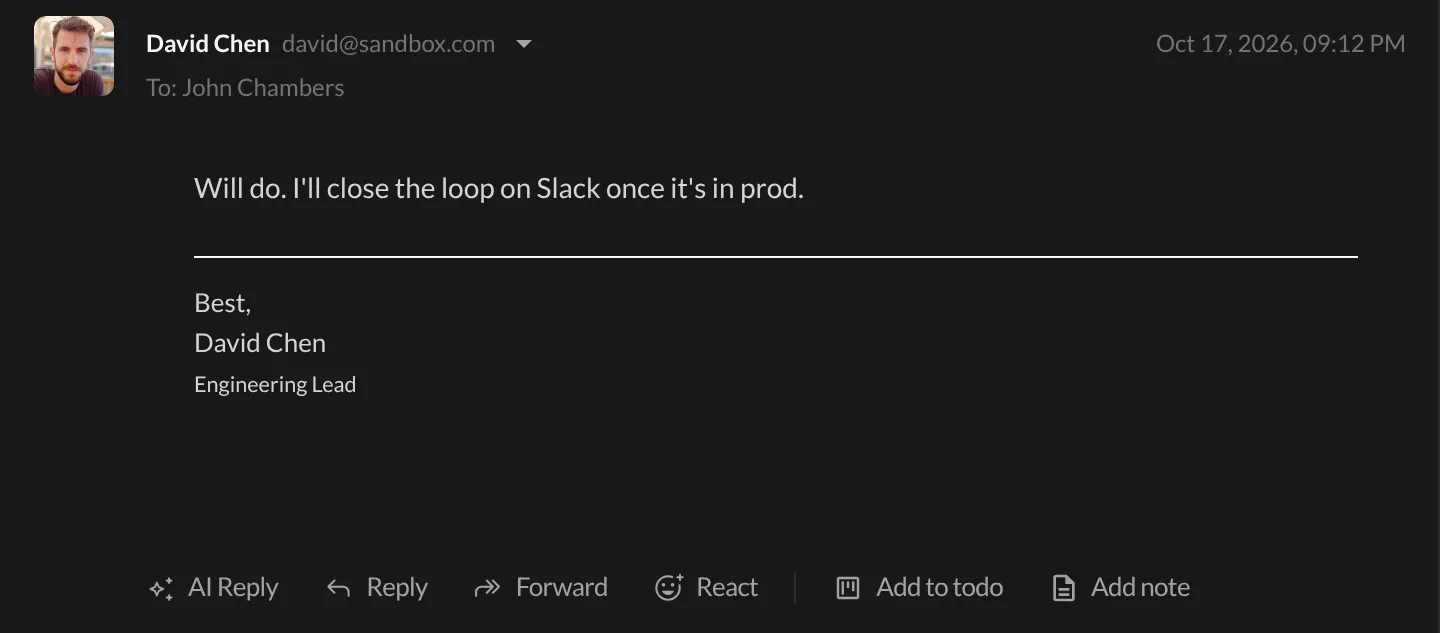
Talanoa reads the conversation and opens a ready-to-edit reply. Read it, change what you want, and send. 🎉
You’ll find AI Reply in the classic view of a conversation. If your conversation looks like chat bubbles, press V to switch.
It can sound like you. In Settings → AI, Writing style lets Talanoa read a few of your sent emails and learn how you write. Your drafts then sound like you, not like a robot.
Something went wrong?
“Clicking +AI shows a little tour instead of the menu.” AI isn’t set up yet. Click Set up AI (or Upgrade to Pro on the free plan) and follow Private AI that stays on your computer.
“It says Write something in the email body first.” The AI needs at least a few words to rephrase or proofread. Write a first version, even a messy one.
“It says AI processing failed.” Make sure your AI model has finished downloading in Settings → AI, then try again.
Still stuck? Write to us at [email protected]. A real human will answer.
