How to connect your Google or Outlook calendar
Bring your Google or Outlook calendar into Talanoa, pick which calendars you see, and give each one the color you like.
- Time needed
- About 2 minutes
- What you need
- Talanoa Pro, and a Google or Outlook calendar
Your emails and your meetings, side by side 📅
Most emails end with “When are you free?”. So it’s nice when your calendar lives right next to your inbox, instead of in another tab you keep losing.
Once your calendar is connected, Talanoa can show your day, let you answer invitations in one click, and help you find a good time to meet. Talanoa works with Google Calendar and Outlook Calendar.
Connecting a calendar is a Talanoa Pro feature.
The calendar is still in beta. It works well, but a few things may still feel a little new. If something looks odd, tell us at [email protected].
Step 1: Open the calendar settings
- Open Settings: press
Cmd+,on Mac,Ctrl+,on Windows and Linux. (You can also click the gear at the bottom left, then Settings.) - Click Calendar Accounts in the list on the left.
Step 2: Add your calendar
- Click Add calendar.
- Pick your calendar:
- Google Calendar for Gmail and Google Workspace.
- Outlook Calendar for Outlook.com, Hotmail and Microsoft 365.
- Your web browser opens. Sign in, and say yes when Google or Microsoft asks if Talanoa may see your calendar.
- Go back to Talanoa.
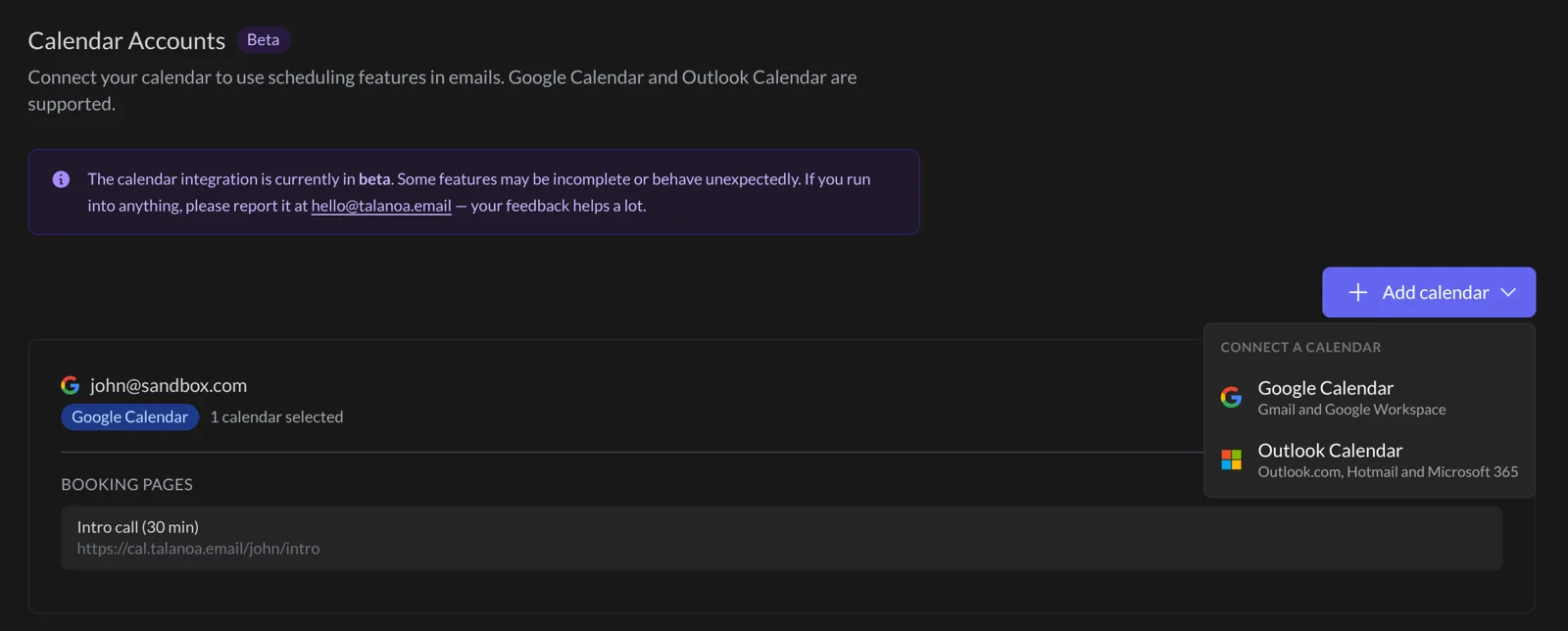
And… that’s it! 🎉 Your calendar now shows up under Calendar, at the top of the window. You can also jump there with G then C.
You can connect more than one calendar account. Each one gets its own card in Calendar Accounts, with a Remove button if you change your mind.
Step 3: Choose which calendars you see
One account often holds several calendars: yours, your team’s, a shared family one, the birthdays nobody asked for…
- Go to Calendar.
- Click Calendars at the top right.
- Click a calendar’s name to hide it or show it again.
Hidden calendars just step out of view. Nothing is deleted.
Step 4: Give each calendar its color
In the same Calendars menu, click the little colored dot next to a calendar. A row of colors opens.
- Click a color to use it.
- Click the pipette to pick any other color you like.
- Click the round arrow to go back to the calendar’s own color.
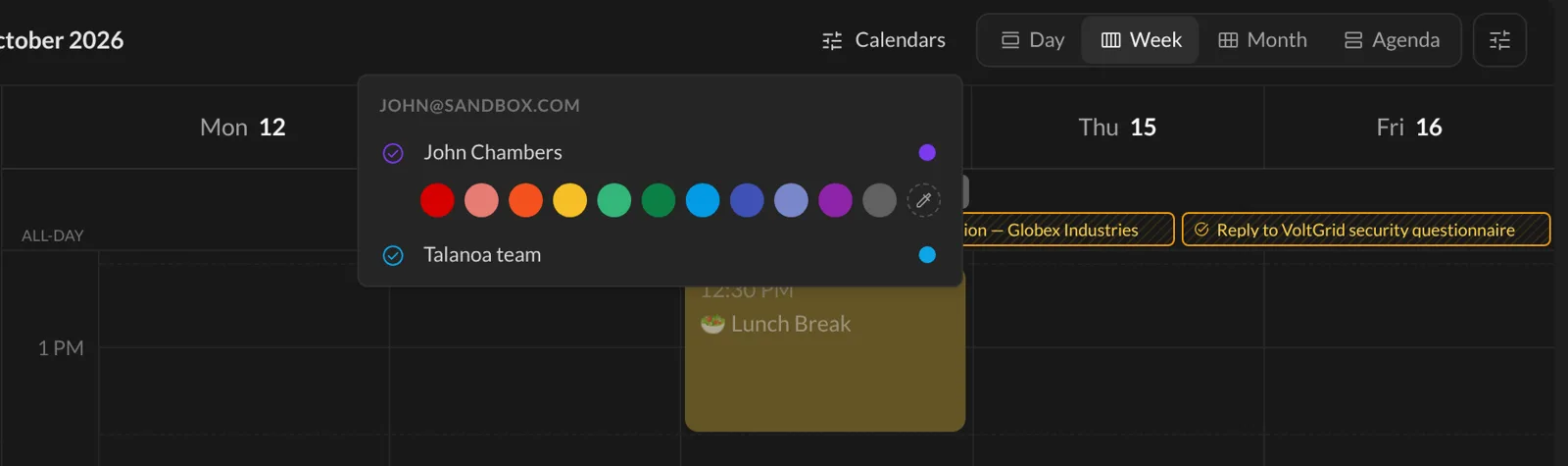
Your team calendar in blue, your personal one in green. Your week suddenly looks a lot more organized. (Even if it isn’t.)
Good to know
- Booking pages. Under each calendar account, Booking pages lets you save links like Calendly, Cal.com, Google Appointment or Microsoft Bookings with Add URL. You can then drop them into an email in one click. See Suggest meeting times inside an email.
- Your calendar stays where it is. Talanoa reads and updates your Google or Outlook calendar directly. Change an event in Talanoa, and you’ll see the change on your phone too.
Something went wrong?
“Clicking Add calendar asks me to upgrade.” Calendar accounts are part of Talanoa Pro.
“I closed the browser page by mistake.” No harm done. Click Add calendar again and start over.
“A calendar is missing in the Calendars menu.” Check that you connected the right account (the email is written above its calendars). If you used a different account for your calendar than for your email, add that one too.
Still stuck? Write to us at [email protected]. A real human will answer.
