How Talanoa sorts your emails
Talanoa puts people first. Your teammates, the people you know and the robots that send you notifications each get their own place, so the emails that matter never get buried.
- Time needed
- About 4 minutes to read
- What you need
- Talanoa, with at least one email account connected
People first, robots second 🙋
Most inboxes are one long pile. A message from your best friend sits between a pizza coupon and a password reset. Everything shouts at the same volume.
Talanoa does something different. It looks at who sent each email, and puts that person in the right group. Think of a school cafeteria: your team sits at one table, your friends at another, and the noisy announcements stay on the bulletin board by the door.
There are three main groups:
- Teammates: people who work with you. If your address is
[email protected], everyone writing from@acme.comlands here. (People writing from Gmail, Outlook or iCloud addresses don’t count as teammates, of course. Half the planet uses those.) - People: real humans who write to you. Friends, clients, your aunt, the plumber.
- Notifications: emails sent by machines. Newsletters, receipts, “your package has shipped”, alerts from apps you use. Talanoa spots them by their little robot habits, like a “no-reply” address or an unsubscribe link.
Talanoa does all of this by itself, on your computer, the moment an email arrives. You don’t have to set anything up.
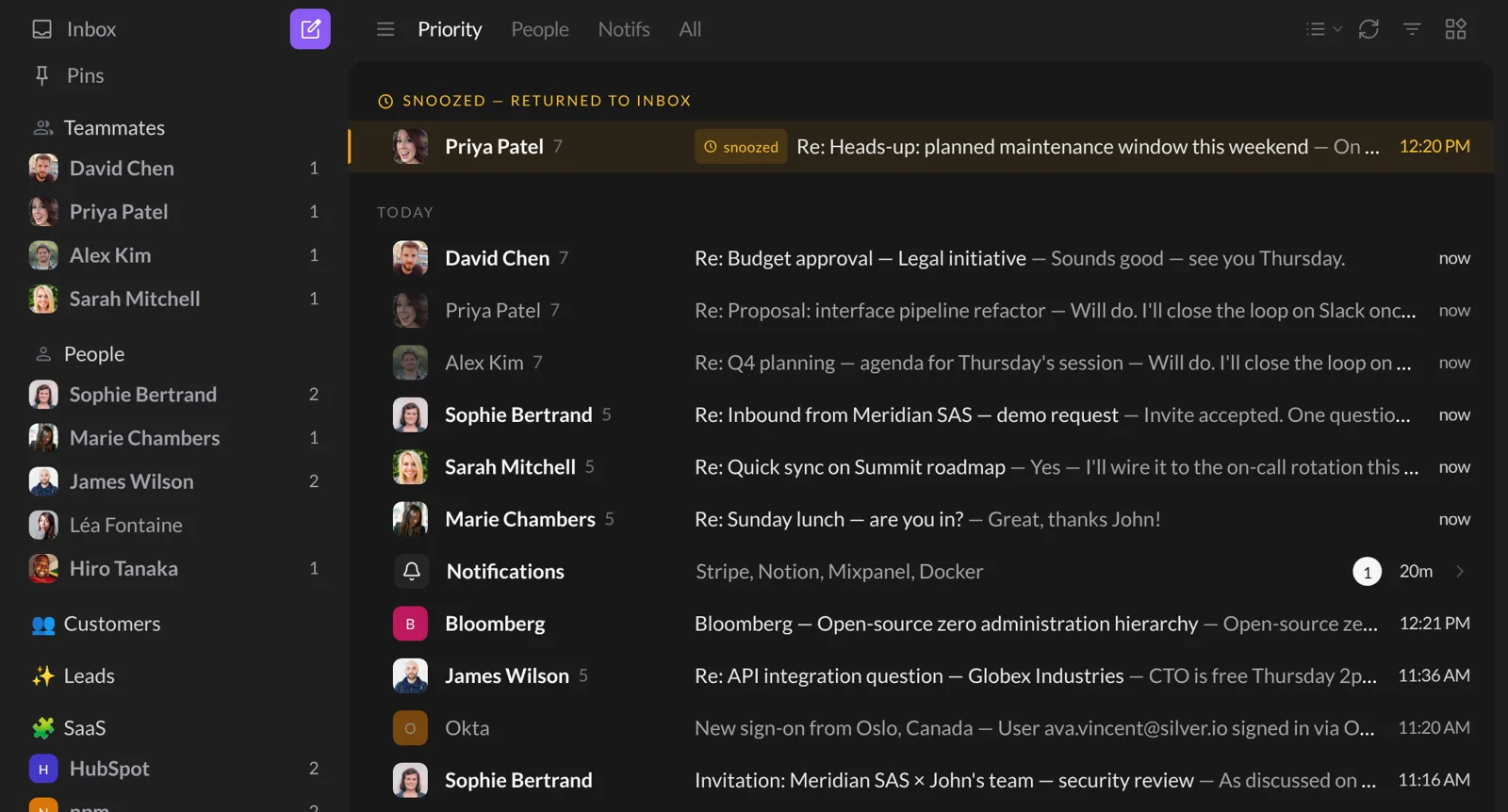
The four tabs at the top of your inbox
Open your Inbox and look at the top. You’ll see four words. Click one to change what you see:
- Priority: everything that matters. All your emails, except notifications. Teammates always show up here. The notifications aren’t gone: they’re folded into a single Notifications row, placed where the newest one arrived. Click that row to see them all.
- People: only emails from real humans, teammates included.
- Notifs: only the robots. Perfect for a quick tidy-up, coffee in hand.
- All: everything, in order, like a classic inbox.
Most people live in Priority and visit Notifs once or twice a day. That’s the whole idea.
The list of senders on the left
The left sidebar shows your groups as lists of senders, not emails. Under Teammates, People, your own sections and Notifications, you see names. A number next to a name means unread emails from that person.
Click a name to see every conversation with that person, in one place.
To keep the sidebar tidy, each group only shows a few senders. You can change that:
- Move your mouse over the name of a group (for example People).
- Click the ⋮ button that appears.
- Under Filter, choose what to list: All, Only unread, or In inbox (the default, which hides senders whose emails are all archived).
- Under Limit, choose how many senders to show: Max 3, Max 5 (the default), Max 10, Max 25 or Max 50.
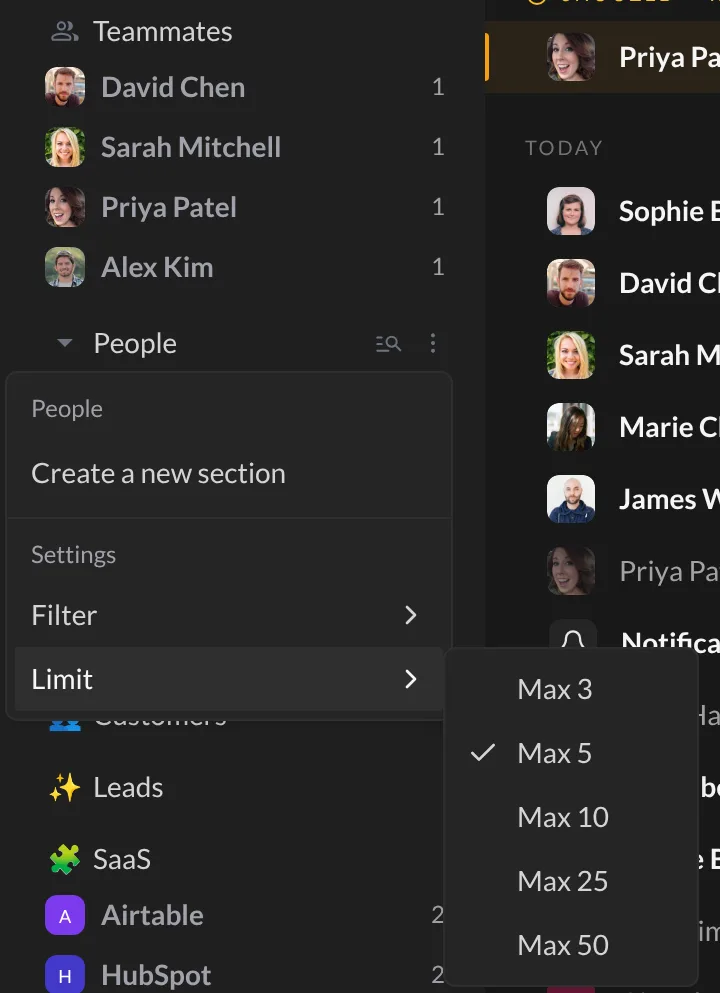
Looking for someone who isn’t listed? Click the magnifying glass next to the group name. You’ll get More conversations (a few extra names) and See all, which opens the full list with a search box. You can also click the group name to fold it away.
Move a sender to another group
Talanoa guesses right most of the time. But it’s a guess, like a waiter seating you at a table. If someone lands in the wrong place, move them. Two ways:
If you like dragging: grab the sender’s name in the sidebar and drop it on another group. The group lights up with a dotted border when you’re over it. You can also drag an email from your inbox list onto a group.
If you prefer menus:
- Click the sender’s name in the sidebar.
- On the right, under More, click Move to section.
- Pick the new home, for example Move to People or Move to Notifications.
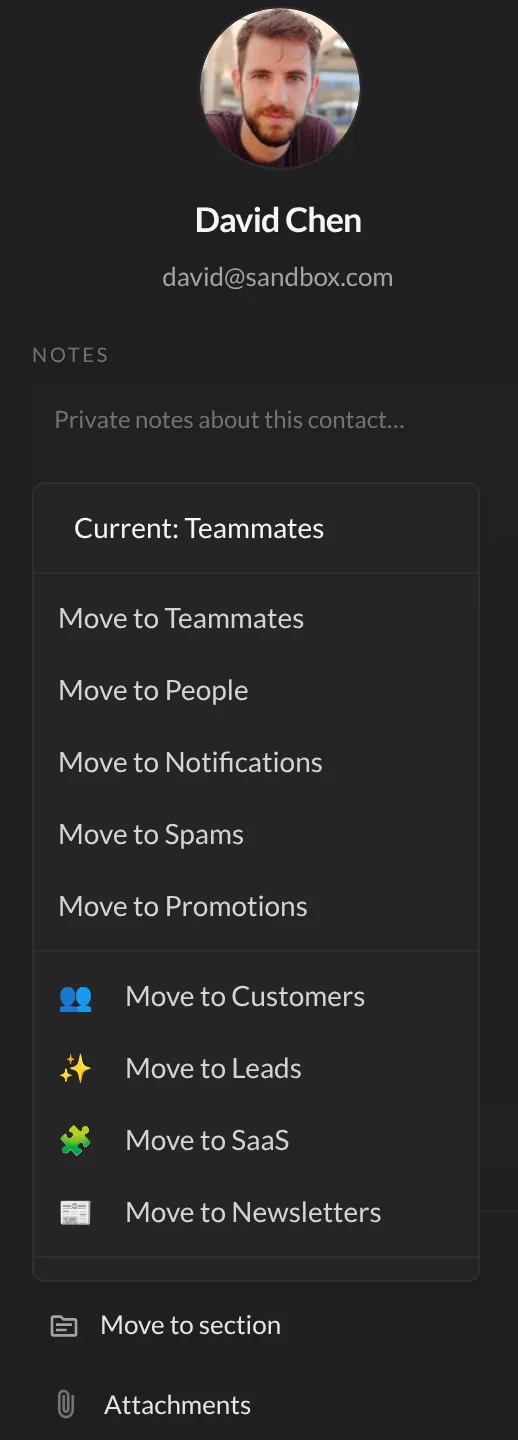
Talanoa moves all their past emails, and remembers your choice for the future. Their next email goes straight to the right place. You only have to tell it once.
You can also make your own groups. “Clients”, “Family”, “Kids’ school”… See Create your own sections.
Questions you might have
“Where did my newsletters go?” They’re in Notifications. Click the Notifs tab at the top of your inbox, or the Notifications row inside Priority.
“A friend ended up in Notifications.” It happens, especially with people writing from company tools. Drag their name to People, or use Move to section. Talanoa will remember.
“I see the same person in Teammates, but they’re not my colleague.” They probably share your email domain. Move them to People, and that’s settled.
“There’s a Spams and a Promotions option in the move menu. What are they?” Those are two extra drawers for unwanted mail. They don’t show in the sidebar. You’ll find Spam and Promotions in the menu at the top left of your inbox (the three little lines).
Still stuck? Write to us at [email protected]. A real human will answer.
