How to share an email with a secure link
Send someone a link to one email instead of forwarding it. It's locked so tight that not even Talanoa can read it.
- Time needed
- About 1 minute
- What you need
- Talanoa, and an email you want to show someone
Show an email without forwarding it 🔗
Sometimes you want someone to see an email: a booking confirmation for your partner, a message for your accountant, a funny reply for a friend. Forwarding works, but it puts the email in one more inbox forever, and your friend gets a long “Fwd: Fwd:” mess.
With Share, you get a link instead. Whoever opens it reads the email in their browser. They don’t need Talanoa.
And it’s locked. Talanoa locks the email on your computer before it leaves, and the key is hidden inside the link itself. Think of a padlocked box sent by mail, with the key taped to the invitation card. The mail carrier (us) only ever sees the box.
Not even Talanoa can read it. The key only lives in the link. Anyone with the link can read the email, so share it only with people you trust.
Step 1: Click Share
- Open the email you want to share.
- Move your mouse over the top of the message. Small buttons appear.
- Click the link icon, Share.

In a chat-style conversation, Share is in the More actions menu of each message bubble.
Step 2: Choose how long the link works
The Share this email window opens.
- Under Link valid for, choose 1 day, 7 days, 30 days or Always.
- If the email quotes older messages (a reply, for example), choose What to share: This email only, or This email and the earlier messages quoted in it.
- If the email has attachments, only their names are shared by default. Tick the Include the attachments box (it shows how many files and their size) to send the files too. They’re locked just like the email.
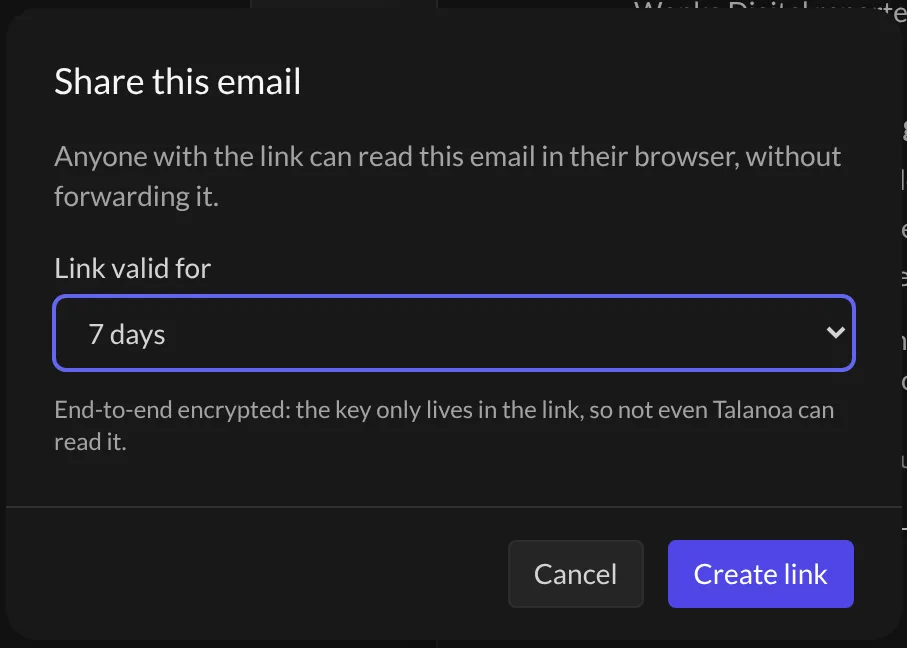
Step 3: Create and send the link
- Click Create link.
- Talanoa says Link created and copied. The link is already in your clipboard.
- Paste it into a message, a chat, wherever you like.
And… that’s it! 🎉 Your friend clicks, reads, done. No forwarding, no clutter.
Stop sharing
Changed your mind? You can switch off a link at any time.
- Open the same email and click Share again. Your links appear under Active links, with how many times each one was opened.
- Click Disable link (the broken-link icon) next to the one you want to stop.
The link stops working right away. To see every email you’ve ever shared, open Shared in the sidebar (or type “Shared” in the command palette, Cmd+K). On a shared email, the Share icon turns purple with a little dot, Shared with a link, so you know it’s out there.
Good to know
- A link with attachments lasts 30 days at most.
- Attachments can be up to 25 MB per file and 50 MB in total.
- You can share the same email several times, with different durations.
Something went wrong?
“It says the email is too large to share.” Very big emails can’t be shared as a link. Forwarding is your friend here.
“I can’t tick the Include the attachments box.” The files are too big (more than 25 MB each, or 50 MB together). Share the email without them, or send the files another way.
“It says it could not reach my Talanoa account.” Sharing needs an internet connection. Check you’re online, then try again.
“It says I created a lot of links today.” There’s a daily limit to keep things fair. Try again tomorrow.
Still stuck? Write to us at [email protected]. A real human will answer.
