Private AI that stays on your computer
Set up Talanoa's AI: it runs right on your computer, so your emails never leave it. Here's how to choose and download your model.
- Time needed
- About 5 minutes, plus the download
- What you need
- Talanoa Pro, and a computer with at least 8 GB of memory for the local AI
A brain that lives in your computer 🧠
Most AI tools work like a pen pal far away: you mail them your text, they read it on their computers, and they send an answer back. Your emails go on a trip.
Talanoa does it differently. It downloads a small AI into your computer. When it summarizes, rephrases or translates an email, all the thinking happens right there, on your desk. Nothing is sent out. Not to us, not to anyone.
It’s the difference between asking a stranger to read your diary, and having a very smart notebook that never leaves your drawer.
The AI features are part of Talanoa Pro, and they’re still in beta.
Step 1: Open the AI settings
- Open Settings: press
Cmd+,on Mac,Ctrl+,on Windows and Linux. - Click AI in the list on the left.
Step 2: Let Talanoa check your computer
Talanoa takes a quick look at your machine: its processor, its cores and its memory. A few seconds, a bit like a doctor’s check-up, minus the cold stethoscope.
If it says “Your machine can run AI privately, on-device”: click Continue with Local AI.
If it says “This machine isn’t a fit for local AI”: your computer is a bit too small for it. Click Continue to use another AI instead (see Good to know below).
Step 3: Pick and download your AI model
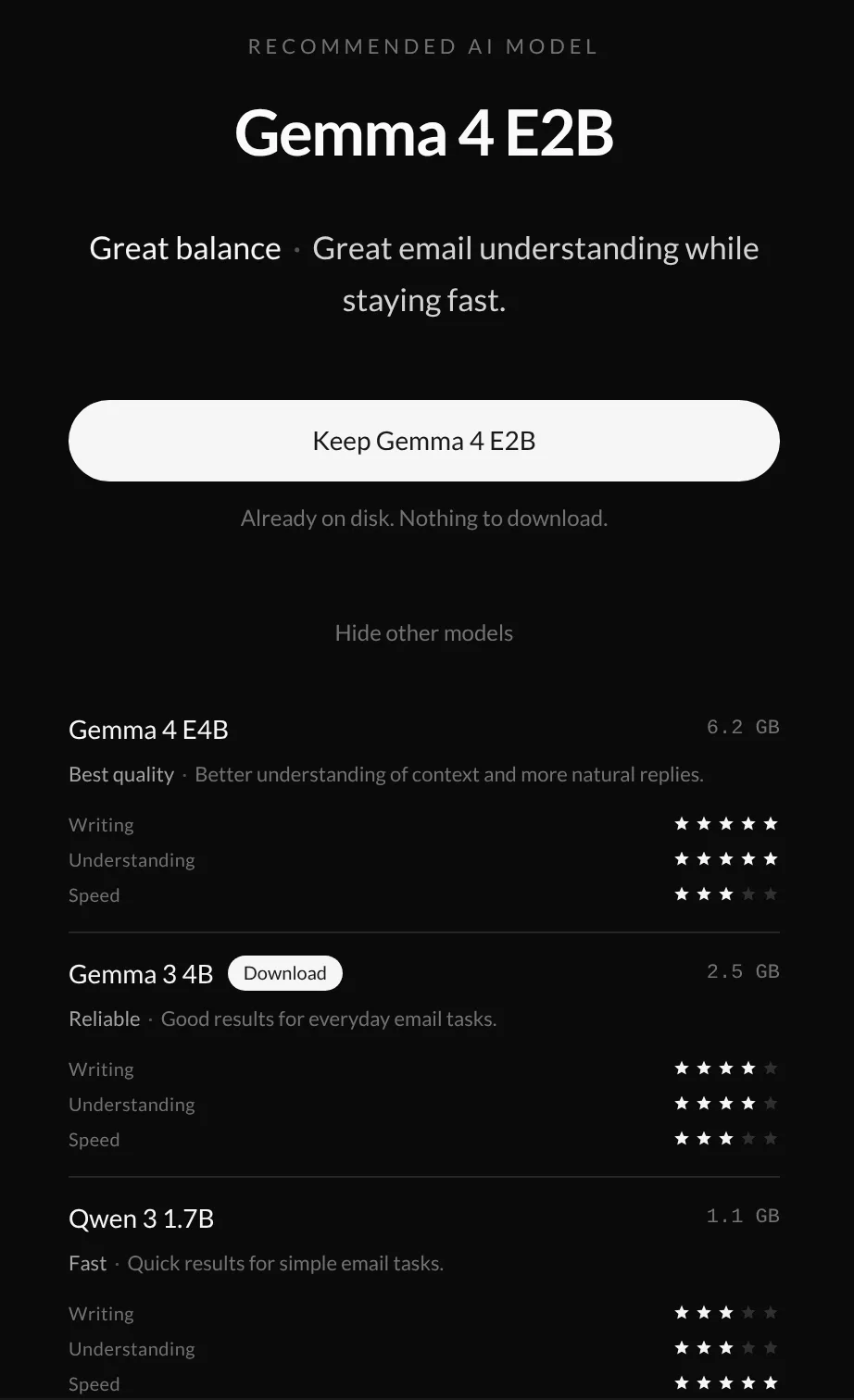
Talanoa shows the Recommended AI model: the best one your computer can run comfortably.
- Click Download.
- Click Continue. The download keeps going in the background, so you can finish the setup meanwhile. Talanoa tells you when the model is ready.
Curious? Click See other models. Each one shows its size and three little star ratings: Writing, Understanding and Speed. Bigger models write better. Smaller ones are faster and take less space (from about 1 GB to about 6 GB).
Step 4: Two little extras
Talanoa then asks two quick questions. You can say no to both and change your mind later.
- Translate? Click Enable translation and pick the languages you read. See Summaries & translations.
- Your voice? Click Analyze my inboxes. Talanoa reads 10 emails you sent from each inbox and writes a short guide, so AI drafts sound like you. Still on your computer, of course.
And… that’s it! 🎉 Your AI is ready. Try AI writing help, Summaries & translations or Ask AI.
Change things later
Come back to Settings → AI whenever you want. You’ll find:
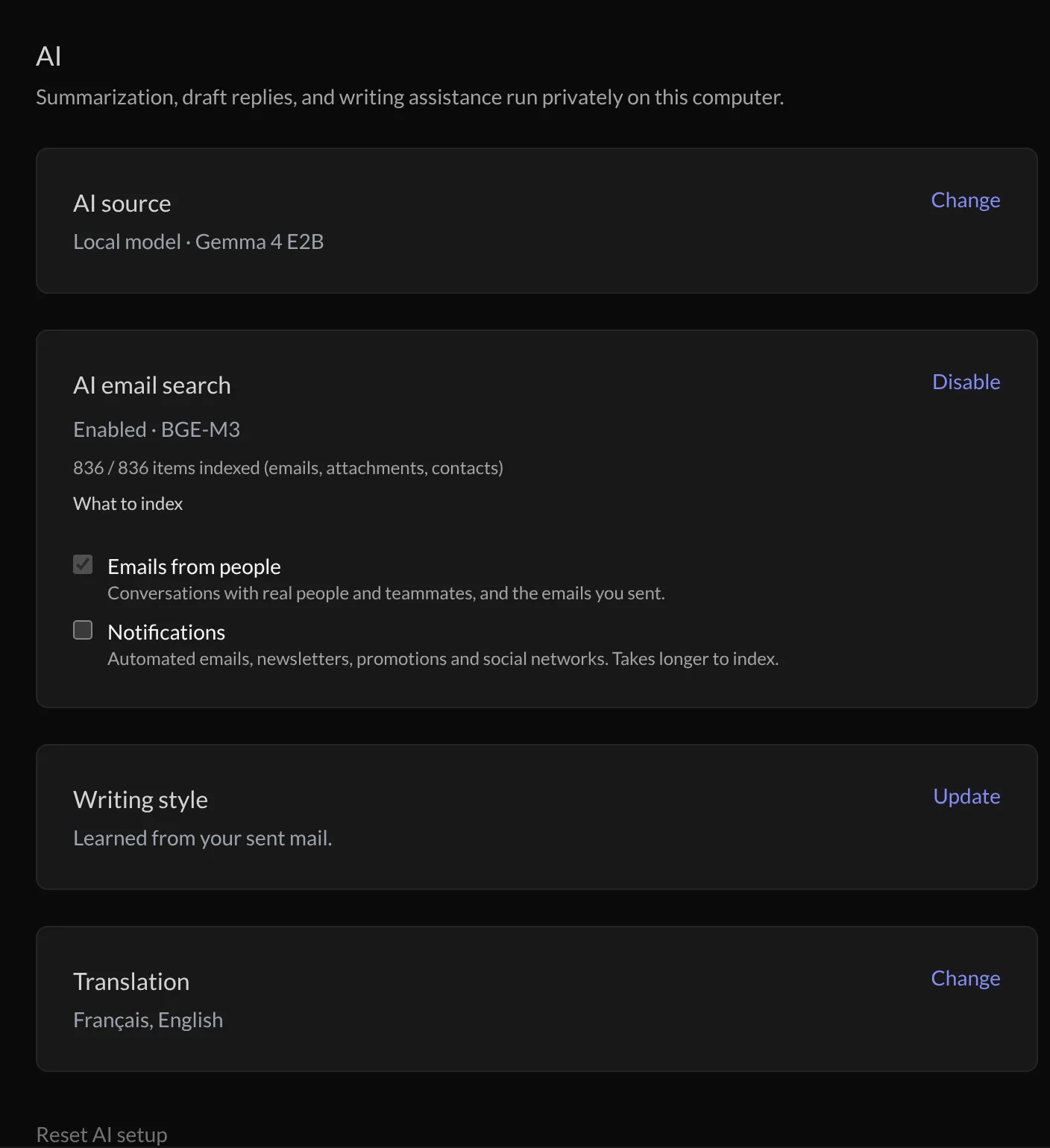
- AI source: the model you use. Click Change to pick another one.
- AI email search: the search helper behind Ask AI, and what it reads.
- Writing style: click Update to see or edit the guide, or run a fresh analysis.
- Translation: your languages.
- Reset AI setup: start everything over.
Good to know
Already pay for an AI like Claude, ChatGPT or Gemini? In Step 2, you can click No, I prefer using my AI CLI (Claude, ChatGPT, …). Talanoa then uses that AI’s helper app installed on your computer, and shows you how to install it. In this case, your emails do travel to that AI company. But Talanoa removes names and addresses first, a bit like blacking out a letter before showing it around.
- Your computer works hard for a moment. Writing a summary uses your computer’s power for a few seconds. That’s the price of privacy, and usually a fair one.
Something went wrong?
“I see Upgrade to Pro instead of the setup.” AI features are part of Talanoa Pro.
“The download is taking forever.” Models are big files (up to about 6 GB). Keep Talanoa open and keep going: it downloads in the background. A smaller model from See other models downloads faster.
“AI answers are slow or not very good.” Try another model in AI source → Change. Pick a faster one if it’s slow, a stronger one if the writing isn’t great.
Still stuck? Write to us at [email protected]. A real human will answer.
