How to find any attachment
Every file anyone ever sent you, in one place. Preview it, download it, or jump back to the email it came with.
- Time needed
- About 1 minute
- What you need
- Talanoa, and a file you're trying to find
Your files, all on one shelf 📎
“Can you send me that PDF again?” Never again.
Talanoa puts every attachment from every email on one big shelf. Photos, PDFs, spreadsheets, documents. You don’t need to remember which email they came with. You just look at the shelf.
Step 1: Open the Attachments view
- In your inbox, click the ≡ menu at the top left of your email list.
- Click Attachments.
Tip: click the ☆ next to Attachments in that menu to keep it as a favorite, so it’s always one click away.
Step 2: Pick your view
At the top right, you have two buttons:
- List view: one file per line, with its size and date. Simple and compact.
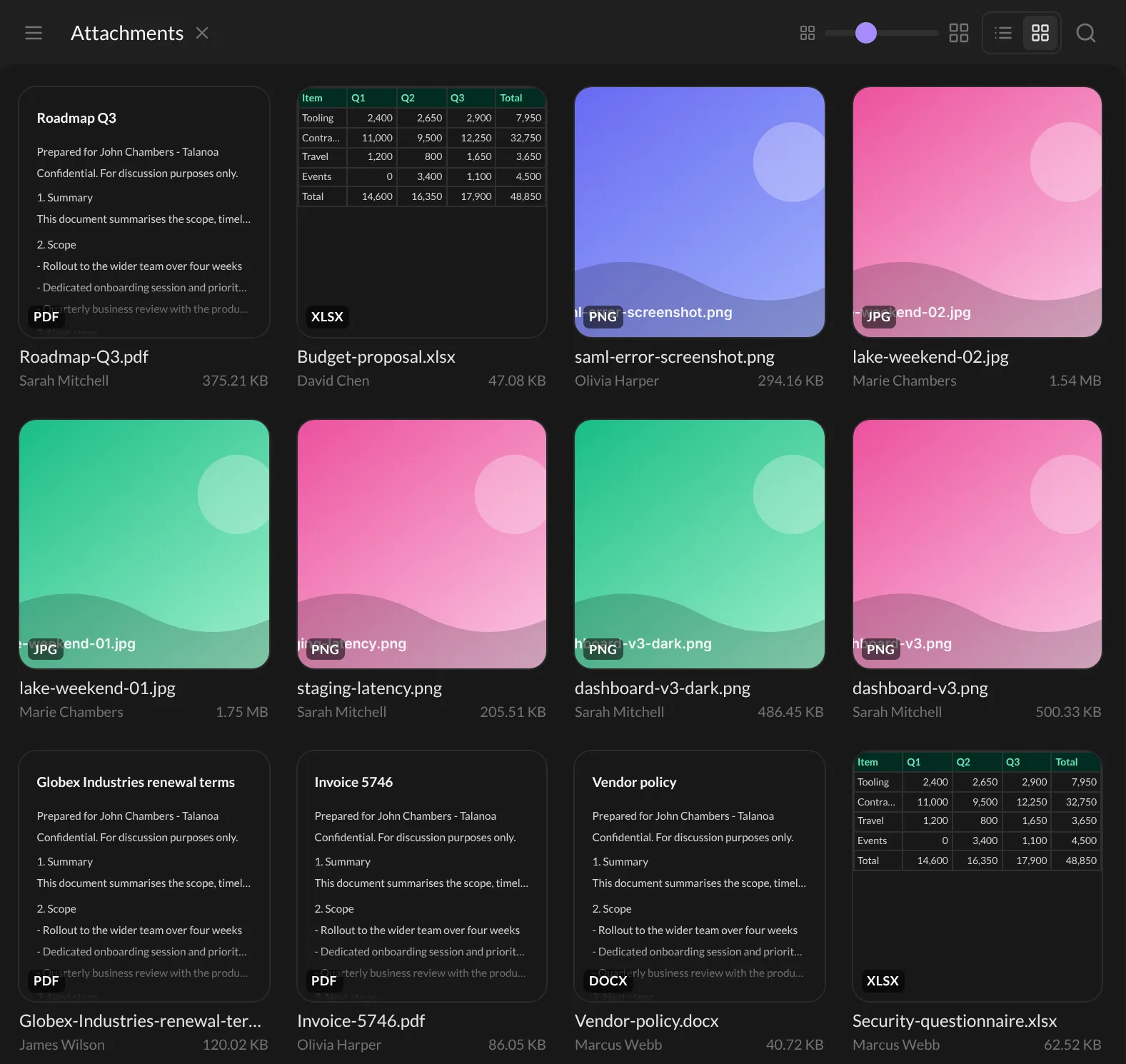
- Gallery view: big thumbnails, so you can see what’s inside each file before opening it.
In the gallery, slide the Thumbnail size slider to make the pictures bigger or smaller. Talanoa remembers your choice.
Step 3: Find the right file
- Click the magnifying glass (Search attachments) at the top right.
- Type part of the file name, like “invoice” or “roadmap”.
- The list updates as you type.
Want only the files from one person? Click their name under a file. Talanoa shows only what that person sent you.
Step 4: Open, preview or download
In the gallery: click a thumbnail to see it big, right inside Talanoa. Use the arrows (or the ← and → keys) to flip through your files. At the top you’ll find:
- Open email to jump to the email the file came with.
- Quick Look to open it with your computer’s own previewer.
- Download to save it on your computer.
PDFs, Word documents, spreadsheets, text files and images all open right there. Press Escape to close.
In the list: hover over a line to see Quick Look and Download. Click the line itself to open the email. Click the file name to download it.
And… that’s it! 🎉 The PDF is found. Nobody had to send it twice.
Files from one person
You can also see everything a single person sent you:
- Click their name in the left sidebar to open your conversation with them.
- In the panel on the right, under More, click Attachments.
A panel slides in with Attachments from their name. Learn more about that panel in Your contacts & sender history.
Something went wrong?
“A file I know I received isn’t there.” If the email is very old, Talanoa may not have brought it to your computer yet. Search for the email and use Search on the email server. Open the email from there and you’ll find its attachment inside.
“The preview says it can’t show this file.” Some file types can’t be previewed inside Talanoa. Click Quick Look or Download to open it with another app.
Still stuck? Write to us at [email protected]. A real human will answer.
