How to write a new email
Open a fresh email, pick who it goes to, write, and send. Talanoa saves your draft as you go and gently catches the classic mistakes.
- Time needed
- About 2 minutes
- What you need
- Talanoa, and something to say
A blank page, ready for you ✍️
Writing an email in Talanoa is like grabbing a fresh sheet of paper. You open it, write your message, and send it on its way.
And Talanoa keeps an eye out for you while you write. It saves your work on its own, and it taps you on the shoulder if you forget a subject or an attachment. A bit like a friend reading over your shoulder, but a polite one.
Step 1: Open a new email
You have two ways:
- Click the pencil button at the top of the left sidebar, next to Inbox. (Hover it and you’ll see Compose new message.)
- Or press
Con your keyboard.
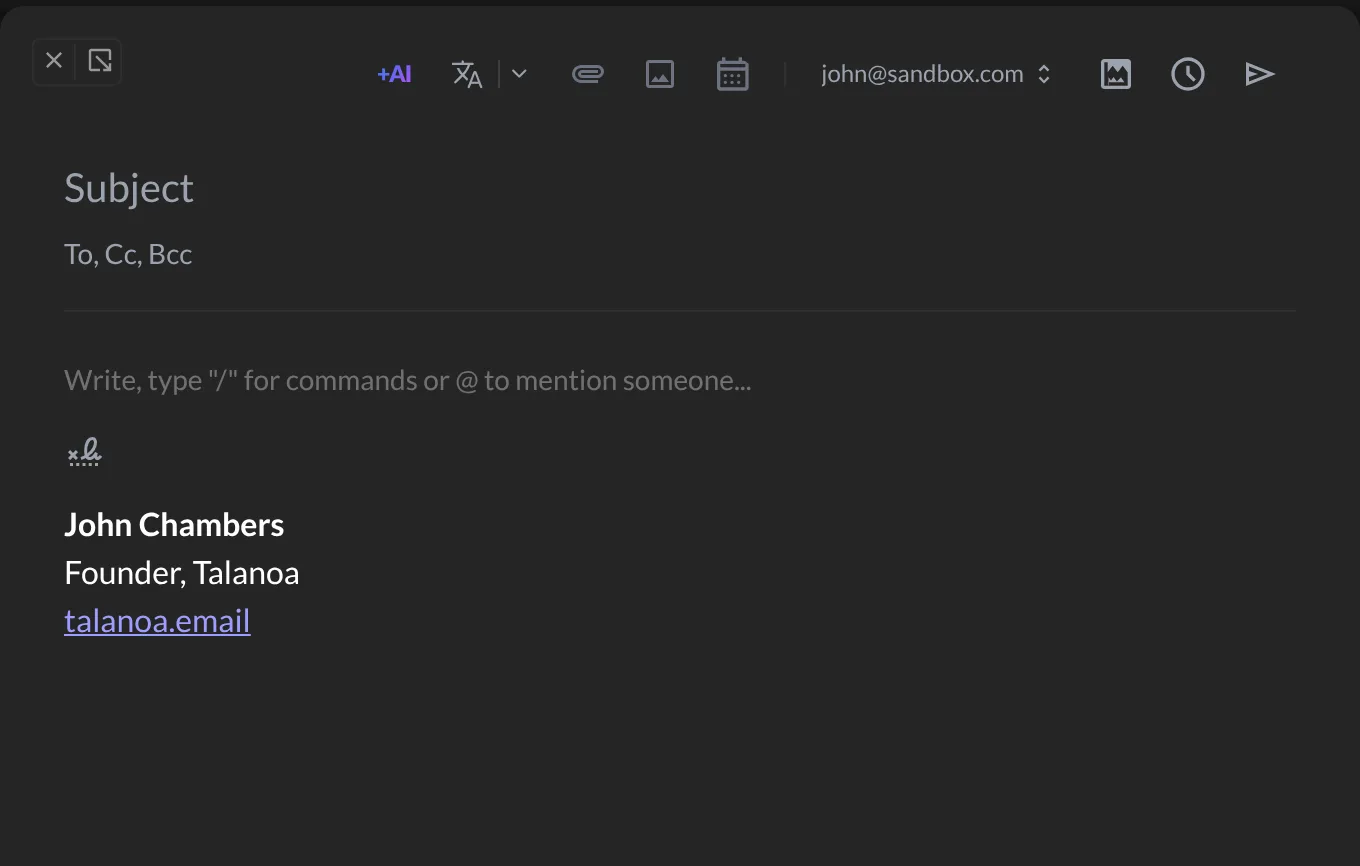
A writing window opens in the middle of the screen.
Step 2: Choose who gets it
- Click To, Cc, Bcc and start typing a name or an email address.
- Talanoa suggests people you already know. Click the right one.
- Want to add more people? Keep typing. Each person becomes a little bubble.
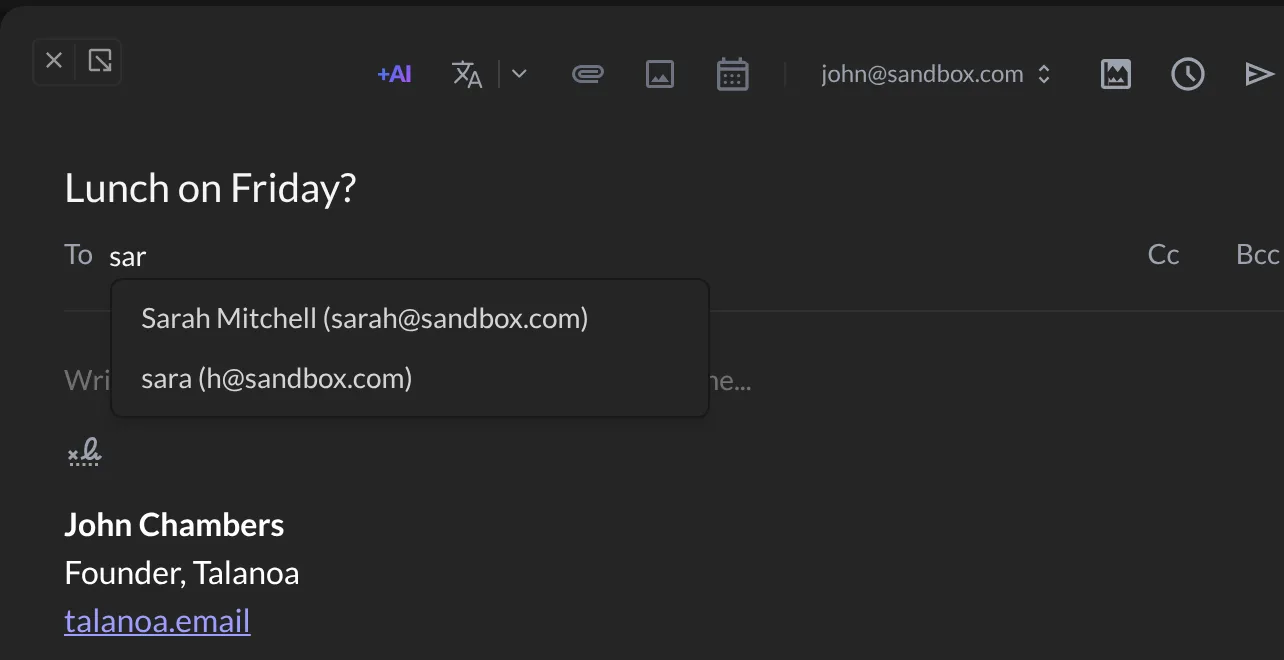
Cc and Bcc sit on the right of that line:
- Cc adds people who can see each other. Think “for your information”.
- Bcc adds people secretly. The others won’t see them.
Put someone in the wrong field? Drag their bubble to another field, or click the little × to remove them.
Step 3: Add a subject and write
- Click Subject and type a short title, like “Lunch on Friday?”.
- Click the big writing area below and write your message.
Your signature is already there at the bottom, if you have one. (See Set up your signatures.)
Step 4: Send it
Click the paper plane button in the top right corner of the window. Or press Cmd+Enter on Mac, Ctrl+Enter on Windows and Linux.
And… it’s on its way! 🎉 You even get a few seconds to change your mind. More about that in Send later & undo send.
Talanoa has your back
Your draft saves itself. A few seconds after you stop typing, Talanoa quietly saves your email. If you close the window with something written, it asks what to do: Save and close draft or Delete draft. You’ll find saved drafts in Drafts.
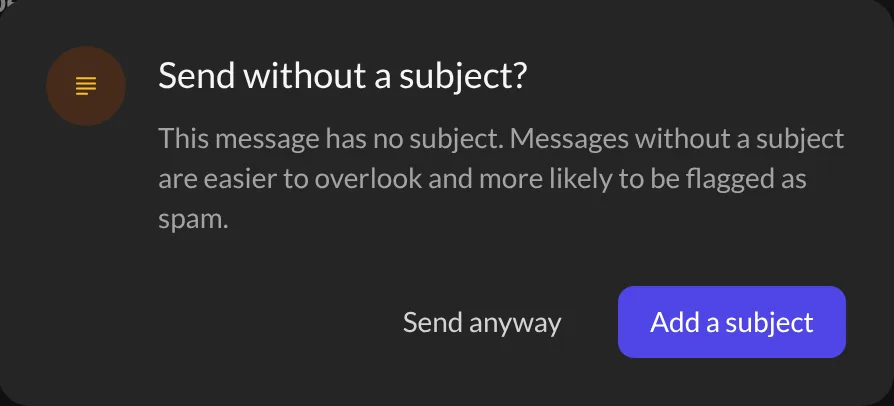
Forgot the subject? Talanoa asks “Send without a subject?” before sending. Emails without a subject are easy to miss, and spam filters don’t like them much. Click Add a subject, or Send anyway if you really mean it.
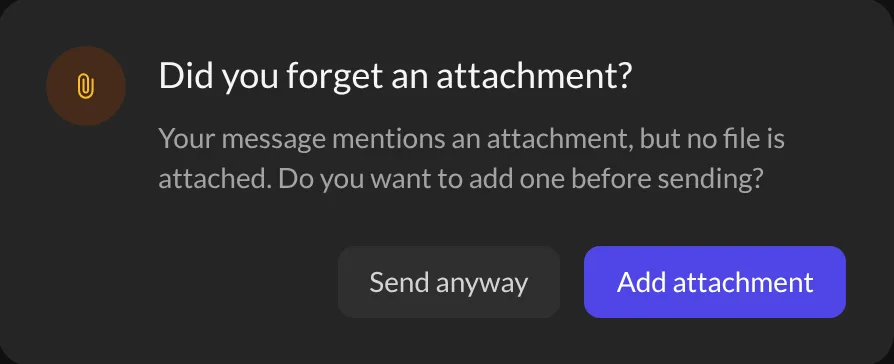
Forgot the attachment? If your email says something like “see the attached file” but nothing is attached, Talanoa asks “Did you forget an attachment?”. Click Add attachment to pick your file, or Send anyway. We’ve all done it at least once.
Tips
- Smaller window. Click the arrow button next to the × (Compact view), or just click outside the email. It shrinks into the bottom right corner so you can keep reading your inbox. Click the arrow again (Full view) to make it big. In small mode, you can drag the window around and resize it from its corner.
- Several emails at once. With one email shrunk in the corner, click the pencil button again. A second email opens right next to it. Click on a window to bring it to the front.
- Send from another address. Your address is shown at the top of the window. Click it to pick another of your accounts.
- Do everything from the keyboard. While writing, press
Cmd+Kon Mac orCtrl+Kon Windows and Linux. A little menu lets you send, send later, insert a template, change the sender, add an attachment, save or delete the draft. - Prefer the “To” field on top? In Settings → General, turn on Recipient field first.
- You can change any shortcut in Settings → Shortcuts. See Keyboard shortcuts & command palette.
Something went wrong?
“Pressing C doesn’t open a new email.” Shortcuts don’t work while you’re typing somewhere else, or when an email window is already open. Click the pencil button instead.
“Talanoa says it couldn’t send my email.” Don’t worry, your email is never lost. It stays in your Drafts and the window opens again so you can try once more. If the problem was just a small hiccup, Talanoa even tries again by itself.
“I closed the window by accident.” If you had written something, look in Drafts. Your email is waiting there.
Still stuck? Write to us at [email protected]. A real human will answer.
