How to choose your layout
Read your emails in a floating window over the list, or side by side with Split View. Pick the one that feels right, and resize everything to your taste.
- Time needed
- About 1 minute
- What you need
- Talanoa
Two ways to read 🪟
Some people like a big list and an email that pops up on top of it. Others like the list on the left and the email on the right, always side by side, like an open book.
Talanoa does both:
- Full width: your list takes the whole space. When you open an email, it slides in as a floating window over the list.
- Split view: the list stays on the left, the open email sits on the right. Perfect on a big screen, and great for going through lots of emails quickly.
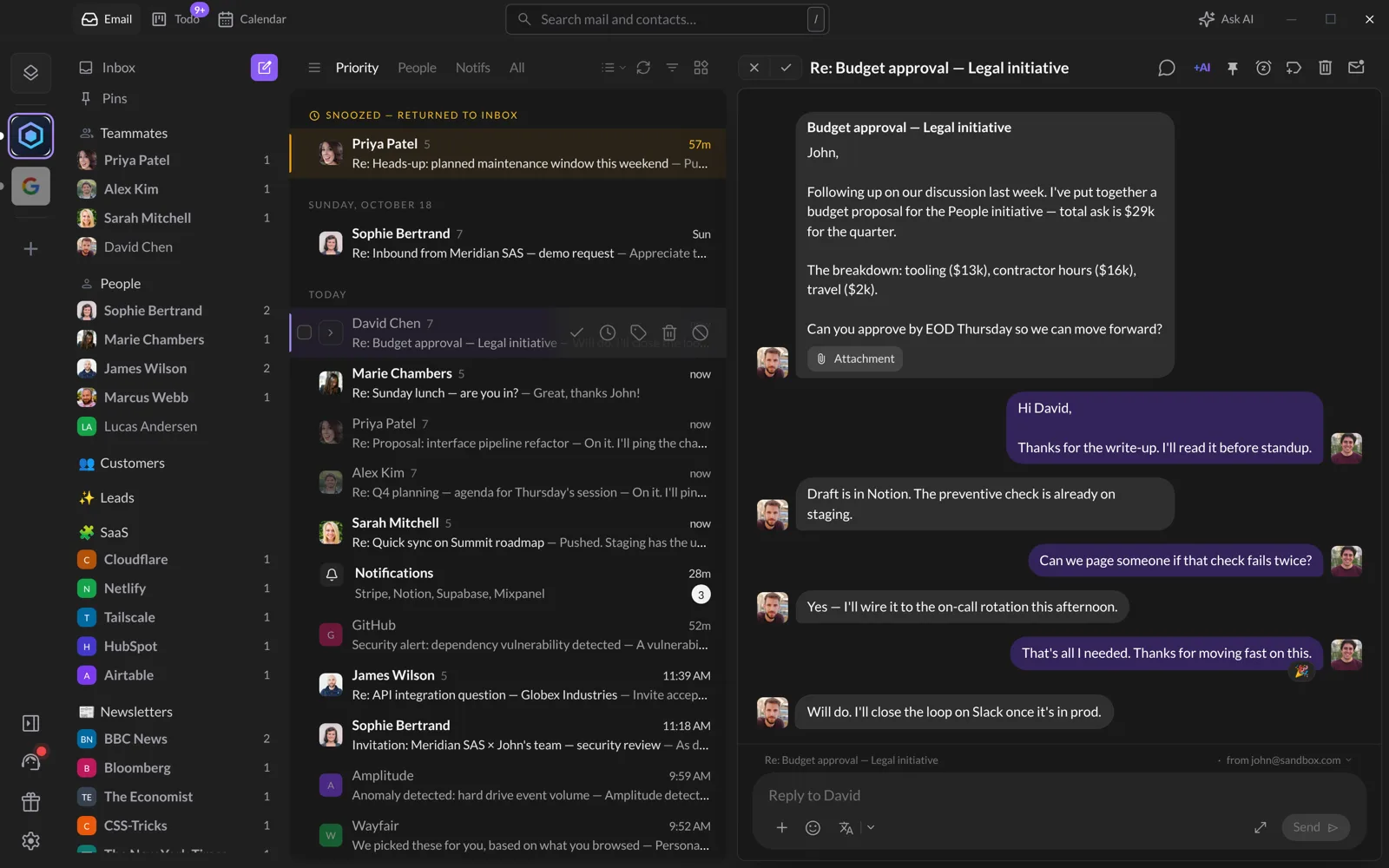
Step 1: Open the layout menu
- Go to your Inbox.
- At the top right of the list, click the small list icon with an arrow next to it. Its name is Inbox & layout.
A panel opens, titled Make your inbox yours.
Step 2: Pick a layout
Under Layout, click Full width or Split view. A check mark shows your choice.
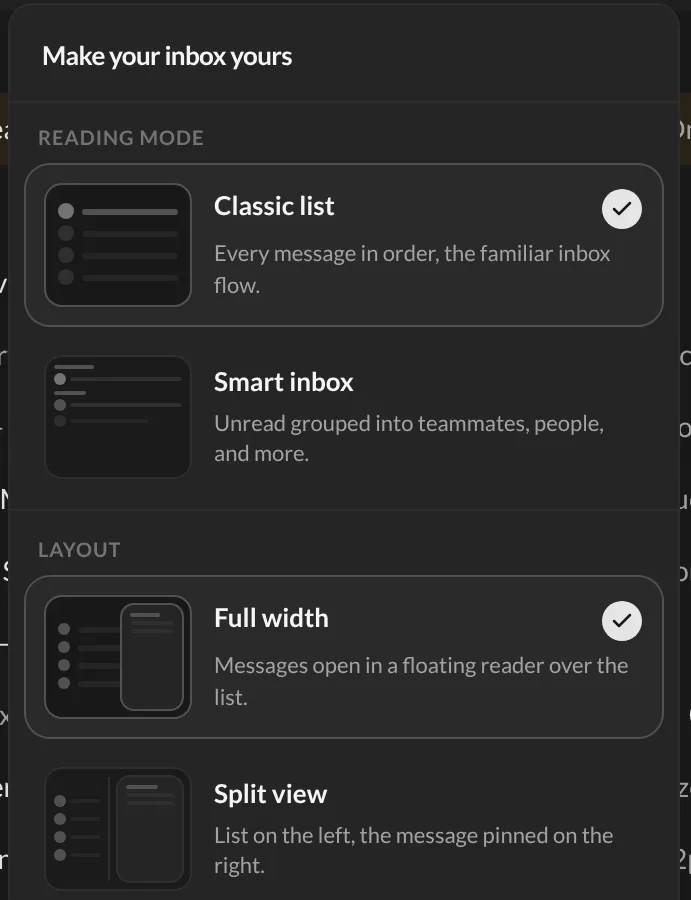
And… that’s it! 🎉 Talanoa remembers it, even after a restart.
👉 While you’re in this panel: the top part, Reading mode, switches between the Classic list and the Smart Inbox. Two settings, one panel.
You can also change the layout in Settings → General, under Application layout (Full or Split).
Make it fit just right
- Resize the two sides. In Split view, drag the line between the list and the email to give more room to one side.
- Resize the sidebar. Grab the right edge of the left sidebar and drag it. Talanoa remembers the width.
- Hide the sidebar. Want more room? Click the panel button at the bottom of the narrow bar on the far left (Collapse sidebar). Click it again to bring it back.
- One row per message. By default, a whole conversation is one row in the list. To list every message on its own, turn off Group messages by conversation in Settings → General.
Good to know
The V key doesn’t change the layout. It switches an open conversation between chat bubbles and the classic view. That one is explained in Read an email like a conversation.
Questions you might have
“I don’t see the Inbox & layout button.” It only shows in your Inbox. If you’re in Sent, a label or a person’s conversations, click Inbox at the top of the sidebar first.
“Split view feels cramped.” Drag the line between the list and the email, or hide the sidebar. Or go back to Full width. No wrong answer here.
Still stuck? Write to us at [email protected]. A real human will answer.
