How to unsubscribe from newsletters
Too many newsletters? See them all in one list and say goodbye to the ones you don't read, in two clicks.
- Time needed
- About 2 minutes
- What you need
- Talanoa, and a few newsletters you never open
Goodbye, newsletters you never read 👋
You signed up for a discount code once. Now that shop writes to you every single day.
Newsletters are like flyers in your mailbox. A few are nice. Most go straight to the recycling bin.
Talanoa finds every newsletter you get and puts them in one list, called Subscriptions. From there, you can unsubscribe in two clicks. No hunting for a tiny gray link at the bottom of the email.
Step 1: Open your Subscriptions
- Click the menu button (☰) at the top of your email list.
- Click Subscriptions.
You now see every sender that offers an “unsubscribe” link, with how many emails each one sent you.
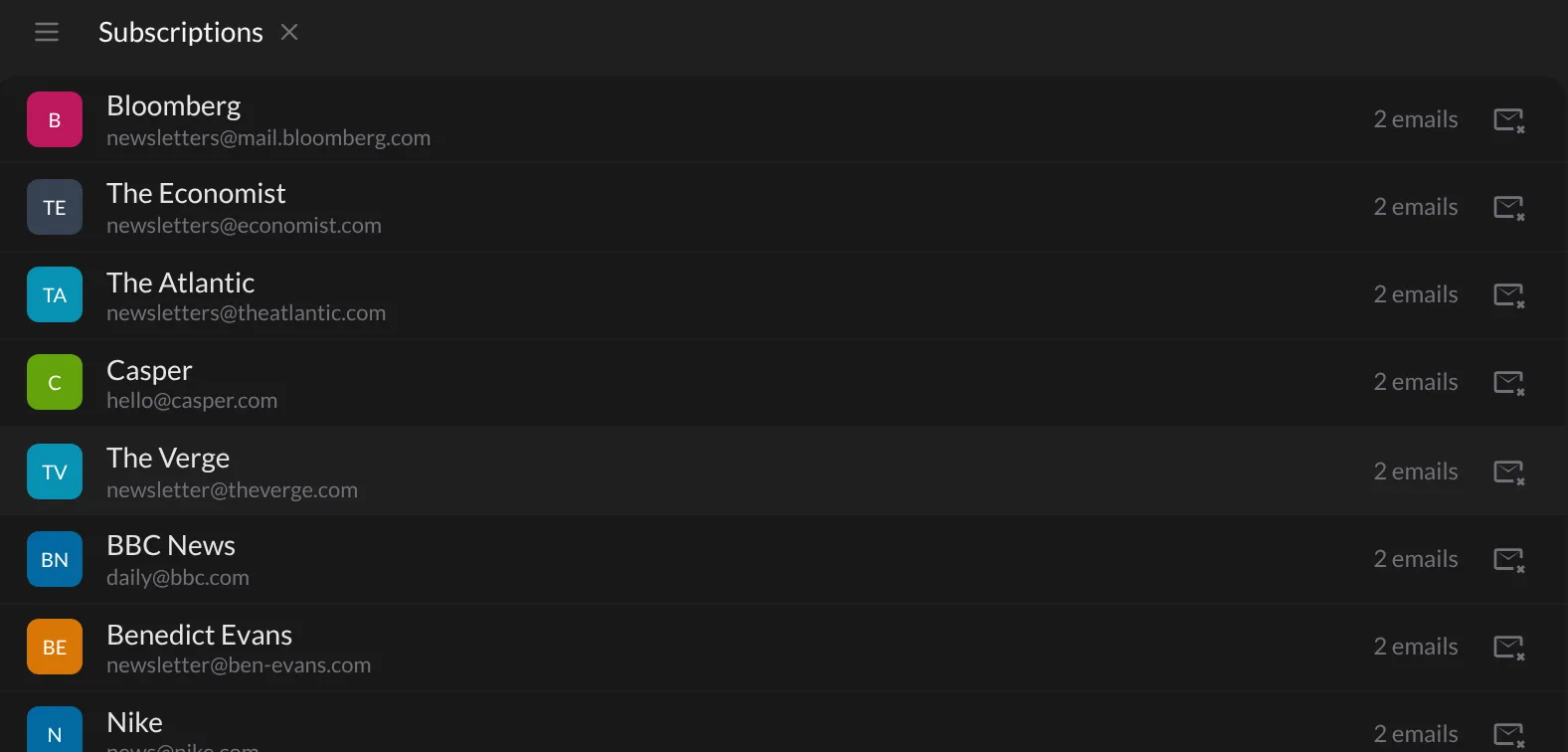
Not sure what a newsletter talks about? Click its name to see its emails.
Step 2: Unsubscribe
- Find the newsletter you want to stop.
- Click the little envelope button on the right of its row (Unsubscribe & Block).
- A window called Block sender opens. It has three choices you can mix and match:
- Unsubscribe: Talanoa politely asks the sender to stop the newsletter.
- Block: future emails from this sender skip your inbox and go straight to the trash.
- Clean: all the old emails from this sender go to the trash too.
- Tick what you want, then click Confirm.
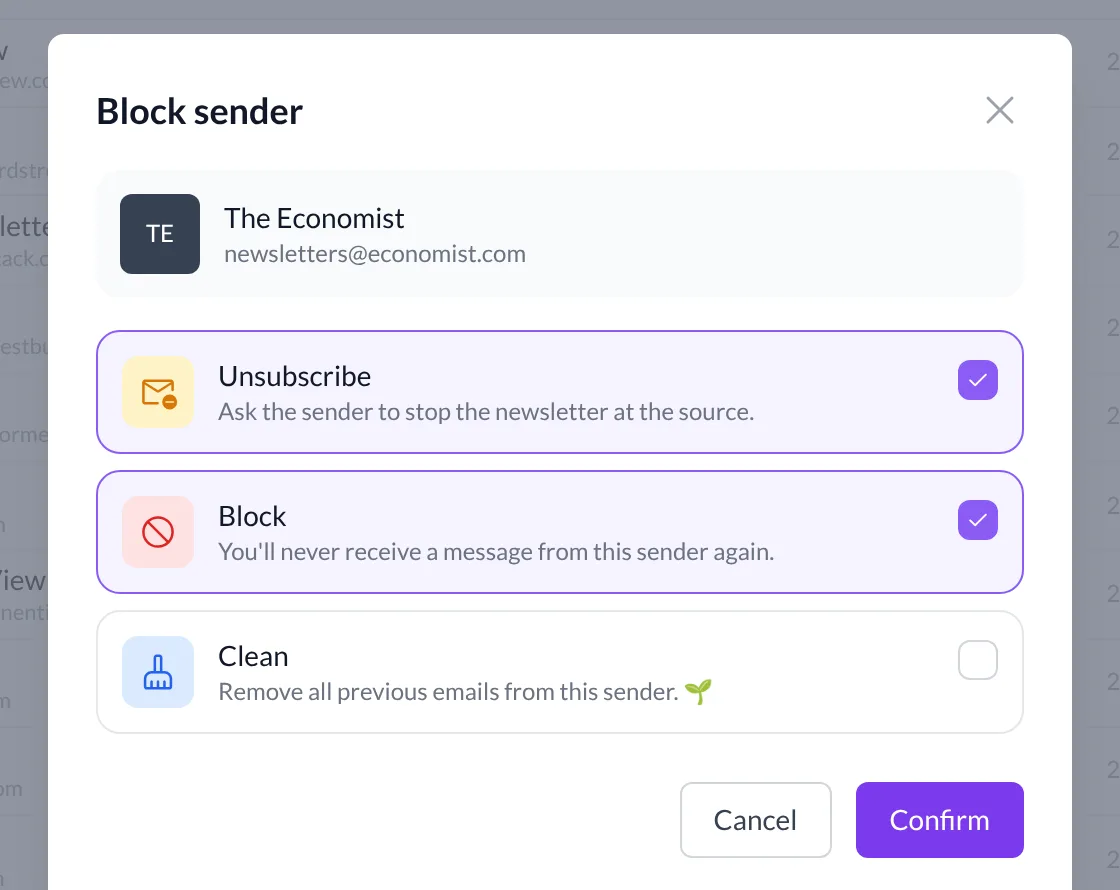
And… that’s it! 🎉 Talanoa says Done and the newsletter is gone.
Why block too? Some senders take a few days to stop, and a few never really listen. Keeping Block ticked is your safety net: even if they keep writing, you won’t see it.
Other ways to get there
You don’t have to open Subscriptions every time. The same Block sender window opens from:
- The Unsubscribe & block button in the sender panel (click a sender’s name in the left sidebar).
- The Block sender button (a circle with a line) that appears when you move your mouse over an email.
Something went wrong?
“I don’t see the Unsubscribe choice.” That sender didn’t include an unsubscribe link in their emails. You can still tick Block, and you’ll never see them again.
“I unsubscribed by mistake.” Go to Settings → Rules, then the Unsubscribes tab, and click Cancel next to that sender. Their emails will reach your inbox again. If the sender already removed you from their list, you may need to sign up again on their website. See Block a sender for details.
“Talanoa asks me to upgrade.” The free version lets you block or unsubscribe from 2 senders per month. For unlimited, you need Talanoa Pro.
Still stuck? Write to us at [email protected]. A real human will answer.
