How to sort emails automatically with rules
Tell Talanoa once what to do with emails from a sender, and it does it for you, every time. Labels, sections, read, archived or trash.
- Time needed
- About 3 minutes
- What you need
- Talanoa, and a sender whose emails you always handle the same way
Your inbox on autopilot 🤖
Do you always do the same thing with the same emails? Every invoice from your phone company goes to “Invoices”. Every promo from that shoe shop gets archived without being read.
A rule is a little note you give Talanoa: “When an email comes from this address, do this.” Then Talanoa does it for you. Every time. Even while you sleep.
What a rule can do
A rule looks at who sent the email (Sender Email), or who it was sent to (Recipient Email, handy for a second address or alias). Then it can:
- Put the email in a Category: Teammates, People, Notifications, Spams, Promotions, or one of your own sections.
- Add one or more Labels.
- Mark as read.
- Put it in the archive (Archived).
- Move to Trash.
- Translate messages to a language you chose.
Step 1: Open your rules
- Open Settings (
Cmd+,on Mac,Ctrl+,on Windows and Linux). - Click Rules.
- If you have several accounts, pick one in the Account menu. Each account has its own rules.
You see all your rules. Some may already be there: Talanoa creates one each time you move a sender to a section, or say Yes to applying a label automatically.
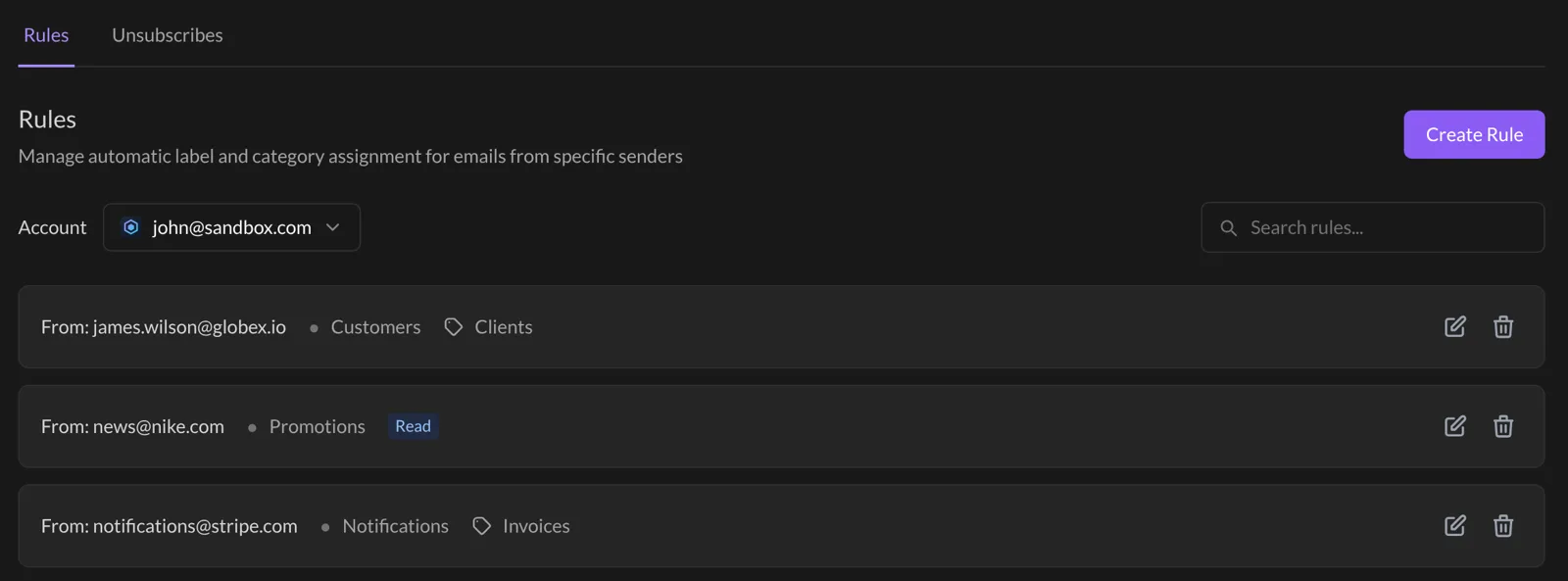
Lots of rules? Type an address in the Search rules… box to find one fast.
Step 2: Create a rule
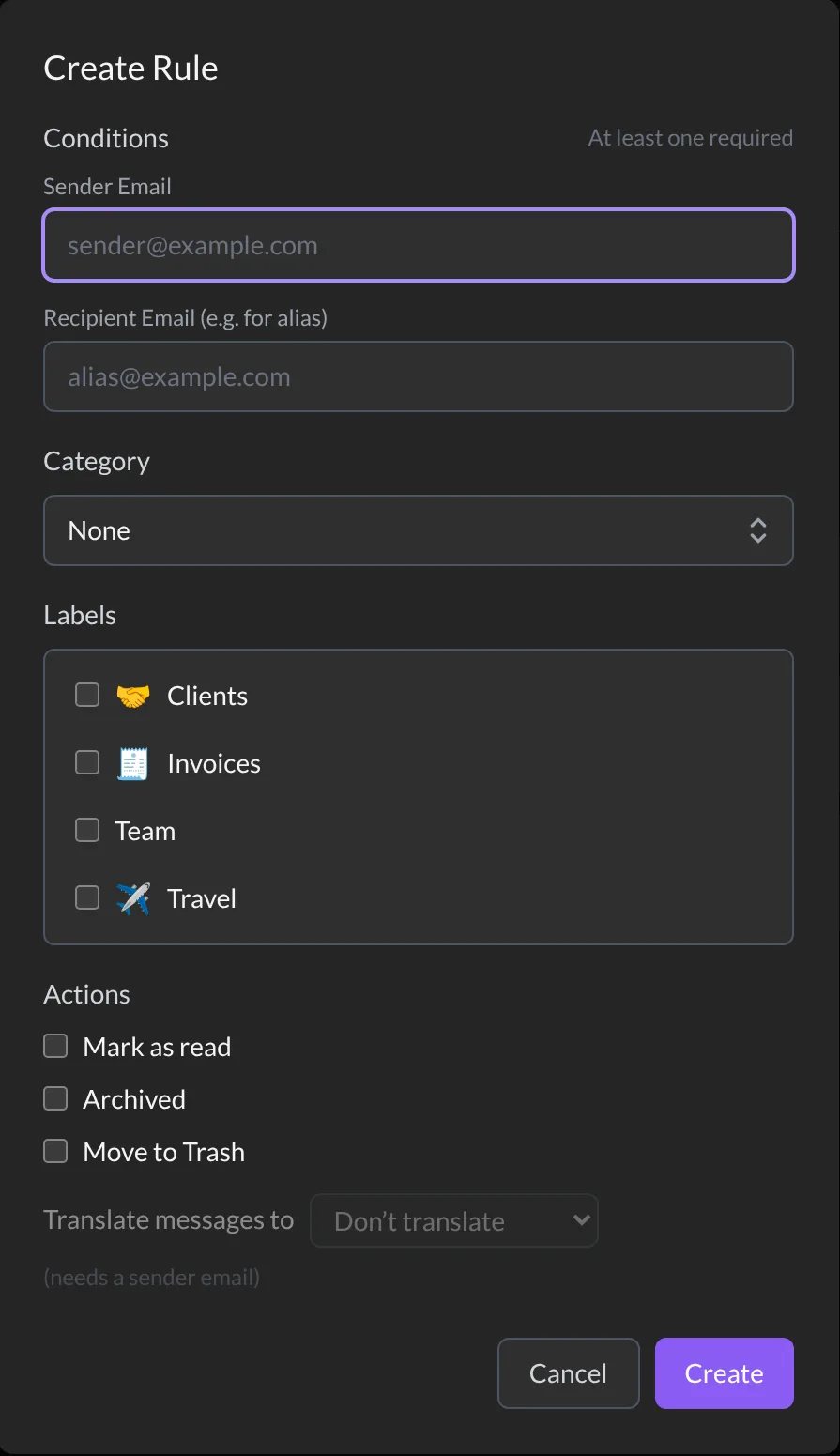
- Click Create Rule.
- Under Conditions, type a Sender Email, a Recipient Email, or both. At least one is needed.
- Choose a Category, if you want one.
- Tick the Labels to add, if you want some.
- Under Actions, tick what should happen: Mark as read, Archived or Move to Trash.
- Click Create.
Talanoa says Rule created successfully. And… that’s it! 🎉
Good news: Mark as read, Archived and Move to Trash also apply to the emails you already have from that sender, not just the new ones. Instant cleanup.
Change or delete a rule
In the list, each rule has two buttons on the right:
- The pencil (Edit rule) opens the rule. Change what you want, then click Update.
- The trash can (Delete rule) removes it. Talanoa asks you to confirm first.
Good to know
- Move to Trash can’t be mixed with a category or labels. It would be a bit like labeling a letter right before throwing it away.
- Translate messages to needs a Sender Email, and a language turned on in Settings → AI. See Summaries & translations.
- Want to stop a sender completely? Blocking is simpler.
Something went wrong?
“Talanoa says at least one of sender email or recipient email is required.” Fill in the Sender Email or the Recipient Email box. A rule needs to know which emails to watch.
“I can’t tick Move to Trash.” Set Category back to None and untick all Labels. Then Move to Trash becomes available.
“I can’t find a rule I made.” Check the Account menu at the top. Rules are saved per account. Then try the Search rules… box.
Still stuck? Write to us at [email protected]. A real human will answer.
