How to add private notes to an email
Stick a note on any email, just for you. Find all your notes again in one place, and turn them into tasks.
- Time needed
- Less than a minute
- What you need
- Talanoa, and an email worth remembering something about
A sticky note on your email 📝
Sometimes you want to remember something about an email. “Call him back after the holidays.” “The price is negotiable.” “Ask Sarah first.”
With Talanoa, you can stick a little note on any email, like a sticky note on a letter. The best part: only you can see it. The sender never gets it, and it’s never sent to anyone.
Step 1: Add a note
- Open the email.
- Press
Non your keyboard. Or hover over the message and click Add note. - In the Add a note window, type your note.
- Click Save.
Your note now appears right under the message, with the time you wrote it.
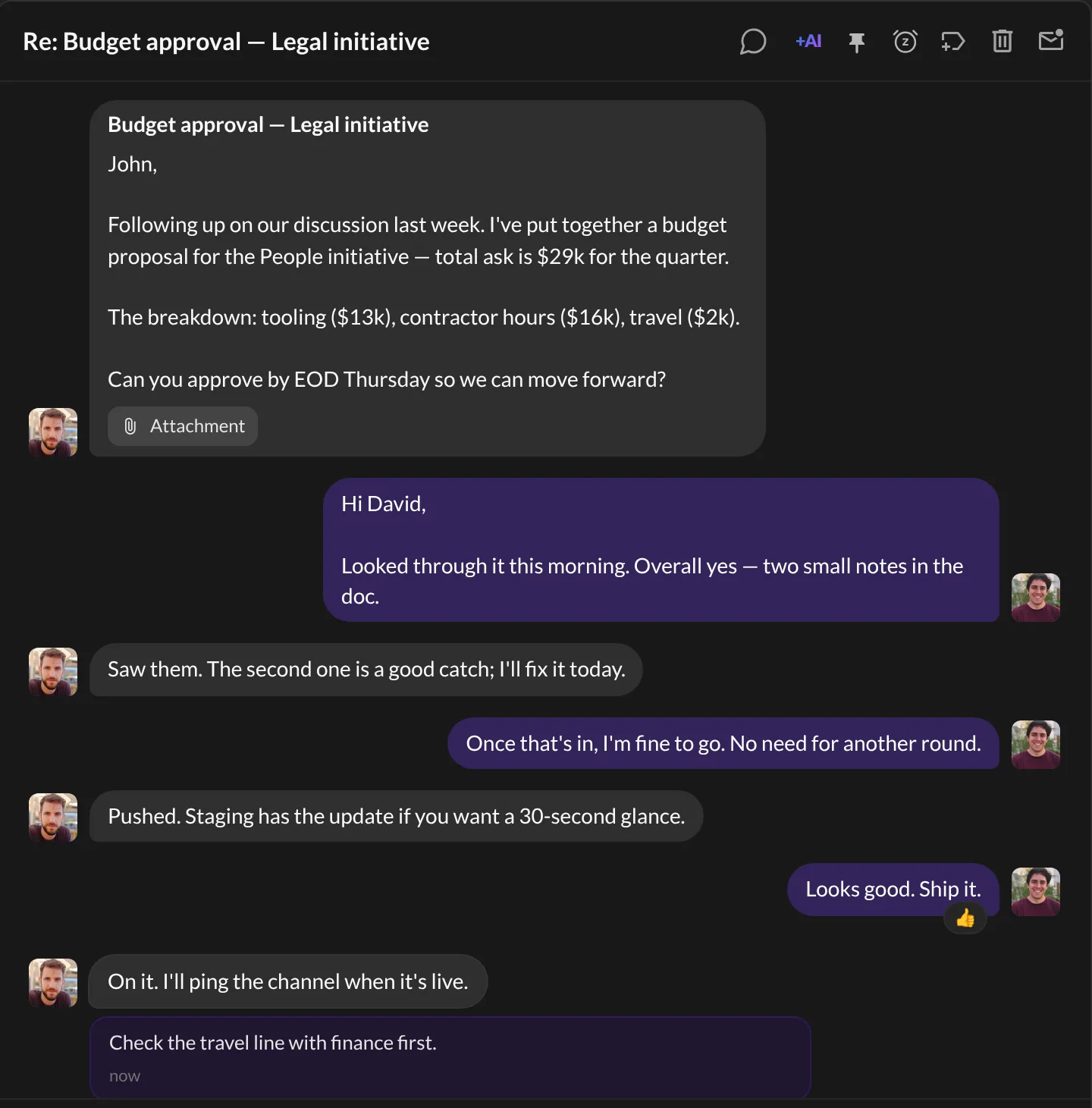
To change or remove it later, hover over the note and use the small buttons that appear.
Step 2: Find all your notes
All your notes are gathered in one place:
- In your inbox, click the ≡ menu at the top left of your email list.
- Click Notes.
You can also press G then N from anywhere.
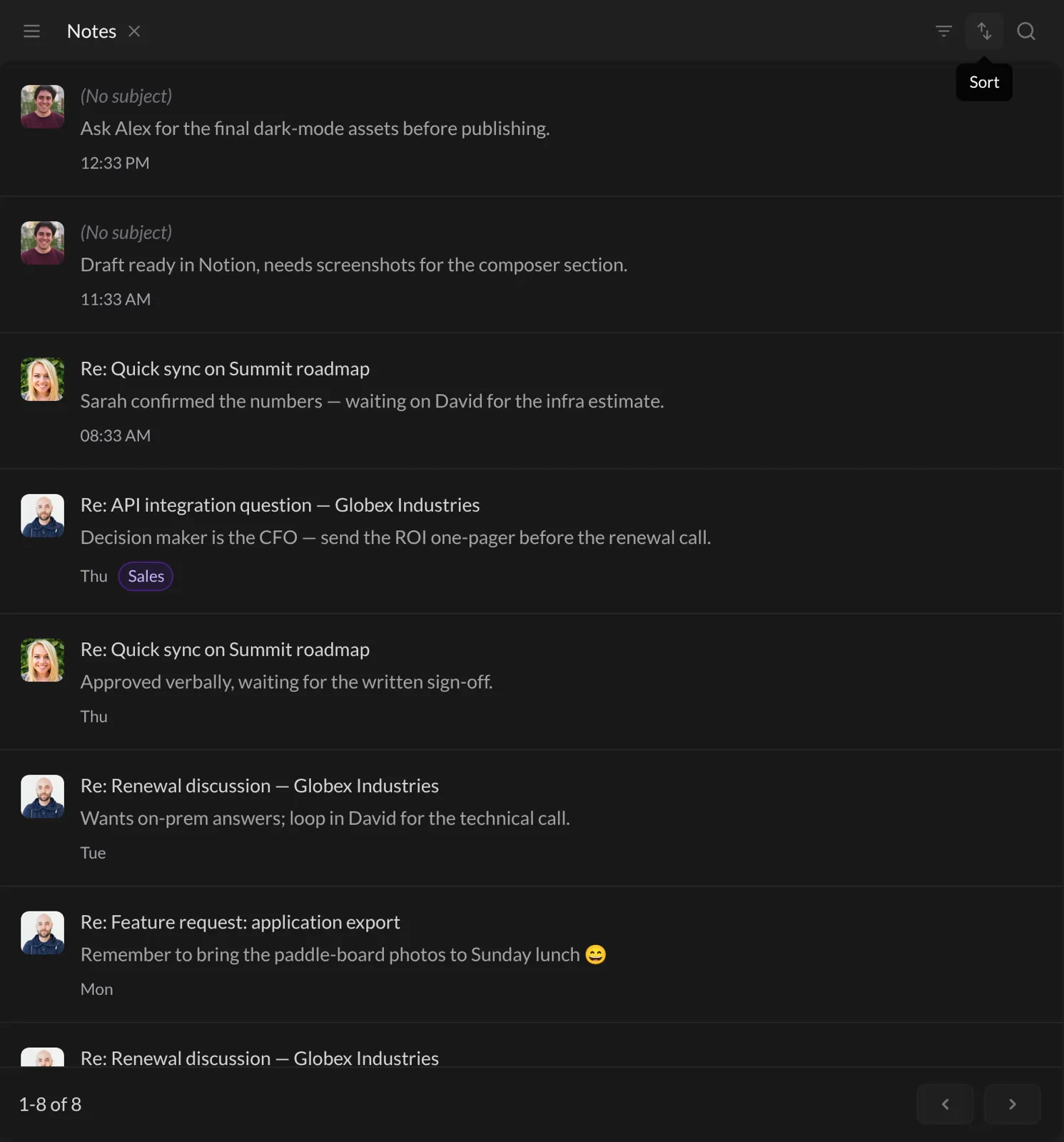
You see every note, with the email it belongs to. At the top, you can:
- Search notes with the magnifying glass.
- Use Filter to show notes by People, Date or Labels.
- Use Sort to order them by People or by Date.
Step 3: Do more with a note
On each note in the Notes view:
- Click + label to tag it (“Sales”, “Follow-up”…).
- Click the ⋮ menu, then:
- Open email to go back to the email.
- Convert Note into Todo to turn it into a task on your Todo board. Handy when “remember this” turns into “do this”. See Turn an email into a task.
- Remove to delete it.
And… that’s it! 🎉 Your memory just got an upgrade.
Good to know
- Notes about a person, not one email? Open their page and use the Notes box in the sender panel. See Your contacts & sender history.
- Tasks have notes too: on a Todo card, click the little speech bubble to read or add notes.
- Need a quick scratch space not tied to any email? Try the Scratchpad widget in Your Zen dashboard.
- Prefer another key than
N? Change it in Settings → Shortcuts (Add note).
Something went wrong?
“Talanoa says Please enter a note.” The note box is empty. Type something, then click Save.
“Pressing N doesn’t open anything.” Open an email first, and make sure you’re not typing in a reply box.
Still stuck? Write to us at [email protected]. A real human will answer.
