How to block a sender
Someone keeps writing and you don't want to hear from them? Block them in two clicks. And if you change your mind, unblocking is just as easy.
- Time needed
- About 1 minute
- What you need
- Talanoa, and a sender you've had enough of
A polite “no thanks” at the door 🚪
Some senders just won’t stop. A pushy shop. A stranger. An old group chat that never ends.
Blocking is like putting a “No flyers, please” sign on your mailbox. When this sender writes again, their email goes straight to the trash. It never lands in your inbox, and you never have to see it.
They won’t get a message saying they were blocked. Nobody gets their feelings hurt.
Step 1: Open the Block sender window
Pick whichever way is closest:
From your inbox list: move your mouse over one of their emails. A row of little buttons appears on the right. Click the last one, a circle with a line through it (Block sender).
From the left sidebar: move your mouse over the sender’s name, click the ⋮ button, then click Block sender.
From the sender panel: click the sender’s name in the left sidebar, then click Unsubscribe & block under Actions.
Step 2: Choose and confirm
A window called Block sender opens, with the sender’s name at the top.
- Make sure Block is ticked. (It already is.)
- Want to throw away their old emails too? Tick Clean.
- If it’s a newsletter, you’ll also see Unsubscribe. Tick it to ask them to stop sending at the source.
- Click Confirm.
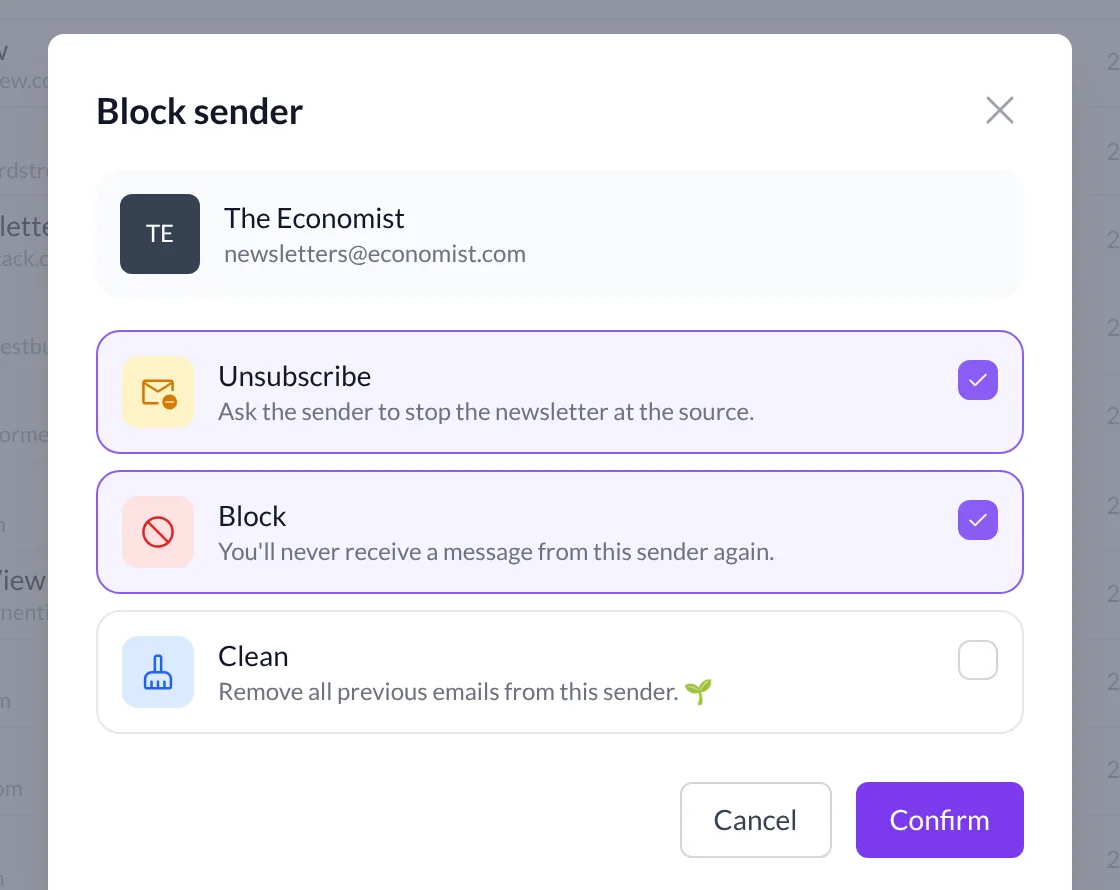
And… that’s it! 🎉 Talanoa says Done, and that sender is out of your life. Well, out of your inbox, at least.
Changed your mind? Unblock them
Maybe it was your aunt. It happens.
- Open Settings (
Cmd+,on Mac,Ctrl+,on Windows and Linux). - Click Rules.
- Click the Unsubscribes tab. You see everyone you blocked or unsubscribed from.
- Find the sender. You can type their address in the Search unsubscribes… box.
- Click Cancel next to them, then confirm.
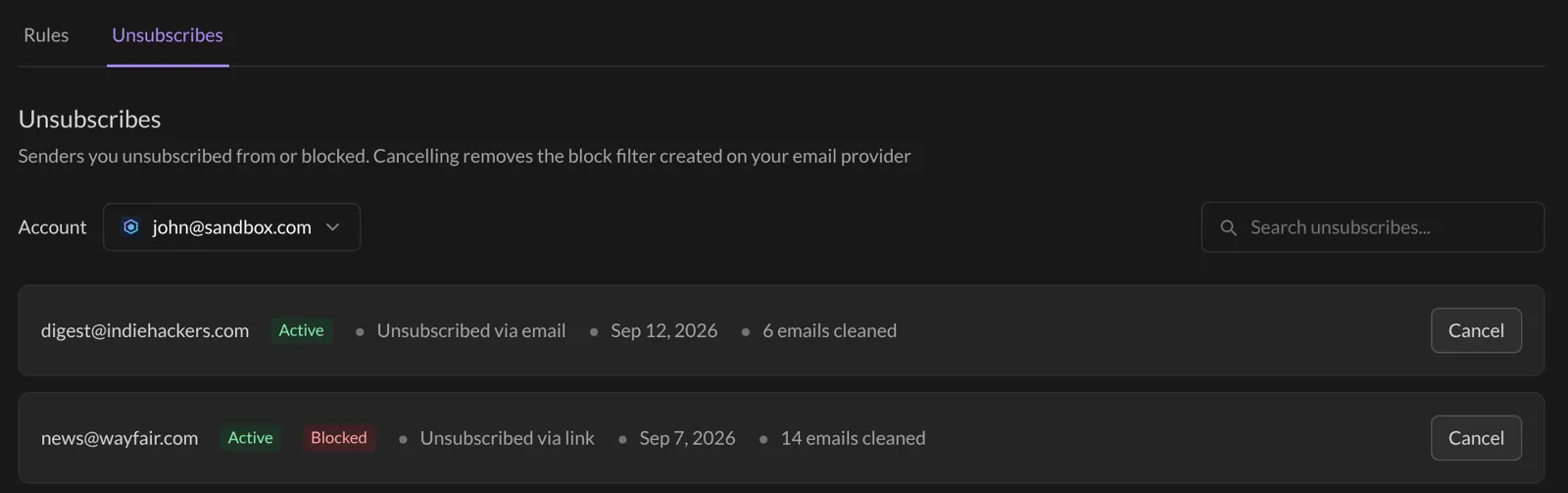
Their new emails will reach your inbox again.
Old emails don’t come back by themselves. If you ticked Clean, their old emails went to your Trash. Open it from the menu button (☰) at the top of your email list to restore the ones you want, before the trash gets emptied.
Something went wrong?
“I blocked someone but I still see their old emails.” Blocking only stops new emails. To remove the old ones, open the Block sender window again and tick Clean, or use Trash all in the sender panel.
“Talanoa asks me to upgrade.” The free version lets you block or unsubscribe from 2 senders per month. For unlimited blocks, you need Talanoa Pro.
“I have several email accounts. Is the sender blocked everywhere?” A block works for the account you blocked them from. In Settings → Rules → Unsubscribes, use the Account menu to check each one.
Still stuck? Write to us at [email protected]. A real human will answer.
