How to remove or reconnect an account
An account turned red? Sign in again in a few clicks. Don't need an account anymore? Remove it from Talanoa. Your emails stay safe with your provider.
- Time needed
- About 2 minutes
- What you need
- Talanoa, and the account's password if you need to reconnect
When a key stops working 🗝️
Talanoa uses a kind of key to open your mailbox. Most of the time, that key works for months.
But sometimes your email company changes the lock. Maybe you changed your password, deleted an app password, or Google simply wants to check it’s still you. Then Talanoa can’t get in anymore, and your account needs to be reconnected.
Other times, you just don’t need an account in Talanoa anymore. Then you can remove it.
Both are quick. Let’s see.
Reconnect an account
How you’ll know: the account turns red in the account rail (the column on the far left), with a small red badge. A message also pops up saying the account needs to be reconnected, and that its sync is paused until you sign in again.
Only that account is paused. Your other accounts keep working normally.
- Click the red account in the rail. (Or click Reconnect in the message, if it’s still on screen.)
- Sign in again:
- Gmail: your browser opens Google. Pick your account and check every box. See Connect Gmail.
- Outlook: your browser opens Microsoft. Sign in and accept. See Connect Outlook.
- Any other email: Talanoa opens a Sign in window with your details already filled in. Type your password (or a new app password), then click Test & Add Account.
And… that’s it! 🎉 The red goes away and your emails start flowing again. Talanoa picks up right where it stopped.
Using an app password? If you deleted the old one at Apple, Yahoo or elsewhere, make a new one first. See Connect iCloud or Connect Yahoo, AOL, Fastmail & co.
Remove an account
- Open Settings (
Cmd+,on Mac,Ctrl+,on Windows and Linux), then click Accounts. - Find the account you want to remove.
- Click the ⋯ button on its right (More actions).
- Click Disconnect.
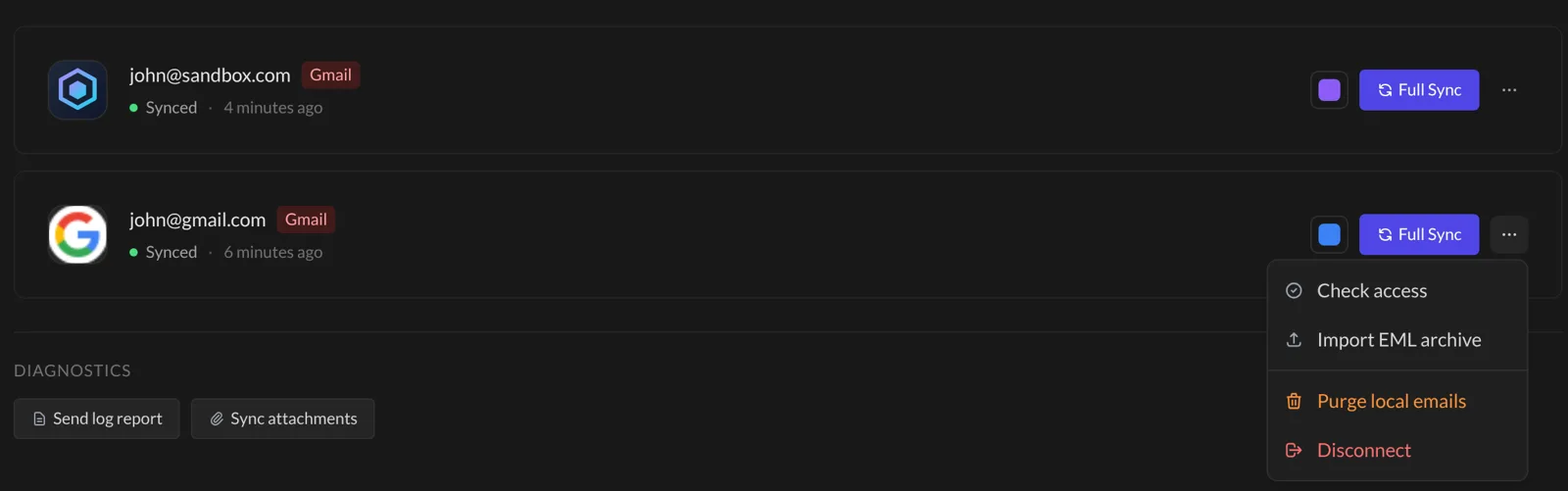
The account leaves Talanoa right away. There’s no “Are you sure?” step, so take a second to check you picked the right one.
Your emails are not deleted. Removing an account from Talanoa doesn’t touch your mailbox. Your emails stay safe with your email company, and you can connect the account again anytime.
Good to know
- Your main account (the first one you connected) has no Disconnect button. To leave it, click the gear at the bottom of the account rail, then Logout. Careful: this signs you out of Talanoa completely, with all your accounts.
- In Settings → Accounts, each account shows how it’s doing: Synced, or Reconnect required when it needs you.
- Want to check an account is fine? Click ⋯, then Check access.
Something went wrong?
“I reconnected, but the account is still red.” Make sure you signed in with the same email address as the red account. With Gmail, it’s easy to pick the wrong Google account in the browser.
“My password is right, but it still says it can’t connect.” Your email company may want an app password. That’s common with iCloud, Yahoo, AOL and Fastmail. Make a new one and use that instead.
“I removed the wrong account.” No harm done. Add it again with the + in the account rail, the same way as the first time. Your emails come back from your email company.
Still stuck? Write to us at [email protected]. A real human will answer.
