How to change the look of Talanoa
Dark or light, big text or small, sidebar wide or tucked away. Make Talanoa look the way you like in a few clicks.
- Time needed
- About 2 minutes
- What you need
- Talanoa, and an opinion about dark mode
Your app, your colors 🎨
Some people love a bright screen. Others like it dark, like a cinema before the movie starts. Talanoa is happy either way.
You can pick a theme, change the font of your emails, make the text bigger, and move things around the window. Nothing here can break anything, so feel free to play.
Step 1: Pick dark, light or automatic
- Open Settings: click the gear at the bottom left of the window, then Settings. (Or press
Cmd+,on Mac,Ctrl+,on Windows and Linux.) - Stay on General and scroll down to Appearance.
- Next to Application theme, click System, Light or Dark.
System follows your computer. When your computer switches to dark in the evening, Talanoa does too. Clever little app.
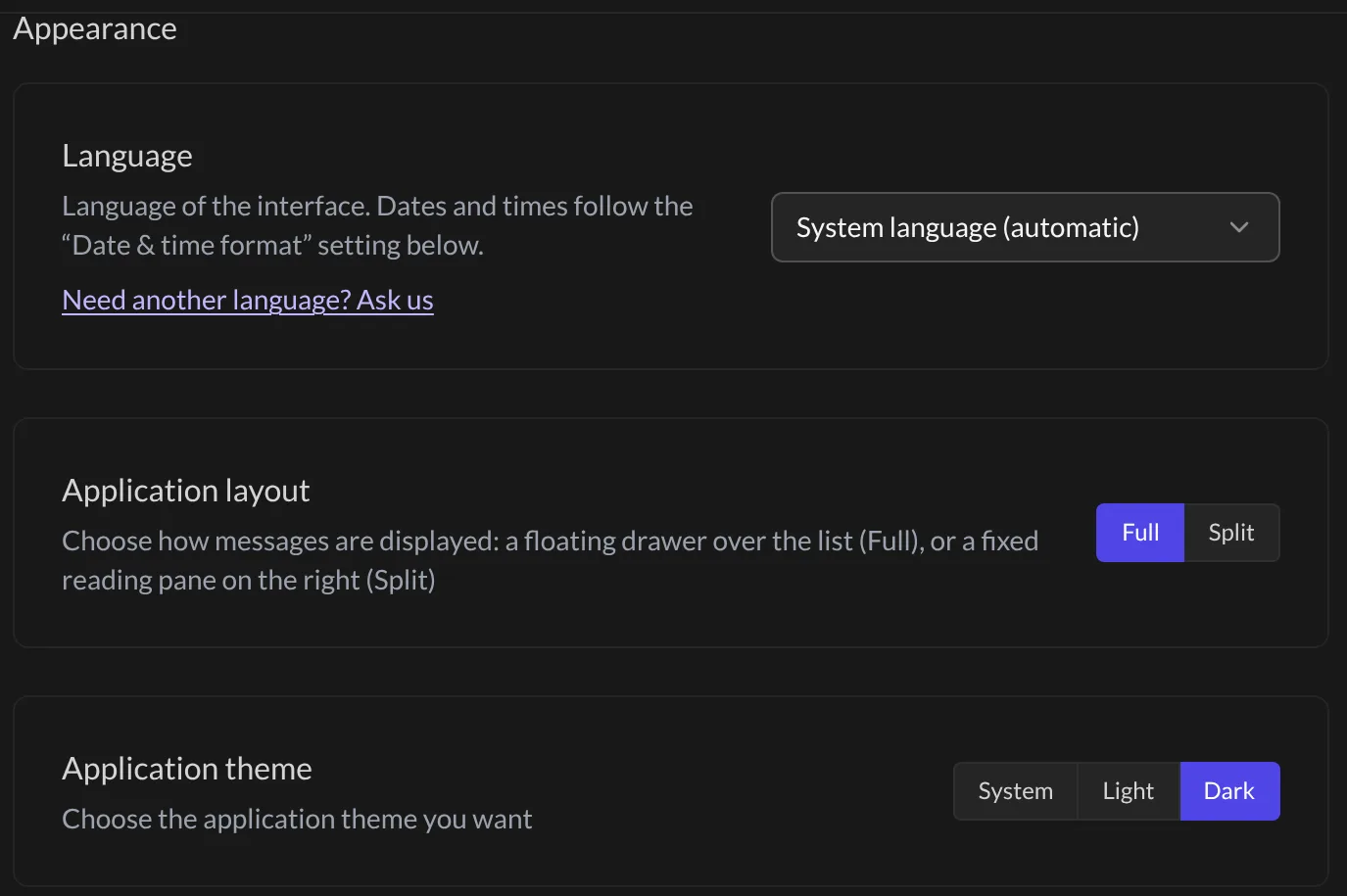
Step 2: Tweak the rest of Appearance
In the same place, you’ll find:
- Application layout: Full opens emails in a drawer over your list, Split keeps a reading pane on the right. More in Choose your layout.
- Font for the content of messages: pick the font your emails are shown in.
- Font size: from Small to Huge. Your eyes will thank you.
- Date & time format: how dates look, like “Oct 17” or “17 oct.”
A little lower, under Messages, Wrap wide content squeezes very wide emails so they fit the window, instead of making you scroll sideways.
And… that’s it! 🎉 Every change shows up right away. No save button to hunt for.
Dark mode, but not for this one email
In dark mode, Talanoa also darkens your emails. Most of the time it looks great. Sometimes a fancy newsletter looks a bit odd.
- Open the email.
- Move your mouse over the top of the message. Small buttons appear.
- Click the little sun, Show email in light mode.
The email goes back to its original colors. Click the moon to make it dark again.

Make room: the sidebar and the widgets
The sidebar (the list of your sections on the left):
- To make it wider or thinner, drag its right edge.
- To tuck it away, click Collapse sidebar at the bottom of the far-left column. Click Expand sidebar to bring it back.
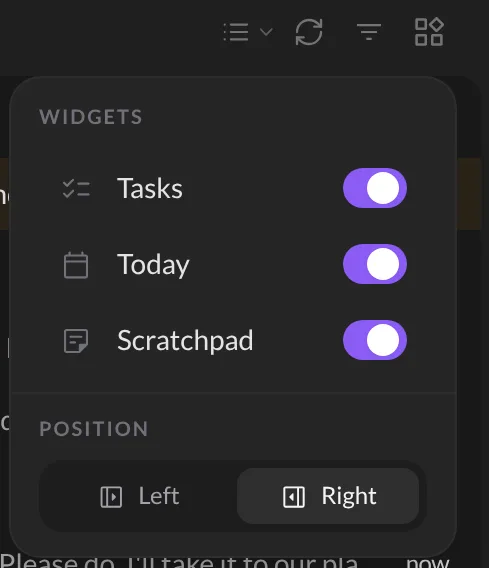
The widgets (Tasks, Today and Scratchpad, shown next to your inbox when no email is open):
- In your inbox, click Widgets at the top right of the list.
- Turn each widget on or off.
- Under Position, choose Left or Right.
You can also drag the edge of the widget panel to resize it. More about them in Your Zen dashboard.
Tips
- A secret shortcut: press
@twice quickly (when you’re not typing) to flip between dark and light. Handy at sunset. - Want Talanoa in French? See Change the language.
Something went wrong?
“Talanoa stays light even though I picked System.” System follows your computer’s setting. Check that your computer itself is set to dark mode, or simply pick Dark in Talanoa.
“I don’t see the little sun on my email.” It only shows when Talanoa is in dark mode, and only when you move your mouse over the top of the message.
“I don’t see the Widgets button.” It only shows in your main inbox. Click Inbox at the top of the sidebar (not a folder or a person) and look at the top right of the list.
Still stuck? Write to us at [email protected]. A real human will answer.
