How to turn an email into a task
Some emails are really chores in disguise. Put them on your Todo board with a due date, and let your inbox breathe.
- Time needed
- About 1 minute
- What you need
- Talanoa, and an email that asks you to do something
Emails that are secretly chores ✅
“Can you send me the report by Friday?” That’s not really an email. That’s a chore wearing an email costume.
Talanoa lets you take it off your inbox and pin it on a board, like a sticky note on the fridge. The task stays linked to the email, so you can jump back to it in one click when it’s time to do it.
Step 1: Add the email to your todo
- Open the email.
- Press
Ton your keyboard. Or hover over the message and click Add to todo.
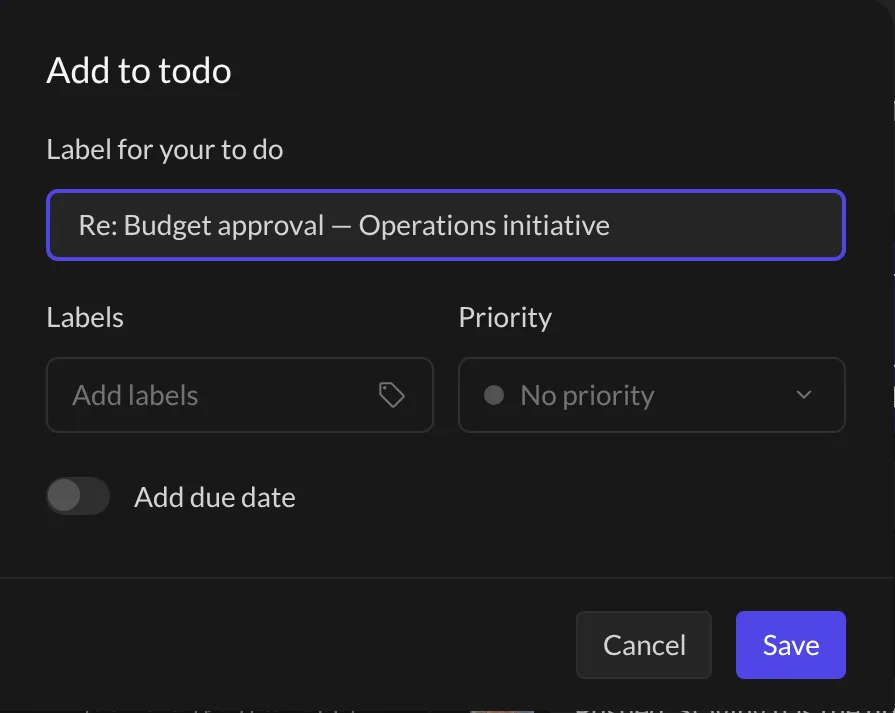
An Add to todo window opens.
Step 2: Fill in the details
- Label for your to do: Talanoa already wrote the email’s subject. Change it to something clearer if you like, like “Send the report to Sarah”.
- Labels (optional): add a tag like “Work” or “Home”, so you can filter later. Type a new one to create it.
- Priority (optional): No priority, Important or Urgent.
- Add due date (optional): turn it on and pick a day.
- Click Save.
Talanoa says Message added to todo. And… that’s it! 🎉
Step 3: Find your tasks on the Todo board
Click Todo at the top left of the window (or press G then T).
Your tasks live in columns: To do, In progress and Done.
- Move a task: drag its card to another column.
- Finish a task: hover over the card and click the check mark (Mark as done). It goes straight to Done.
- Open the email: click the card. The whole conversation opens, right at the message the task came from.
- Change things: use the small priority, notes and label buttons on the card, or the ⋮ menu → Edit or Delete.
Each card shows its due date: Today, Tomorrow, “3d” (in 3 days)… Late tasks turn red, so they’re hard to ignore. (Sorry.)
Add a task that’s not an email
Not every chore comes by email. “Buy milk” is still a task.
- On the Todo board, click the + at the top of a column (Add new task).
- Type a Label for your task, and a description if you want.
- Add labels, a priority or a due date, just like above.
- Click Save.
Tips
- Lots of tasks? Use Search tasks and notes and the Filter button (priority, labels) at the top of the board.
- Several accounts? Pick one in All accounts to see only its tasks.
- Want your columns to look different? See Customize your Todo board.
- Your tasks also show up in the Tasks widget next to your inbox. See Your Zen dashboard.
- Prefer another key than
T? Change it in Settings → Shortcuts (Add to todo).
Something went wrong?
“Pressing T doesn’t do anything.” Open an email first, and make sure you’re not typing in a reply box at the same time.
“I can’t find my task on the board.” Check the top of the board: clear the search box and the Filter, and pick All accounts. Your task should pop right back.
Still stuck? Write to us at [email protected]. A real human will answer.
