How to save time with templates
Write the emails you send again and again only once. Then drop them into any email in two clicks.
- Time needed
- About 2 minutes
- What you need
- Talanoa, and an email you keep writing over and over
Write it once, use it forever 📝
Do you send the same kind of email again and again? A “thanks for your order”, a “here’s our price list”, a “let’s meet next week”?
A template is a ready-made email you save once. Next time, you pick it, change a word or two, and send. Like a cookie cutter: same nice shape every time, and much faster than cutting by hand.
Step 1: Create a template
- Click the gear at the bottom left of the window, then Settings. (Or press
Cmd+,on Mac,Ctrl+,on Windows and Linux.) - Click Templates.
- Under Account, choose the email account this template is for.
- Click Create Template.
- In Template Name, give it a short name you’ll recognize, like “Price list”.
- Write your template in the big box below. Bold, lists and links all work, just like in a normal email.
- Click Save.
Talanoa says Template created successfully. 🎉
Tip: in the email window, the templates menu also has a Create template… shortcut that takes you straight there.
Step 2: Use it in an email
- Open a new email or a reply.
- In the top bar, click the templates button (Insert template). It sits just left of the clock.
- Click your template.
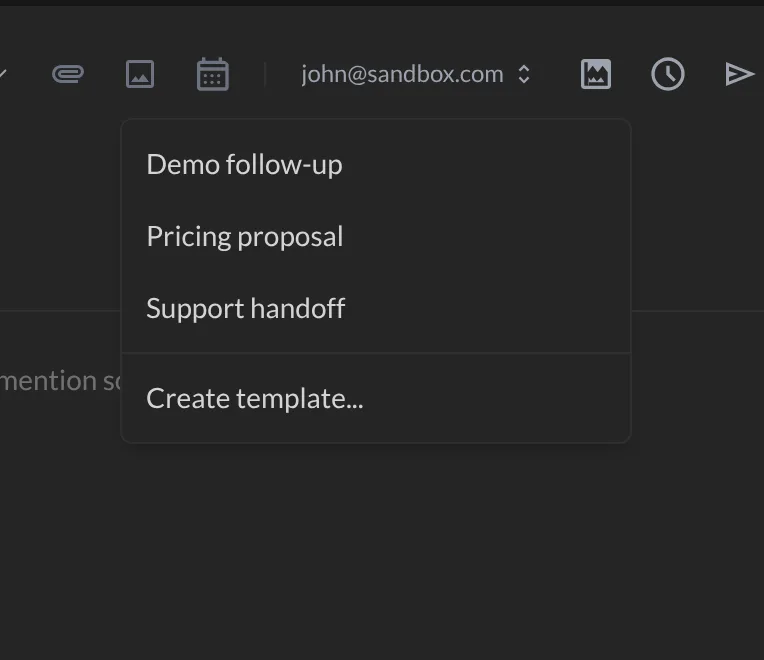
The template lands in your email. If you had already written something, it’s added below your text. Change what you need, and send!
Keyboard fan? While writing, press Cmd+K on Mac or Ctrl+K on Windows and Linux, then choose Insert template… and type a few letters of its name.
Good to know
- Templates belong to an account. The menu shows the templates of the account you’re looking at in Talanoa.
- Put them in order. In Settings → Templates, drag a template by its handle to move it up or down. The menu follows the same order.
- Change or delete. Click a template in the list to edit it, or click its delete icon to remove it.
Something went wrong?
“The templates menu says No templates available.” You haven’t created a template for this account yet. Click Create template… right in that menu.
“I can’t see a template I made.” It probably belongs to another account. Switch to that account, or create it again for this one.
“Talanoa says Template name is required.” Every template needs a name. Type one in Template Name, then click Save.
Still stuck? Write to us at [email protected]. A real human will answer.
