Find your way around
A friendly map of the Talanoa window: your accounts, the sidebar, the top bar, your email list and the little widgets on the right.
- Time needed
- About 3 minutes
- What you need
- Talanoa, with at least one account connected
A map of your new home 🗺️
The first time you walk into a new house, you want to know where the kitchen is. Same with a new app.
Here’s the whole Talanoa window. Let’s take a walk from left to right, then along the top.
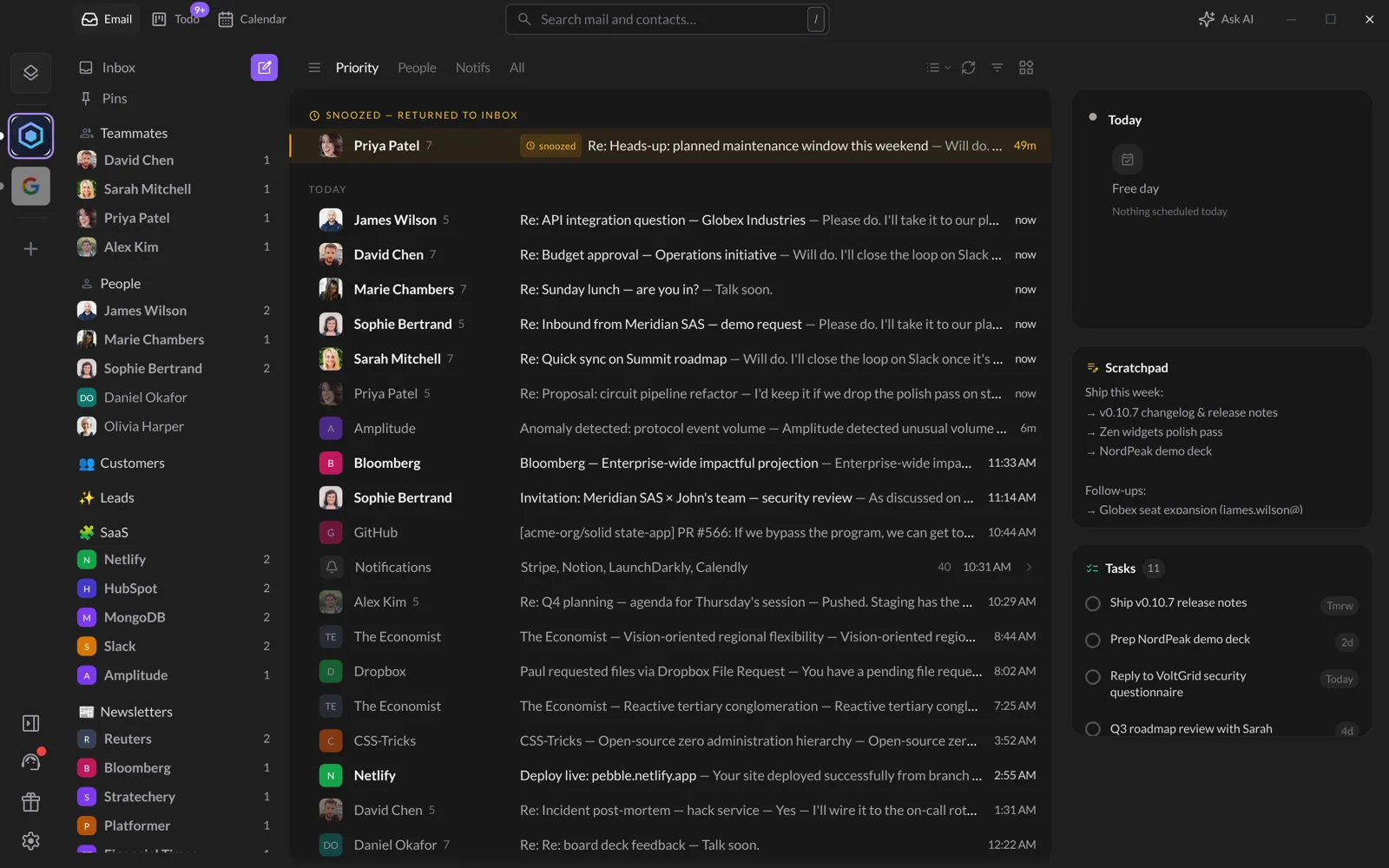
1. The account rail (far left)
The thin column on the very left holds your email accounts. Each account is a little square with its picture or logo.
- Click an account to open its inbox.
- Hover an account to peek at its latest emails without leaving where you are.
- The + at the bottom of the list adds another account. See Use several accounts.
- The stacked-squares button at the top appears when you have several accounts. It opens the unified inbox, with all your accounts in one list.
At the very bottom of the rail, you’ll find a few buttons:
- A button to hide or show the sidebar (Collapse sidebar / Expand sidebar).
- Support & feedback, to talk to us.
- A gift, to invite friends.
- A gear, which opens a small menu with Settings, Billing & Subscription, Changelog and more.
2. The sidebar
Next to the rail is the sidebar. It’s like the table of contents of your mailbox:
- Inbox and Pins at the top. The purple pencil button next to Inbox writes a new email.
- Teammates: people who work with you (same company address).
- People: real humans who write to you.
- Your own sections, if you made some (like “Customers” or “Newsletters”).
- Notifications: automatic emails from apps and services.
- Labels and Folders at the bottom.
Want to know how Talanoa decides who goes where? Read How Talanoa sorts your emails.
3. The top bar
Along the top of the window:
- Email, Todo and Calendar: three tabs to switch between your emails, your to-do board and your calendar. A little number on Todo tells you how many tasks are waiting.
- Search mail and contacts… in the middle. Click it, or press
/. See Search your emails. - Ask AI on the right: ask a question about your emails in plain words. Press
Cmd+Jon Mac,Ctrl+Jon Windows and Linux. See Ask your inbox anything.
4. The email list (middle)
This is where your emails live. Above the list:
- Priority, People, Notifs and All: little tabs to filter the list.
- On the right, a few small buttons: Inbox & layout (how your list looks), Pull new messages (check for new emails right now), Filter, and Widgets.
Click an email to open it. Depending on your layout, it opens on top of the list or on the right side. See Choose your layout.
5. The widgets (right)
When no email is open, the space on the right can hold little helpers:
- Today: your meetings of the day.
- Scratchpad: a sticky note for quick ideas.
- Tasks: your to-dos, each one linked to its email.
Turn them on or off with the Widgets button above the email list. You can also move the whole panel to the Left or Right.
And… that’s it! 🎉 You know your way around. No need to remember everything. Like any house, it starts to feel like home after a few days.
Tips
Cmd+Kon Mac,Ctrl+Kon Windows and Linux, opens the command palette. Type where you want to go, pressEnter. It’s the fastest way around. See Keyboard shortcuts & command palette.Cwrites a new email.Cmd+,(Mac) orCtrl+,(Windows and Linux) opens Settings.- You can change every shortcut in Settings → Shortcuts.
Questions you might have
“Where are Sent, Drafts and Trash?” Click the small menu button (three lines) just left of Priority. It lists Sent, Drafts, Archive, Spam, Trash and more. Click the star next to one to keep it as a favorite.
“My sidebar disappeared!” It’s just hiding. Click the sidebar button near the bottom of the account rail (Expand sidebar).
Still stuck? Write to us at [email protected]. A real human will answer.
