My emails aren't syncing
New emails not showing up? Walk through these simple checks, one by one. Most of the time, it's fixed in a minute.
- Time needed
- About 5 minutes
- What you need
- Talanoa, and an internet connection
Don’t panic, your emails are safe 🧘
Talanoa keeps a copy of your emails on your computer and stays in touch with your email provider (Gmail, Outlook, iCloud…) to fetch the new ones. Think of it as a mail carrier walking back and forth between the post office and your house.
When new emails don’t show up, the mail carrier is just stuck somewhere. Your emails themselves are safe at the post office. Let’s find where the carrier got stuck. Try these steps in order and stop as soon as it works.
Step 1: Check your internet
It sounds silly, but it’s the most common reason.
- Open any website in your browser.
- If it doesn’t load, fix your Wi-Fi or cable first. Talanoa will catch up by itself once you’re back online.
Step 2: Ask for new emails now
- Go to your inbox.
- At the top of the email list, click the round arrow button (it says Pull new messages when you hover it).
Wait a few seconds. Did your new emails show up? 🎉 Then you’re done.
Step 3: Look at the account’s status
- Open Settings (
Cmd+,on Mac,Ctrl+,on Windows and Linux). - Click Accounts.
- Under each email address, a small dot tells you how it’s doing, with the time of the last sync:
- Synced (green): all good.
- Error: something went wrong. Keep reading.
- Reconnect required: Talanoa needs you to sign in again. Go to Step 4.
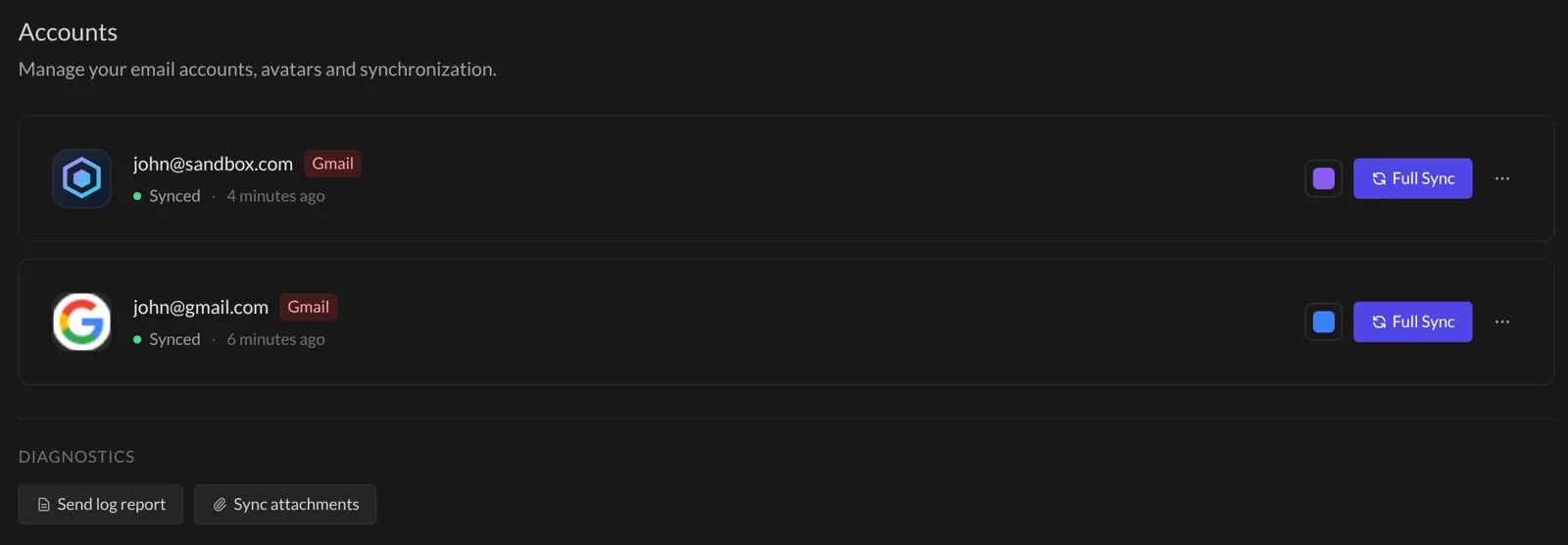
Step 4: Reconnect the account
Sometimes your email provider asks Talanoa to show its ID again. It happens after you change your password, for example. It’s like a door code that changed: Talanoa just needs the new one.
You’ll notice it because:
- the account has a red outline in the left bar, and
- a message says the account needs to be reconnected. Its sync is paused until you sign in again.
To fix it:
- Click Reconnect in that message, or click the account with the red outline.
- Sign in to your email provider again, like the first time.
Your other accounts are not affected. Only that one was paused. For more details, see Remove or reconnect an account.
Step 5: Run a full sync
Still missing emails? Let Talanoa go through the mailbox again from scratch.
- In Settings → Accounts, find the account.
- Click Full Sync, then Start sync.
- A progress bar shows each folder as it goes. You can keep using Talanoa meanwhile.
On a big mailbox this can take a while. Good moment for a coffee. ☕
Tip: the ⋯ button next to Full Sync has Check access. Click it to test the connection. If everything’s fine, Talanoa says Access verified ✅.
Good to know
- The free plan brings in roughly the last 3 months of emails. Older emails are still safe with your provider. With Talanoa Pro, you can choose the last 6 months instead, under Sync history: when you click Full Sync.
- A brand-new account can take a little while the first time. The newest emails come first, the older ones keep arriving in the background.
Something went wrong?
“I tried everything and it still doesn’t sync.” In Settings → Accounts, under Diagnostics, click Send log report. It sends us a technical report so we can see what happened. Then tell us about it, see Contact support.
“An old email I’m looking for isn’t in Talanoa.” It may be older than what Talanoa brings in. Search for it with the search bar: Talanoa can also look for it directly with your email provider. See Search your emails.
“Only one account is stuck.” That’s usually a reconnect problem. Go back to Step 4.
Still stuck? Write to us at [email protected]. A real human will answer.
