Your Zen dashboard
Your day, your tasks and a scratchpad, right next to your inbox. Pick the widgets you like, and put them where you like.
- Time needed
- About 1 minute
- What you need
- Talanoa (and a connected calendar, for the Today widget)
A calm little desk next to your inbox 🧘
When no email is open, the space next to your list doesn’t have to stay empty. Talanoa can fill it with a few small boxes called widgets. Together, they make your Zen dashboard.
Think of it as the corner of your desk: your calendar for the day, your to-do list, and a notepad. Everything you glance at between two emails.
There are three widgets:
- Today: your meetings of the day, with a button to join the video call.
- Tasks: your to-dos, each one linked to the email it came from.
- Scratchpad: a notepad for ideas and quick reminders.
Step 1: Choose your widgets
- Go to your inbox.
- Click the Widgets button at the top right of your email list (four little squares).
- Turn on the widgets you want: Tasks, Today, Scratchpad. Turn off the ones you don’t.
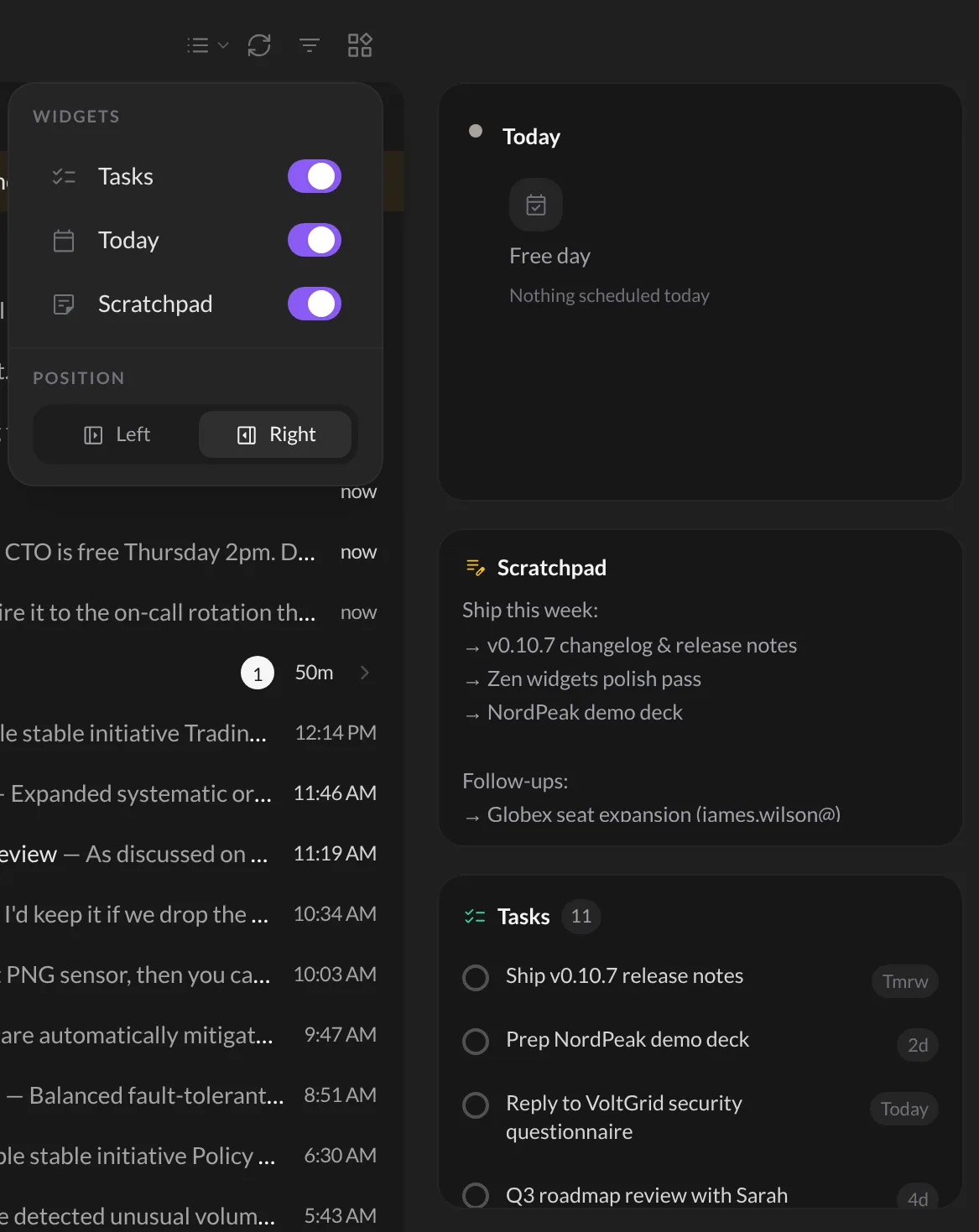
Step 2: Put them on the left or on the right
In the same menu, under Position, click Left or Right.
Want the panel wider or narrower? Drag its edge. Want to change the order? Hover over a widget and drag it by the little handle at its top right (Move). Drag a widget’s bottom edge to make it taller or shorter.
And… that’s it! 🎉 Your desk is tidy. Very zen.
Using each widget
Today Shows what’s on your calendar today. When a meeting has a video link, hover over it and click the little camera (Join meeting). Click a meeting’s name to see it in your calendar. Nothing planned? It says Free day. Lucky you. No calendar yet? The widget offers Connect a calendar →. See Connect your Google or Outlook calendar.
Tasks Shows your next tasks from the Todo board, with their due dates.
- Click the circle in front of a task to mark it as done.
- Click the + (Add task) to add one right there. Type the Task name… and press
Enter. - Use Filter to show only some tasks, by priority, label or due date (Late, This week, This month).
Scratchpad Just click and type. Phone numbers, ideas, a grocery list. What you write stays there, saved on your computer, until you erase it.
Good to know
- Widgets show up when no email is open. Open an email and they politely step aside.
- When you’re looking at someone’s conversation, their sender panel takes that spot instead.
- Widgets are free for everyone.
Something went wrong?
“I don’t see any widgets.”
Close the open email (or press Escape), then check the Widgets menu: at least one widget must be turned on.
“The Today widget says No calendar connected.” Talanoa needs your calendar to show your day. Click Connect a calendar → and follow this guide.
Still stuck? Write to us at [email protected]. A real human will answer.
