How to set up your signatures
Create the little sign-off that ends your emails. One per account, several if you like, and Talanoa picks the right one for you.
- Time needed
- About 3 minutes
- What you need
- Talanoa, and your name (the rest is up to you)
Your email’s autograph 🖋️
A signature is the little block at the bottom of your emails. Your name, maybe your job, a phone number, a link. Like signing a birthday card, but you only have to do it once.
In Talanoa, each email account has its own signatures. Your work account can sign “Anna Lee, Head of Sales”, and your personal one just “Anna 🌻”.
Step 1: Open the Signatures settings
- Click the gear at the bottom left of the window, then Settings. (Or press
Cmd+,on Mac,Ctrl+,on Windows and Linux.) - Click Signatures.
Step 2: Create a signature
- Under Account, choose the email account this signature is for.
- Click Create signature.
- Type your signature in the big box. Select some text to make it bold, add a link, a color, or a picture (like a logo).
- Click Save.
Already have a fancy signature made somewhere else? You can also paste its HTML code straight into the box.
And… done! 🎉 Your next emails from that account end with your new signature.
Step 3: Pick a default
Your first signature for an account becomes its Default automatically. That’s the one Talanoa adds to every new email.
Made a few signatures? In the list, click Set as default on the one you want. To have no signature by default, hover the Default badge and click Remove as default.
To change a signature, click it in the list. To delete one, click the red delete icon on its row.
Choose a signature while you write
In the email window, click the small signature icon above your signature (it looks like a pen). A window opens: Choose a signature. You see each one in full, so no surprises. Click the one you want, or No signature.
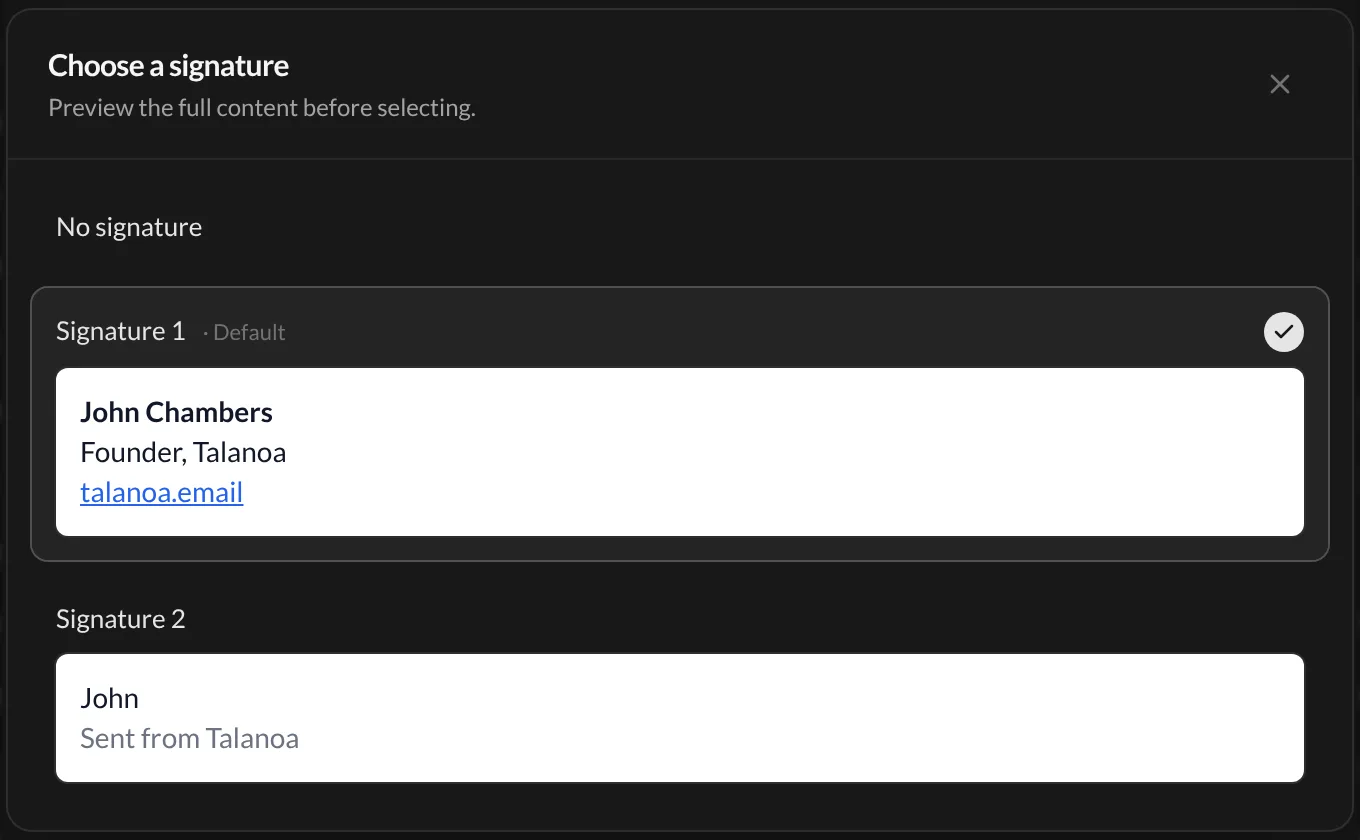
Talanoa also follows you when you switch accounts: change the sender at the top of the email, and the signature switches to that account’s default. Smart, right?
Good to know
On the free plan, a small “Sent using Talanoa” line is added below your signature. It helps other people discover Talanoa. To turn it off, you need Talanoa Pro (the switch is at the top of the Signatures settings).
Something went wrong?
“My signature doesn’t show up in new emails.” Check that the signature belongs to the account you’re sending from, and that it’s marked Default.
“My signature looks strange in dark mode.” Talanoa only changes its colors on your screen, so it’s easy to read. The people you write to see it exactly as you made it.
“My picture won’t upload.” Pictures must be under 5 MB. Try a smaller version of your logo.
Still stuck? Write to us at [email protected]. A real human will answer.
