Your contacts & sender history
See everything you've ever exchanged with someone, keep private notes about them, and give them a name you'll recognize.
- Time needed
- About 2 minutes
- What you need
- Talanoa, and someone who emails you
One person, one place 👋
In most email apps, emails from the same person are scattered all over your inbox. In Talanoa, every person gets their own page. It’s a bit like a chat with a friend on your phone: all your messages together, from the first to the last.
Next to it, there’s a little card about that person: who they are, your private notes, and handy buttons.
Step 1: Open someone’s page
Pick the way you like:
- From the sidebar: the people who write to you are listed on the left, under Teammates and People. Click a name.
- From search: press
/, type a name, and click it under Contacts. (More about search.) - See everyone: hover over the People (or Teammates) heading in the sidebar and click See all conversations. A list opens with a search box at the top.
You now see your whole conversation with that person, like a chat.
Step 2: Meet the sender panel
On the right, you’ll find the sender panel. From top to bottom:
- Their picture, name and email address. Hover over the email and click Copy email to copy it.
- Notes: a box for your private notes about this person (“Prefers calls”, “Birthday in May”). Only you can see them.
- Actions: Send an email, Archive all, Trash all, and Unsubscribe & block for the ones you’d rather not hear from.
- Drafts, Related tasks and Related notes, when there are any.
- More: Move to section to file this person somewhere else in your sidebar, and Attachments to see every file they sent you.
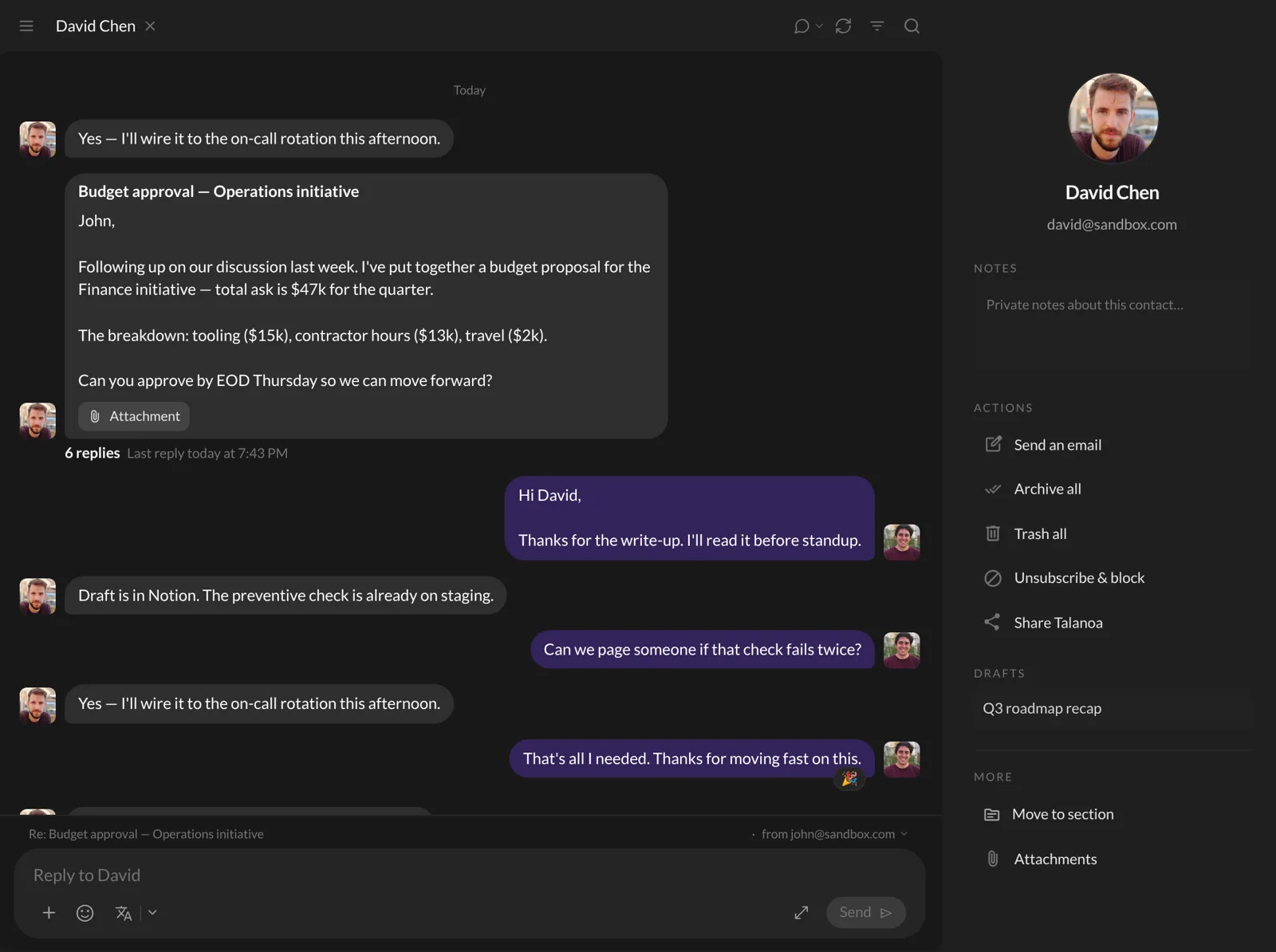
Need more room? Hover over the panel and click the small arrow at its top to fold it away. Click it again to bring it back.
Step 3: Rename a sender
Some people show up as “jdoe_1987” or “noreply”. You can give them a nicer name.
- In the sender panel, hover over their name.
- Click the little pencil (Rename sender).
- Type the name you want in Display Name.
- Click Save.
The new name shows up everywhere in Talanoa. It only changes on your side: the person will never know you call them “Uncle Bob”. Changed your mind? Open the same window and click Reset to original.
Step 4: Look further back in time
Talanoa keeps your recent emails on your computer. Older ones may still be stored only at your email provider, like old photo albums in the attic.
- Scroll to the very end of your conversation with someone.
- Click Load more from server.
- Pick how far back to go: Last year, Last 3 years or Everything.
Talanoa shows Importing from server… and the older emails slide into the conversation as they arrive. Everything can take a little longer. Good moment for a coffee.
And… that’s it! 🎉 You now know everything you ever said to each other. Well, Talanoa does.
Tips
- In someone’s conversation, use the magnifying glass at the top (Search in content/subject) to search only their emails.
- The Filter button at the top lets you show Unread only or Inbox only.
Something went wrong?
“I don’t see the sender panel.” It only shows on a person’s page (Step 1), not in the main inbox list. If you see a thin strip on the right, click its arrow to open the panel again.
“It says Everything from this sender… is already here, or No older emails from this sender.” Good news: you already have every email from this person for that period. Nothing is missing.
Still stuck? Write to us at [email protected]. A real human will answer.
