How to reply, reply all and forward
Answer an email, answer everyone, or pass it on to someone new. Talanoa even picks the right address to answer from.
- Time needed
- About 1 minute
- What you need
- Talanoa, and an email waiting for an answer
Three ways to answer 💬
When an email arrives, you can do three things with it:
- Reply answers only the person who wrote to you.
- Reply All answers the sender and everyone else on the email.
- Forward sends the email to someone new, like passing a note along in class.
Step 1: Open the email
Click the email in your inbox to open the conversation.
Talanoa can show a conversation in two ways: as chat bubbles, or as a classic list of emails. You can switch with V. (More in Read an email like a conversation.)
Step 2: Reply
If you see chat bubbles: a reply box is already waiting at the bottom, with Reply to and the person’s name. Type your answer and click the send button.

- When several people are on the email, the send button says Reply all or Reply only. Click the little arrow next to it to choose who gets your answer.
- Need more room, a signature or a template? Click the two-arrows button (Open in full composer) to open the big writing window.
If you see the classic view: below the email, click Reply. When several people are on the email, you’ll see Reply All instead. Click it to open a small menu, then pick Reply All or Reply.
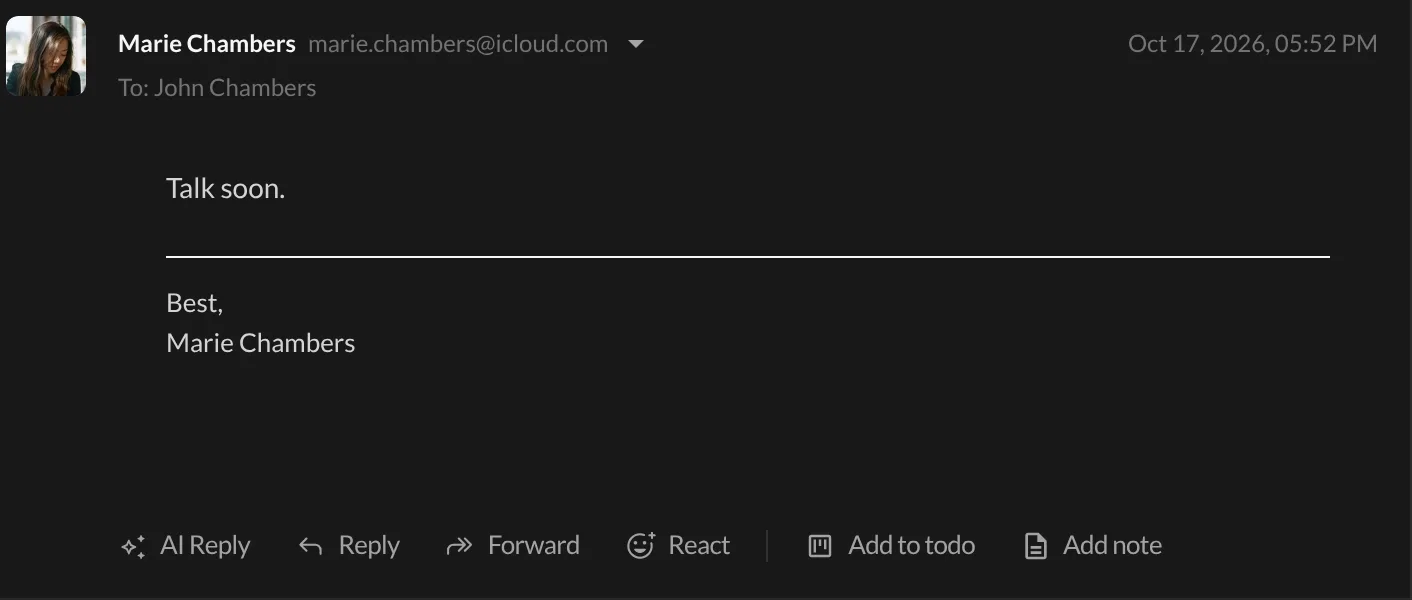
Shortcut: press R. Talanoa answers everyone if there are several people on the email, and only the sender otherwise.
The subject gets a “Re:” in front, and the earlier message stays tucked under your reply. Click the ⋯ at the bottom of the window to see it.
Step 3: Forward
- Below the email, click Forward (or press
F). - If the email has attachments, a small menu asks what to do with them. Choose With attachments to send the files along, or Without attachments to leave them out.
- Type the address of the person you want to forward it to, add a little word if you like, and send.
The subject gets a “Fwd:” in front, so everyone knows it’s a forwarded email.
And… done! 🎉
Good to know: the right address, every time
Do you have several email addresses? Talanoa answers from the address the email was sent to. If someone writes to your work account, your reply leaves from your work account. Same for extra addresses (aliases) like support@. No more “Wait, why did you answer from your personal email?”
Want a different one? In the big writing window, click the address at the top and pick another one. In the chat reply box, click from … just above the box. Your signature follows along: Talanoa switches to that account’s default signature.
Something went wrong?
“I only see Reply, not Reply All.” That means you’re the only person the email was sent to. There’s nobody else to answer.
“R doesn’t do anything.”
Click on the conversation first, and make sure you’re not typing in a box. You can change shortcuts in Settings → Shortcuts.
“My forward didn’t include the files.” You probably chose Without attachments. Forward again and pick With attachments.
Still stuck? Write to us at [email protected]. A real human will answer.
