Read an email like a conversation
Talanoa can show your email threads as chat bubbles, like a messaging app, with a reply box right underneath. Prefer the classic look? One click, or one key.
- Time needed
- About 2 minutes
- What you need
- Talanoa, and an email conversation with a few replies
Email, but like a chat 💬
An email thread is really a conversation. Someone writes, you answer, they answer back. But classic email shows it in a strange way: every reply copies the whole history, plus a signature, plus “On Monday, John wrote:”. By the fifth reply, the two lines that matter are hidden under a mountain of quotes.
Talanoa shows it the way you’d show a chat on your phone: bubbles. Theirs on the left, yours on the right in purple, the newest at the bottom. Each bubble only shows what that person actually wrote. The quotes and signatures are tucked away.
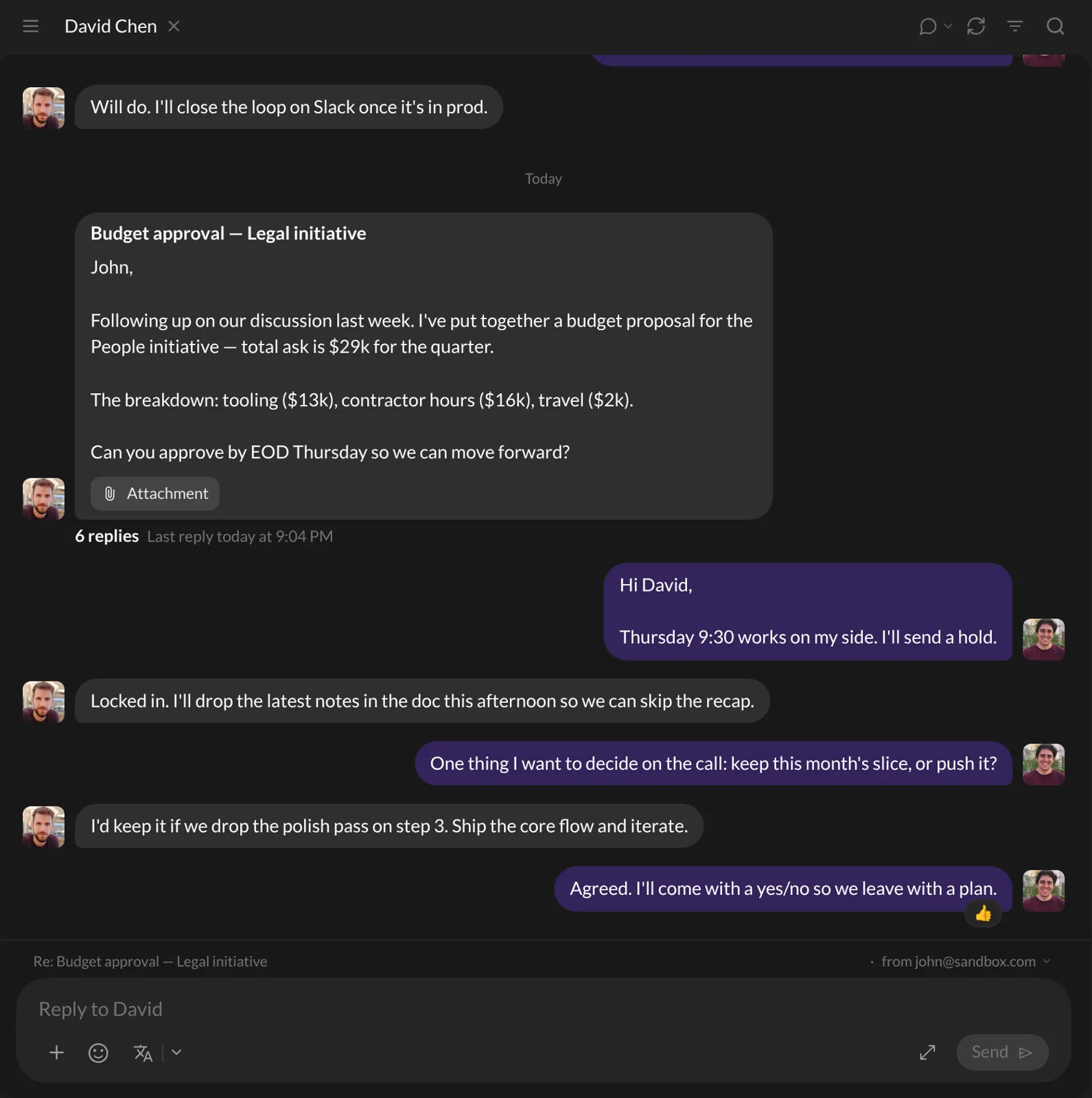
Where you’ll see bubbles
When you open an email from your inbox: a conversation with several messages opens as bubbles. A single email (no replies yet) opens normally.
When you click a person’s name in the sidebar: you see your whole history with them. If you’ve already written back to them, it shows as a chat. Newsletters and notifications keep their classic look. Nobody wants to chat with a shipping notice.
A few nice touches:
- Long messages fold behind See more.
- Pictures sit inside the bubble, attachments just below.
- Dates appear once, between bubbles, like in your messaging app.
- Hover a bubble to react with an emoji. 👍
Reply right where you read
Under the conversation, there’s a reply box. It even tells you who you’re answering, like Reply to David.
- Click the box and type your answer.
- Press
Cmd+Enteron Mac, orCtrl+Enteron Windows and Linux. (Or click Send.)
Your message appears as a bubble right away. For a few seconds, you can still take it back with Undo.
If several people are in the conversation, the button says Reply all. Click the little arrow next to it and pick Reply only to answer just the sender.
Need a subject change, a Bcc or a template? Click the Open in full composer button (two arrows pointing apart). Everything you typed comes with you.
Switch between chat and classic
Not a bubble person? No problem.
If you opened an email from your inbox: click the speech bubble button at the top of the email. Click it again to switch back.
If you’re looking at a person’s conversations: click the speech bubble button at the top right, then choose Classic or Modern chat.
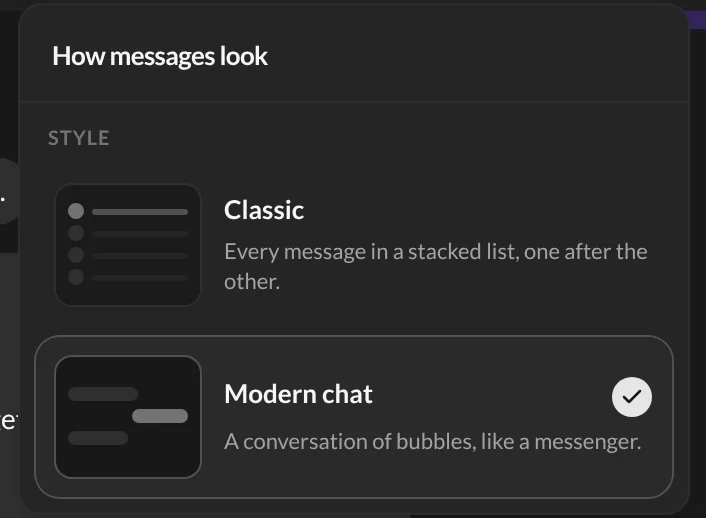
Even faster: press V. It flips between chat and classic in one go. You can change this key in Settings → Shortcuts.
Talanoa remembers your choice for each account.
Questions you might have
“My email opened normally, with no bubbles.”
It’s probably a single email with no replies yet. Bubbles need at least two messages to make a conversation. Or you may be in classic mode: press V to check.
“Where did the quoted text go?”
It’s still in the email, just hidden to keep things readable. Switch to the classic view with V to see each message in full.
“Enter doesn’t send my reply.”
That’s on purpose, so you can write several lines. Use Cmd+Enter (Mac) or Ctrl+Enter (Windows and Linux).
Still stuck? Write to us at [email protected]. A real human will answer.
