How to search your emails
Find any email or contact in a second. Type a few letters, and Talanoa shows results as you type.
- Time needed
- Less than a minute
- What you need
- Talanoa, and something you're looking for
Like asking a librarian 🔎
You know that email. The one with the invoice. Or the address of the restaurant. It’s in there somewhere.
Talanoa’s search is like a very fast librarian. You whisper a word, and she brings you the right emails before you finish your sentence.
Step 1: Open the search
If you like clicking: click the Search mail and contacts… bar at the top of the window.
If you like your keyboard: press / from anywhere in the app.
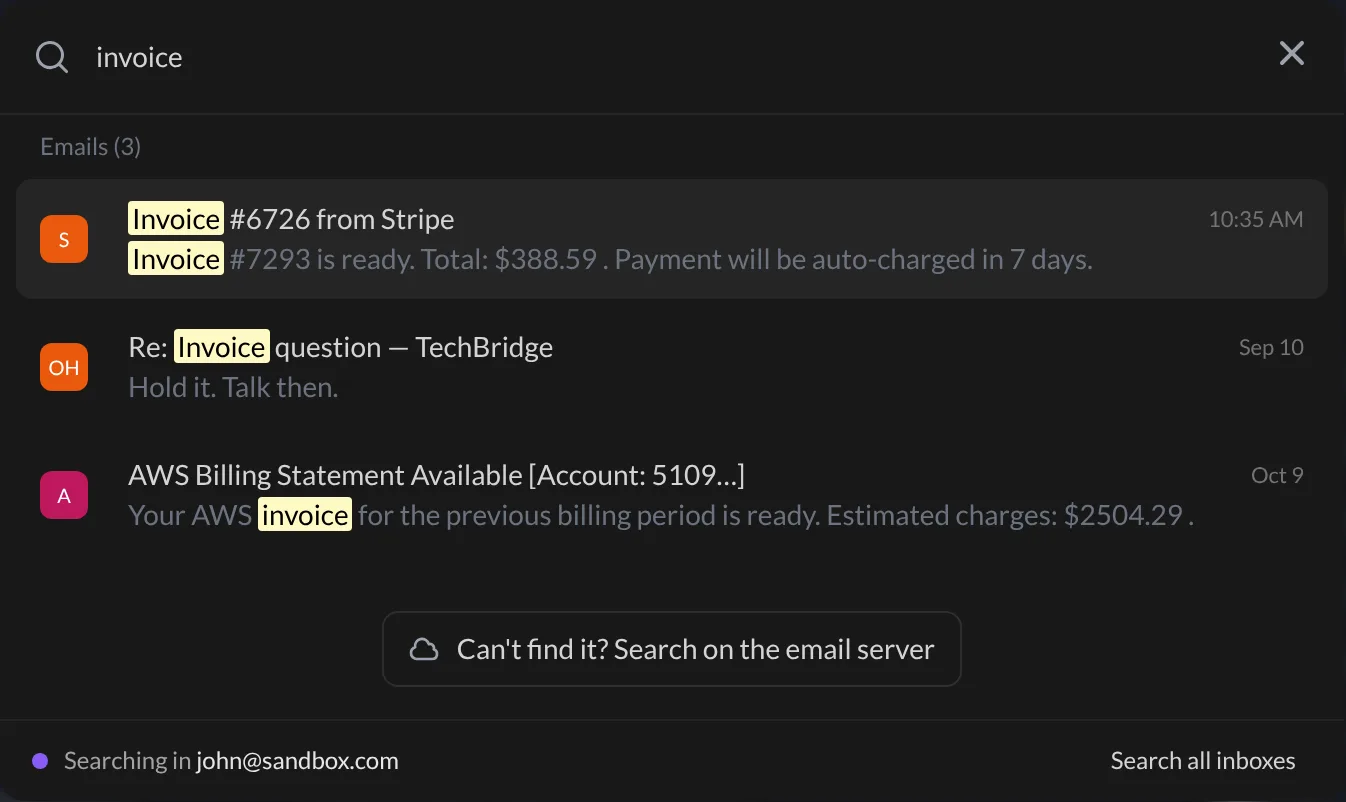
A search window opens in the middle of the screen.
Step 2: Type what you remember
- Type a word: a name, a subject, a company, a word from the email.
- Results show up as you type. You need at least 3 letters (with fewer, Talanoa says Keep typing).
- People who match are listed under Contacts. Emails that match are listed under Emails. The words you typed are highlighted in yellow.
Step 3: Open the right one
- Click a result. Or use the
↑and↓arrow keys, then pressEnter. - If you picked an email: it opens right away.
- If you picked a contact: you see all your emails with that person, in one place.
Press Escape to close the search window. And… that’s it! 🎉
Talanoa remembers your last search for a few minutes. Close it by mistake, open it again, and your results are still there.
Search one inbox, or all of them
Do you have several email accounts in Talanoa? Look at the bottom of the search window. It says which inbox you’re searching, like Searching in [email protected].
- Click Search all inboxes to look everywhere at once.
- Click Only followed by the account name to go back to just one.
If you’re using the unified inbox (all your accounts in one list), search already looks in every inbox.
Can’t find it? Look further back
Talanoa keeps your emails on your computer, so search is super fast. But very old emails may still be sitting only at your email provider, like boxes in a storage room.
- Look at the bottom of your results.
- Click Can’t find it? Search on the email server. (If nothing was found at all, the button says Search on the email server.)
- Talanoa goes to look in the storage room. New results appear under From email server.
- Click one. Talanoa says Downloading… for a few seconds, then opens it.
Good to know
- Search looks at the sender, the subject and the first lines of each email. If you turned on Ask AI, it also looks deeper inside your emails, and even in AI summaries (you’ll see a small AI summary tag).
- Looking for a word inside an email you already have open? Use Find in conversation instead.
- Want a different shortcut than
/? Change it in Settings → Shortcuts (Search).
Something went wrong?
“Nothing shows up when I type.” Type at least 3 letters. If it still says No results found, try Search on the email server.
“It says it could not reach the email server.” Check that you’re connected to the internet, then click Retry search on the email server.
“I don’t see Search all inboxes.” That button only appears when you have more than one account in Talanoa.
Still stuck? Write to us at [email protected]. A real human will answer.
