How to pin and star what matters
Pin the emails you need to keep at hand, and star the views you use every day so they sit right in your sidebar.
- Time needed
- About 1 minute
- What you need
- Talanoa, and an email worth keeping close
Sticky notes for your inbox 📌
Some emails you need again and again. The flight booking. The Wi-Fi password your landlord sent. The contract you have to sign “sometime this week”.
Instead of searching for them every time, pin them. Pinned emails live together in Pins, at the top of your sidebar. It’s like sticking a note on the fridge: always there, impossible to lose.
And for the places you visit often, like Sent or Drafts, you can star them so they show up in your sidebar too.
Pin an email
- Open the email.
- At the top of the email, click the pin button (a little thumbtack). Its name is Pin.
Talanoa says Message pinned, and the thumbtack turns purple.
Looking at a conversation in the classic view? Each message has its own thumbtack too: move your mouse over the message and it appears in the small row of buttons.
Find your pins
Click Pins in the sidebar, right under Inbox. All your pinned emails are there, newest first.
Unpin an email
When you’re done with it, click the purple thumbtack again (its name is now Unpin). Or, in Pins, move your mouse over the email and click Unpin.
Your pins follow you everywhere
Pins aren’t just a Talanoa thing. They use the “star” or “flag” of your email provider:
- In Gmail, a pin is a star.
- In Outlook, a pin is a flag.
- With other providers, it’s their flag too.
So an email you pin in Talanoa shows up starred in Gmail on your phone. And an email you star in Gmail shows up in your Pins. Clever little trick.
Star your favorite views
The menu at the top left of your inbox (the three little lines) lists all your other views: Sent, Drafts, Snoozed, Archive, Attachments and more.
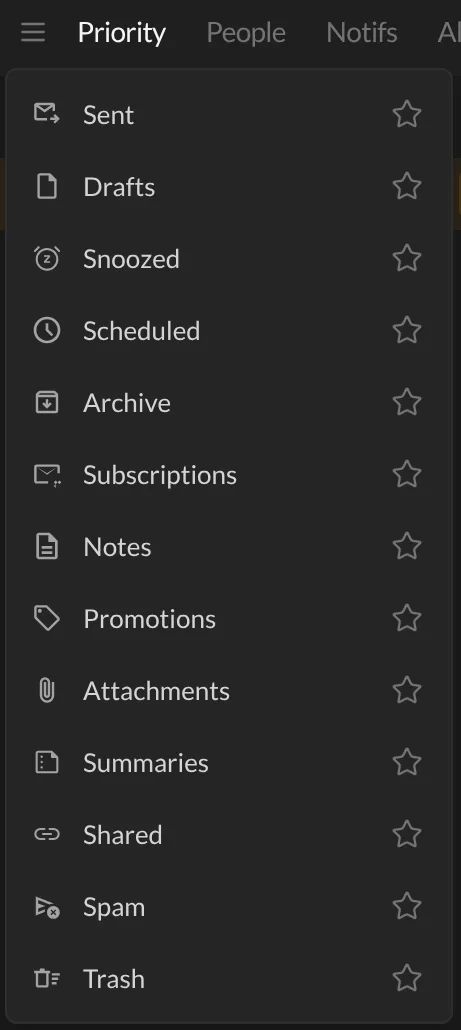
- Click the three little lines at the top left of your inbox.
- Click the ☆ star next to a view, for example Sent.
The star turns yellow, and the view appears in your sidebar, right below Pins. One click away, every day.
To remove it, open the same menu and click the yellow star again.
And… that’s it! 🎉
Good to know
- Starred views are saved per account. Your work account and your personal account can each have their own favorites.
- Pins work in every account, and in the unified inbox.
Questions you might have
“I pinned an email but I can’t see it in Pins.” Check that you’re on the right account in the left bar. Pins belong to the account the email came from.
“Will pinning an email change anything for the sender?” No. A pin is just for you. Nobody else can see it.
“Is a star in Talanoa the same as a Gmail star?” In Talanoa, Gmail stars are called pins. The stars in Talanoa are only for your favorite views in the sidebar.
Still stuck? Write to us at [email protected]. A real human will answer.
