How to send later and undo send
Write now, send tomorrow morning. And if you hit Send too fast, you have a few seconds to take it back.
- Time needed
- About 1 minute
- What you need
- Talanoa, and an email ready to go
Your email, right on time ⏰
Sometimes you write an email at 11 PM, but you’d rather it arrives at 9 AM. That’s send later: you pick the time, Talanoa delivers it.
And sometimes you click Send and immediately see the typo. That’s what undo send is for. Every email waits a few seconds before it really leaves, just in case.
Send later
- Write your email as usual.
- In the top bar of the email window, click the clock button (Schedule send).
- Pick a time: In 1 hour, In 3 hours, Tomorrow 9 AM, Monday 9 AM, or Custom… to choose any date and time.
- Click the paper plane button to send.
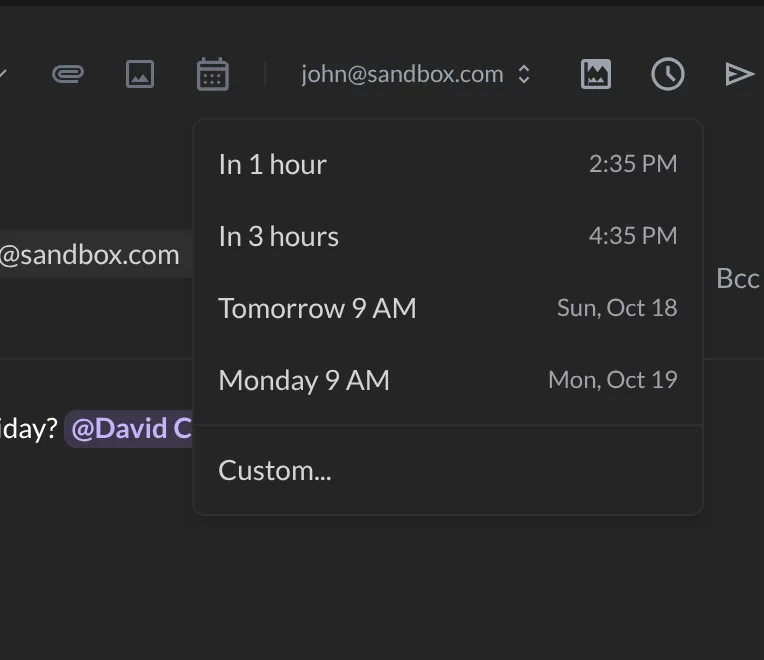
Talanoa confirms with Message scheduled for… and the date. 🎉
Changed your mind before sending? Open the clock menu again and click Remove schedule.
Keep Talanoa open. Your emails stay on your computer, not on our side. So Talanoa needs to be open to send a scheduled email at the right time. If the app is closed at that moment, the email goes out as soon as you open Talanoa again.
The first time, Talanoa explains this in a little window. Click Got it! to continue.
See or cancel your scheduled emails
- Click the menu button (the three lines) at the top left of your inbox.
- Click Scheduled.
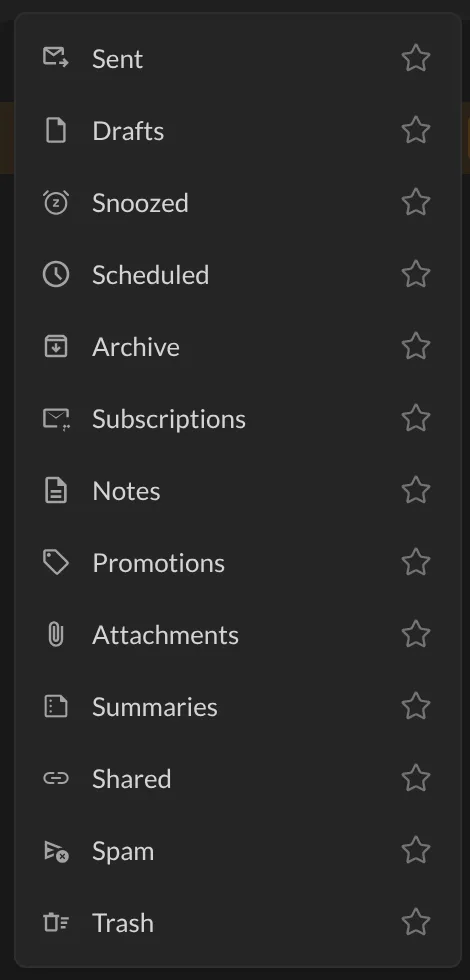
You’ll see every email waiting to leave, with the time it will be sent. To stop one, click the three dots on its row, then Cancel.
Undo send
After you click Send, a little box appears at the bottom left: Your message will be sent in 6s, with a countdown.

- Click Undo and your email comes right back, open, so you can fix it.
- Click Send now if you don’t want to wait.
- Do nothing, and it leaves when the countdown ends.
In a conversation shown as chat bubbles, the countdown sits right on your new bubble instead.
Sending without internet
No internet? No problem. Write and send as usual. Talanoa says You’re offline. Your email is saved and will be sent automatically as soon as you’re back online. Like dropping a letter in the mailbox on a Sunday: it leaves with the first pickup.
If a send fails for a small reason (a shaky connection, for example), Talanoa tries again by itself after a moment. Want to change something first? Click Edit now.
Something went wrong?
“My scheduled email didn’t leave on time.” Talanoa was probably closed or your computer was asleep. It sends the email as soon as Talanoa is open again.
“Can I make the undo delay longer?” Not yet. The delay is always 6 seconds.
“Talanoa couldn’t send my email.” Your email is never lost. It stays in Drafts and the window opens again so you can try once more. If it says your account needs to be reconnected, see Remove or reconnect an account.
Still stuck? Write to us at [email protected]. A real human will answer.
