How to create events and reply to invitations
Plan your days in the Talanoa calendar, add video calls, and answer meeting invitations right from the email.
- Time needed
- About 3 minutes
- What you need
- A connected Google or Outlook calendar
Your calendar, inside your email app 🗓️
Talanoa has a real calendar built in. You can look at your week, add a coffee with a friend, move a meeting, and say yes to an invitation, all without leaving your inbox.
It’s like having your diary and your mailbox on the same desk. Less running around.
Haven’t connected a calendar yet? Start with Connect your Google or Outlook calendar.
Step 1: Open the calendar
Click Calendar at the top of the window, or press G then C.
Then pick how much you want to see, with the buttons at the top right:
- Day: one day, hour by hour. Press
D. - Week: the whole week. Press
W. - Month: the big picture. Press
M. Click a day to zoom into it. - Agenda: a simple list of what’s coming. Press
A.
Press T (or click Today) to come back to today. The arrows next to it, or the ← and → keys, move you back and forward in time.
Step 2: Create an event
- In the Day or Week view, click and drag over the time you want. (Or press
N.) - Type a title, like Coffee with Sarah.
- Check the time, and add a place in Add location if you like.
- Want a video call? Turn on the Google Meet switch (it says Microsoft Teams on an Outlook calendar).
- Invite people in Add guests….
- Click Create.
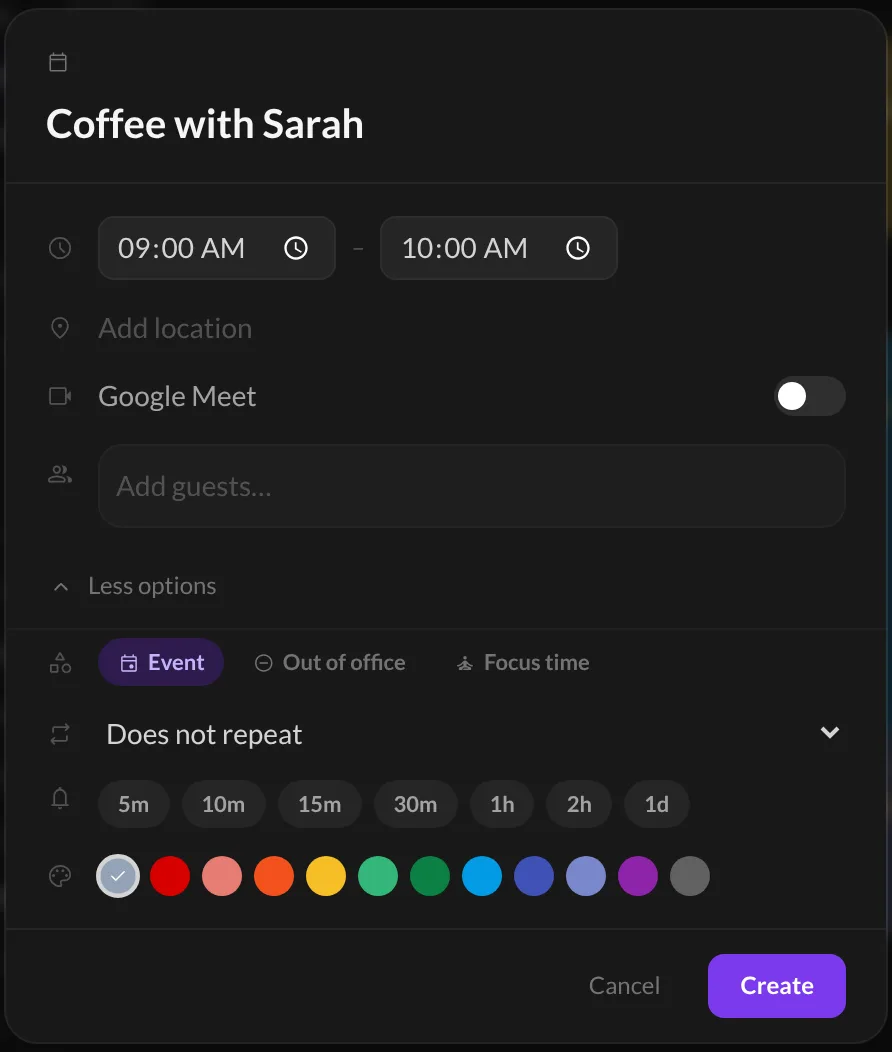
Click More options to make the event repeat (Every week, Every month…), add a reminder, pick a color, or mark it as Out of office or Focus time.
And… that’s it! 🎉 The event is on your calendar, and your guests get their invitation.
Tip: plan your to-dos. On the left of the calendar, your Tasks are waiting. Drag one onto the calendar to give it a time slot.
Step 3: Change or delete an event
Click an event to see its details: the time, the guests and who said yes, and a Join meeting link if there’s a video call.
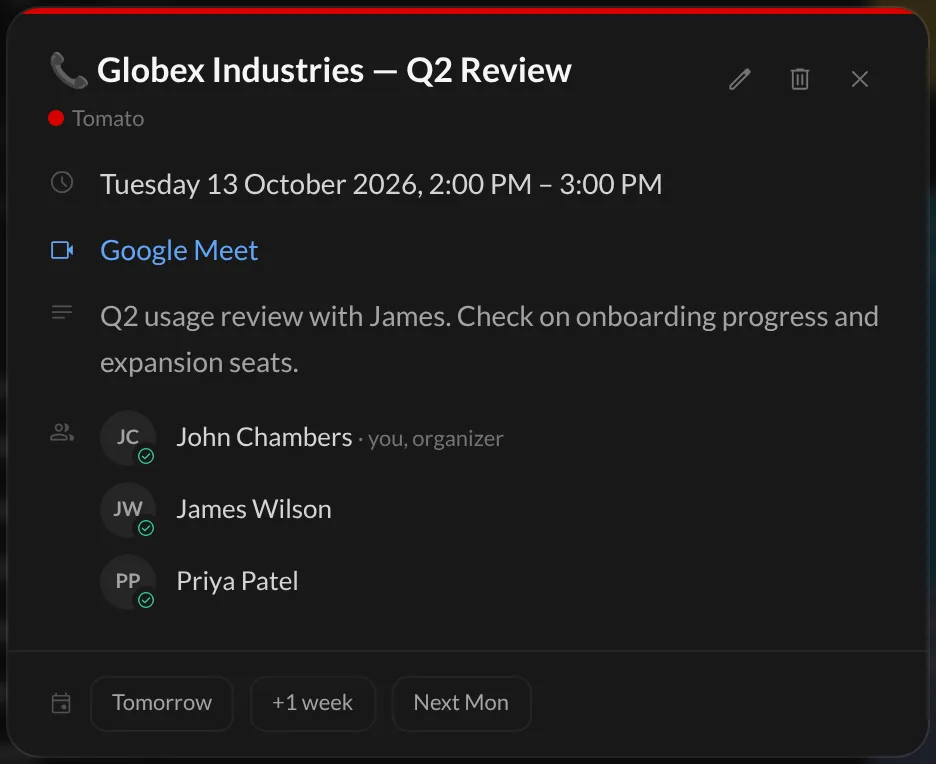
- To change it: click the pencil, edit, then click Save.
- To move it quickly: on your own events, use Tomorrow, +1 week or Next Mon at the bottom. Or simply drag the event to a new time in the calendar. Drag its bottom edge to make it longer or shorter.
- To delete it: click the trash can.
If the event repeats, Talanoa asks whether you mean This event or All events.
When someone else invited you, the bottom of the window shows Accept, Maybe and Decline instead.
Step 4: Answer invitations from your inbox
When an invitation lands in your inbox, you don’t even need to open the calendar. The email shows a little card with the event, who invited you, and three buttons: Yes, No, Maybe.
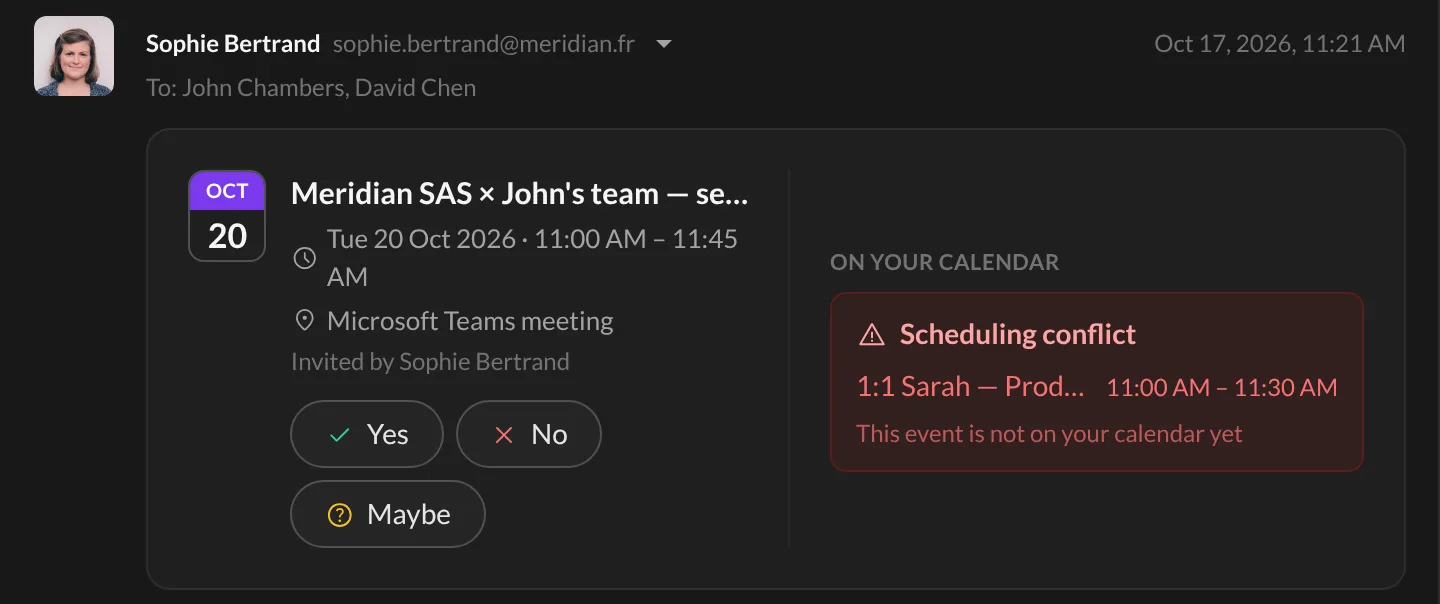
On the right, under On your calendar, Talanoa checks your day for you. It says You’re free, or warns you about a Scheduling conflict. Very handy before you say yes to two meetings at once.
This works with Google invitations, and also with the .ics invitations sent by Outlook, Apple Calendar and others. If an event has nobody to answer (like a webinar), you’ll see Add to calendar instead.
And if a guest suggests another time, the email shows New time proposed with an Accept new time button.
Good to know
- Video calls by default. Prefer a Meet or Teams link on every new event? Click the settings button at the far top right of the calendar and turn on Add a video call (Meet / Teams) by default.
- Hide what you don’t need. The same menu has Show weekends and Show declined events.
Something went wrong?
“I see No calendar connected.” Click Open Calendar Settings and add your calendar. See Connect your Google or Outlook calendar.
“The Yes / No / Maybe buttons say I need to connect a calendar.” The invitation was sent to an email address whose calendar isn’t connected yet. Connect that calendar, then try again.
“I can’t pick Focus time on my Outlook calendar.” That’s normal. Outlook doesn’t have focus time events, so Talanoa only offers it on Google calendars.
Still stuck? Write to us at [email protected]. A real human will answer.
