Use several accounts & the unified inbox
Work email, personal email, that old address from 2009: put them all in Talanoa, jump between them in one click, or see them together in the unified inbox.
- Time needed
- About 3 minutes
- What you need
- Talanoa Pro (or your free trial), and a second email account
One app, all your mailboxes 📮
Most of us have more than one email address. One for work, one for life, one for the newsletters we swear we’ll read someday.
In Talanoa, every account sits in the thin column on the far left of the window, called the account rail. One click to switch. And if you’d rather see everything at once, the unified inbox pours all your accounts into a single list, like emptying all your mailboxes onto one kitchen table.
Several accounts is a Pro feature. The free version of Talanoa lets you use one account. To add more, you need Talanoa Pro. Good news: during your free trial, it’s all unlocked.
Step 1: Add another account
- Click the + at the bottom of your accounts list, on the left side of the window. (Its label is Add an account.)
- Pick how to connect:
- Sign in with Google for Gmail. See Connect Gmail.
- Sign in with Microsoft for Outlook and Hotmail. See Connect Outlook.
- Custom Provider (SMTP/IMAP) for everything else, like iCloud, Yahoo & co, Proton Mail or any other email.
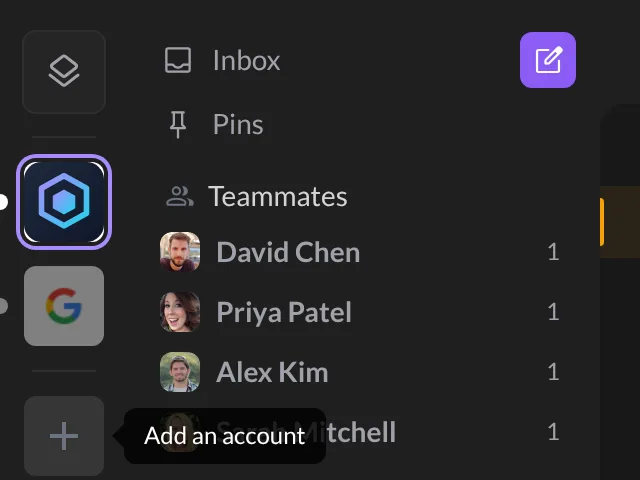
Talanoa then gives you a mini tour for your new account: pick its color, how its inbox reads, connect its calendar if you like. When you have two accounts, it also asks whether they share One shared list of to-dos, or get One list per account.
And… that’s it! 🎉 Your new account sits in the rail, right under the others.
Step 2: Switch between accounts
- Click an account in the rail to open its inbox.
- Hover an account to peek at its latest emails, without switching.
- Keyboard: press
Cmd+1,Cmd+2,Cmd+3… on Mac (Ctrl+1,Ctrl+2… on Windows and Linux) to jump to the first, second, third account. HoldCmd(orCtrl) for a moment and little numbers appear on each account. Handy. - Keyboard, take two:
Ctrl+Tabgoes to the next account,Ctrl+Shift+Tabto the one before.
You can change these shortcuts in Settings → Shortcuts.
Step 3: Try the unified inbox
Once you have two accounts or more, a new button appears at the top of the rail: a little stack of squares. Its label says Unified inbox — all accounts in one place.
- Click it.
- All your accounts now show up in one list.
Each email gets a thin colored line on its left, and each account in the rail gets a small dot of the same color. That way, you always know which mailbox an email came from.
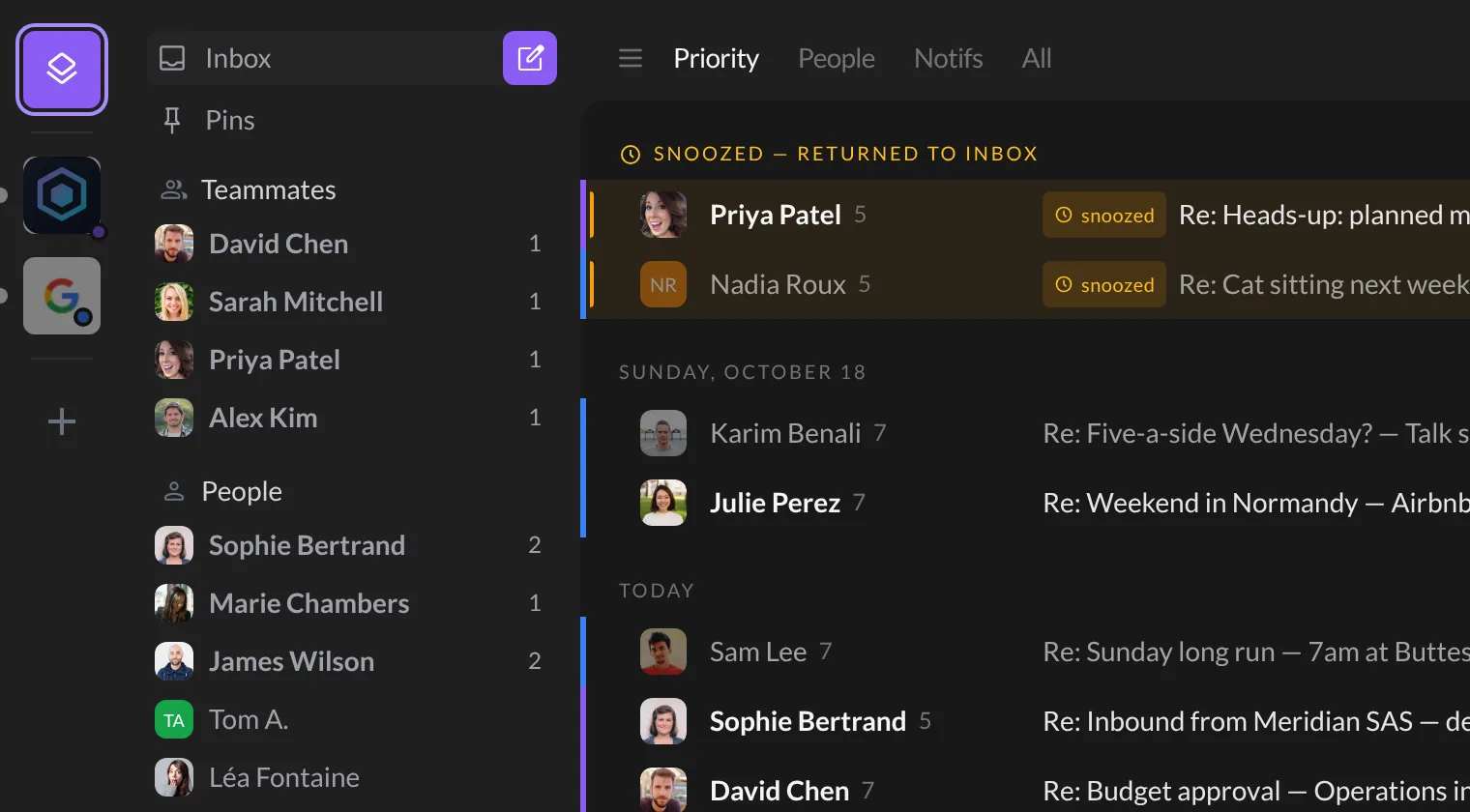
To leave the unified inbox, just click one of your accounts.
Make it yours
Change the order. Drag an account up or down in the rail. The keyboard numbers (Cmd+1, Cmd+2…) follow the new order.
Change an account’s color. Open Settings → Accounts (Cmd+, on Mac, Ctrl+, on Windows and Linux). Click the small colored square next to an account, then pick a new color, or Custom to choose any color you like. Reset goes back to the original.
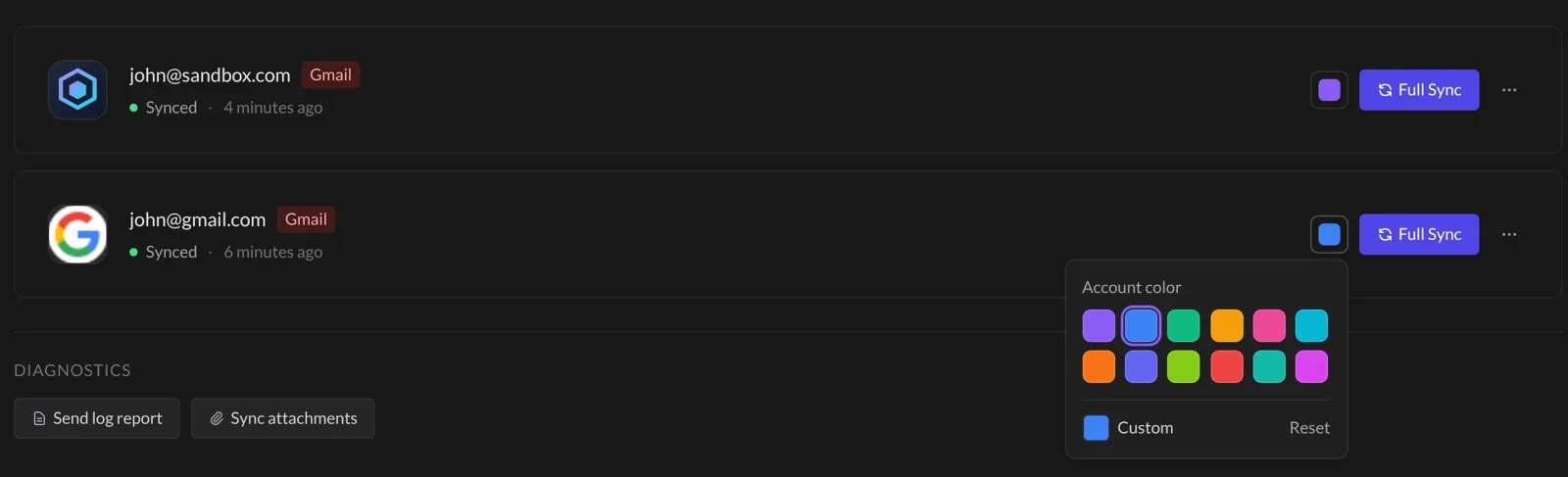
Change an account’s picture. Right-click an account in the rail and choose Change picture. Talanoa opens Settings → Accounts, where you can pick a new picture for it.
Something went wrong?
“I clicked + and Talanoa asks me to upgrade.” That’s the free plan: one account. To add more, you need Talanoa Pro.
“One of my accounts is grey with a little lock.” Your trial or Pro plan ended, so Talanoa keeps your main account open and locks the others. Nothing is deleted. Upgrade to Talanoa Pro and they open again.
“I don’t see the unified inbox button.” It shows up only when you have at least two accounts, with Pro or during your free trial.
“One account turned red.” That account needs to sign in again. See Remove or reconnect an account.
Still stuck? Write to us at [email protected]. A real human will answer.
