How to ask your inbox anything
Ask a question in plain words, like you'd ask a friend, and Talanoa finds the answer in your emails, to-dos and calendar.
- Time needed
- About 5 minutes to set up, then seconds
- What you need
- Talanoa Pro, with AI set up in Settings → AI
Like a librarian who has read all your mail 📚
Searching for an email usually means guessing the right word. Was it “invoice”? “bill”? “receipt”?
With Ask AI, you just ask your question normally:
- What did my accountant say about the tax deadline?
- What do I have on my calendar tomorrow?
- Add a todo to pay the electricity invoice by Friday.
Talanoa looks through your emails, attachments, contacts, to-dos and calendar, and answers. It’s like a librarian who has read every letter you ever got, and doesn’t mind being asked twice.
Ask AI is part of Talanoa Pro, and it’s still in beta. It needs Talanoa’s AI to be set up first: see Private AI that stays on your computer.
Step 1: Open Ask AI
Click Ask AI at the top right of the window. Or press Cmd+J on Mac, Ctrl+J on Windows and Linux. (You can change this shortcut in Settings → Shortcuts.)
Press it again to close it.
Step 2: Let Talanoa read your mailbox (once)
The first time, Talanoa needs to get to know your emails. It shows Turn on AI email search.
- Choose What to index: Emails from people, Notifications, or both. People come first, so you can start asking sooner.
- Click Download & start indexing.
Talanoa downloads a small search helper (about 600 MB) and then reads through your mailbox. All of this happens on your computer. Your emails don’t go anywhere.
Good moment for a walk. The first reading keeps your computer busy for ten minutes or so (the fan may spin up). Talanoa pauses it while you’re using the app and continues when you step away. You’ll get a notification when Ask AI is ready.
Step 3: Ask your question
- Type your question in the box at the bottom. Plain words are perfect.
- Want to talk about someone? Type
@and pick them from your contacts. - Press
Enter.
Talanoa answers, and lists the emails it used under Sources. Click one to open it and check for yourself.
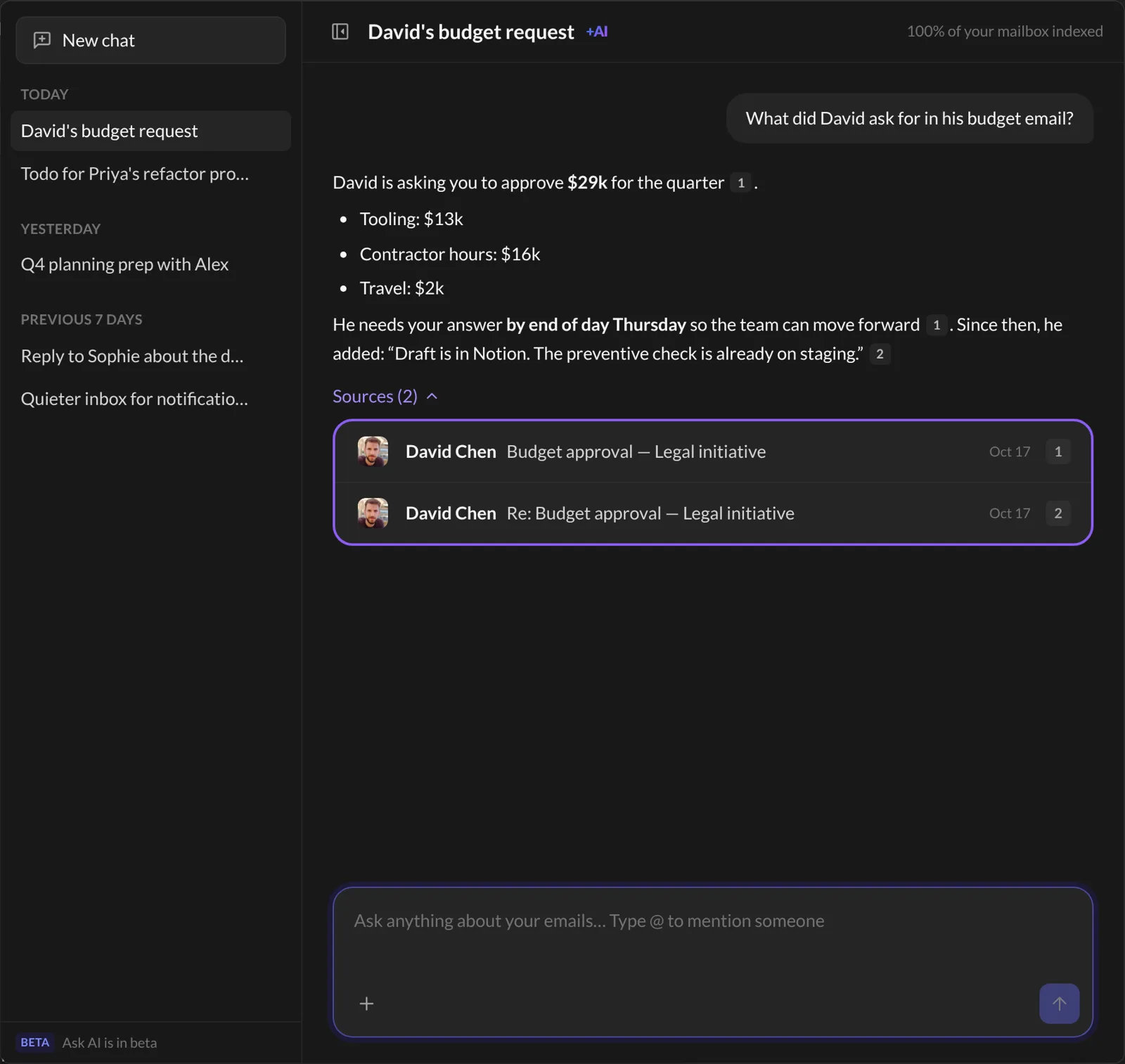
And… that’s it! 🎉 Your old chats stay in the list on the left. Click New chat to start a fresh one.
Let it do things for you
Ask AI can also prepare things, and you just confirm. Ask it to:
- Reply to an email: it writes a draft. Click Send, or Open in composer to change it first.
- Add a todo: click Add todo.
- Add an event: click Create event.
- Sort some emails automatically: click Create rule.
Nothing happens until you click. Don’t like the idea? Click Dismiss.
Good to know
- Search one inbox only. Click + in the question box, then Search in, and pick an inbox.
- A smarter search bar too. Once Ask AI is set up, the normal search also looks inside your emails, not just at senders and subjects.
- What gets read. You can change What to index later in Settings → AI, under AI email search. Spam and trash are always skipped.
Something went wrong?
“I don’t see the Ask AI button.” AI isn’t set up yet. Open Settings → AI and follow the steps. See Private AI that stays on your computer.
“It says No AI model is configured for answers yet.” The search part works, but the part that writes answers needs an AI model. Set one up in Settings → AI. Meanwhile, Ask AI still shows the matching emails.
“It says Indexing… and I can’t ask yet.” Talanoa is still reading your mailbox. Leave the app open and take a break. It goes faster when you’re not using Talanoa.
Still stuck? Write to us at [email protected]. A real human will answer.
