How to set up notifications
Choose which emails ping you and which ones count on the app icon. Real people only, everything, or nothing at all.
- Time needed
- About 2 minutes
- What you need
- Talanoa
A doorbell that knows who’s knocking 🔔
Most email apps ring for everything. A newsletter? Ding. A receipt? Ding. Your bank’s 14th promo this month? Ding.
Talanoa can be pickier. It knows the difference between a real person writing to you and an automatic email. So you can ask it to ring only when a human knocks.
There are two things you can set:
- Desktop notifications: the little pop-up in the corner of your screen when a new email arrives.
- The app badge: the small number on Talanoa’s icon, in your Dock or taskbar.
Step 1: Open the notification settings
- Click the gear at the bottom left of the window, then Settings. (Or press
Cmd+,on Mac,Ctrl+,on Windows and Linux.) - Click Notifications.
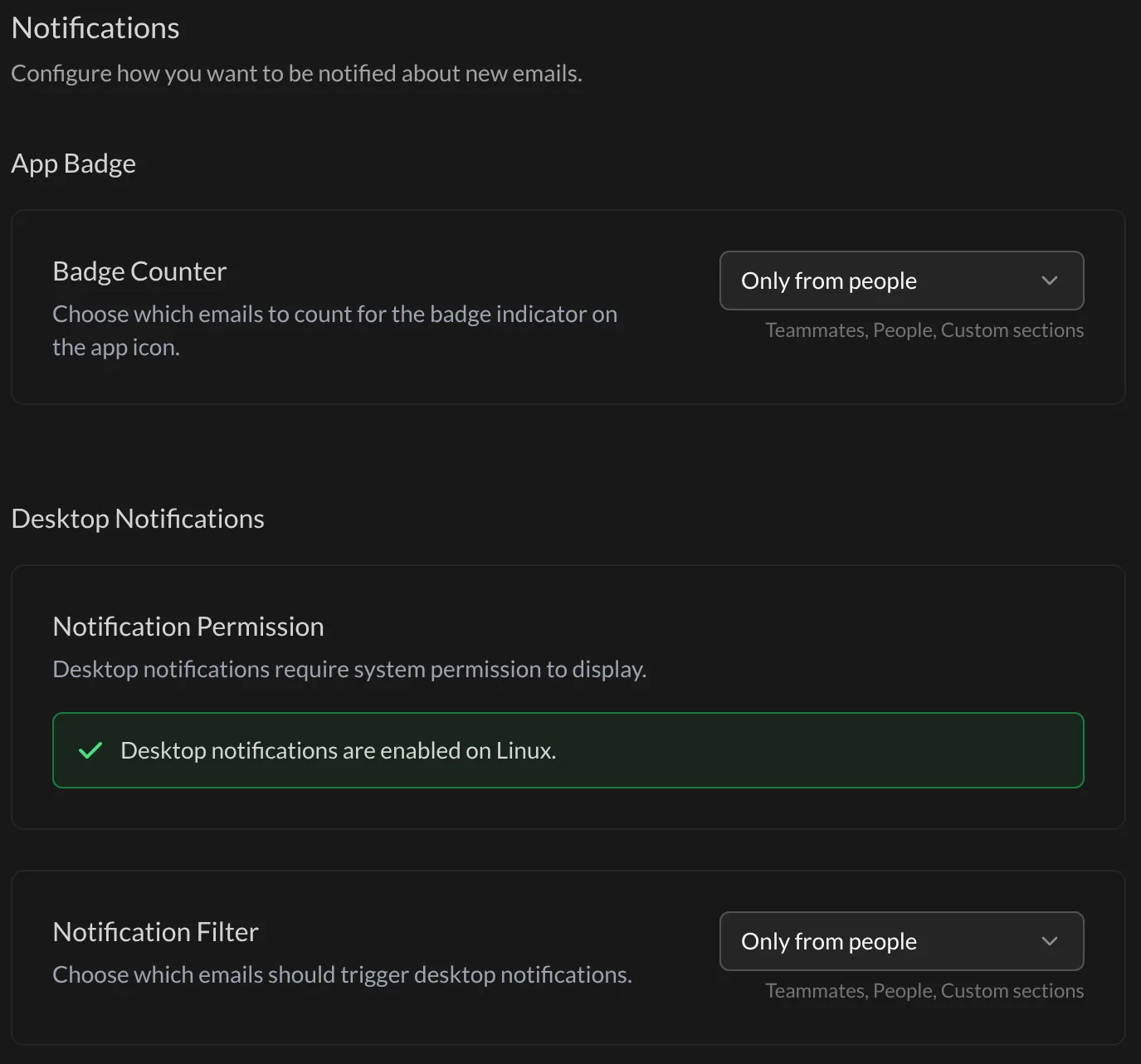
Step 2: Let Talanoa show notifications
Your computer has to say yes before any app can show notifications.
- Look at Notification Permission.
- If you see a button called Enable Notifications: click it, then click Allow in the window your computer shows.
- If you see “Desktop notifications are enabled”: perfect, nothing to do.
Step 3: Choose who rings
Next to Notification Filter, pick one:
- No notifications: total silence. You check your email when you want.
- Only from people: only your teammates, real people, and your own sections. This is the default.
- For all new emails: everything, including automatic emails like receipts and alerts.
Step 4: Choose what the badge counts
Next to Badge Counter, pick one:
- No indicator displayed: no number on the icon.
- Only from people: counts unread emails from real people.
- All unread messages: counts everything unread, notifications included.
And… that’s it! 🎉 Your doorbell now only rings for the visitors you care about.
Good to know
- Automatic emails aren’t lost. In your inbox, the Priority tab folds all of them into a single Notifications row, with who sent them and how many are unread. Click it to see them all. More in How Talanoa sorts your emails.
- Verification codes have their own little banner, set on the same page. See Verification codes, delivered to you.
- If someone lands in the wrong place (a friend in Notifications, a robot in People), you can move them. See How Talanoa sorts your emails.
Something went wrong?
“Talanoa says notifications are disabled.” Your computer is blocking them. On Mac, open System Settings → Notifications → Talanoa and turn on Allow notifications. On Windows, open Settings → System → Notifications and turn Talanoa on.
“It says Do Not Disturb is enabled.” Your computer is in focus mode, so it keeps notifications quiet. Turn Do Not Disturb (or Focus) off, and they’ll come back.
“I get no notification for a newsletter.” That’s on purpose with Only from people. Pick For all new emails if you want them too.
Still stuck? Write to us at [email protected]. A real human will answer.
