How to suggest meeting times inside an email
Pick a few free slots from your calendar while you write, and let the other person book the one that suits them.
- Time needed
- About 2 minutes
- What you need
- A connected Google or Outlook calendar
No more “Tuesday? No. Wednesday? Maybe.” 🙌
You know the dance. You suggest a time, they can’t, they suggest another, you can’t… Ten emails later, you finally have a meeting. And a headache.
Talanoa skips the dance. While you write your email, you open your calendar, pick a few times when you’re free, and drop them into the message. The other person clicks the one they like, and the meeting lands in both calendars. Done.
You need a connected calendar for this. See Connect your Google or Outlook calendar.
Step 1: Click the calendar button
- Write a new email, or a reply. (See Write a new email.)
- In the toolbar at the top of the email, click the little calendar icon (Send a calendar link).
A small menu opens with two choices.
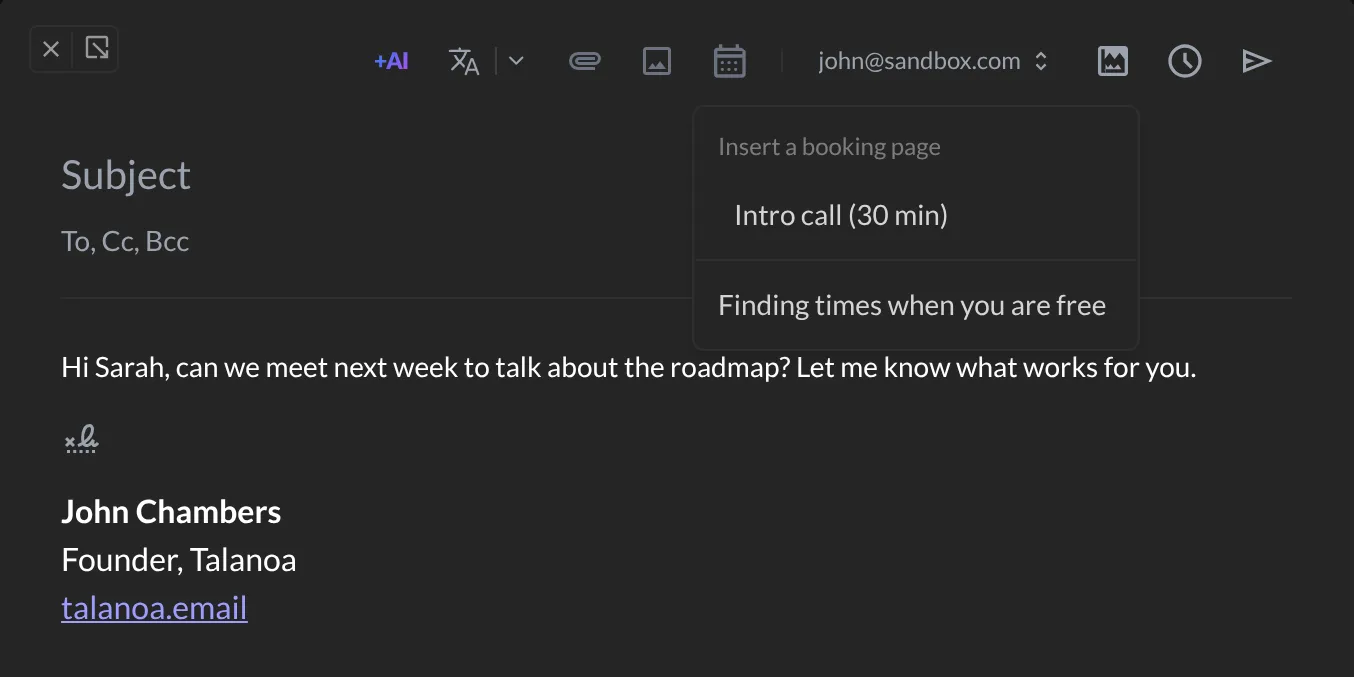
If you already use a booking page (Calendly, Cal.com, Google Appointment, Microsoft Bookings): click its name under Insert a booking page. Talanoa adds a Book a slot button to your email. That’s it, you can skip to Step 3.
If you want to choose the times yourself: click Finding times when you are free, and go on to Step 2.
Step 2: Pick your free times
Your week opens, with your meetings already in place.
- Click and drag over a free time to offer it. It turns green and says Selected.
- Do it again for every time you want to offer. Two or three is plenty.
- Use the arrows at the bottom to see the next week.
- Changed your mind about a slot? Click the little × on it.
- Want a video call? Check Add a Google Meet link to the booked event.
- Click Insert.
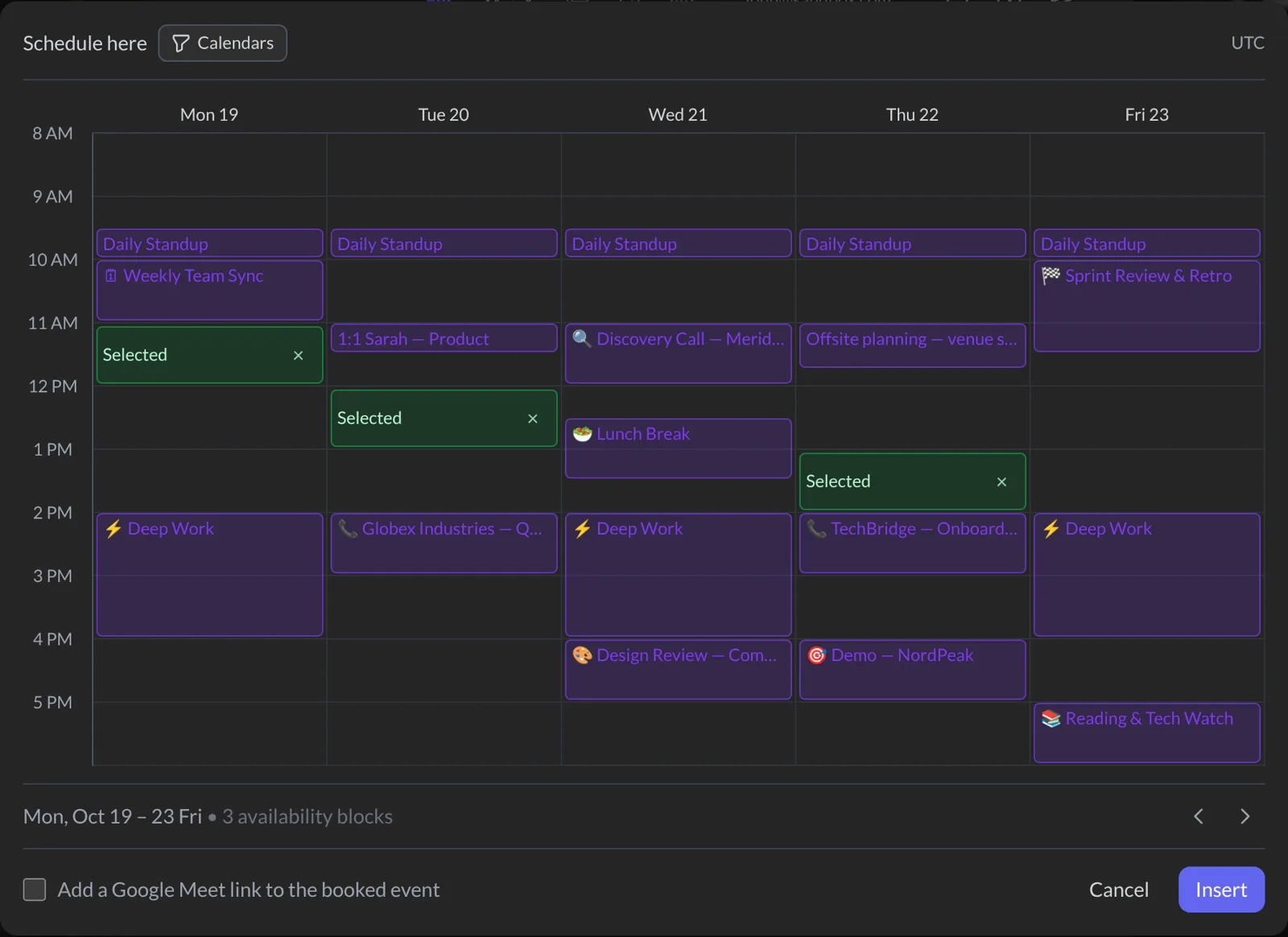
Talanoa won’t let you pick a time in the past, or one that overlaps a meeting. Kind of like a friend who stops you from double-booking yourself.
Step 3: Send your email
A card called My available times now sits in your email, with a Book a slot button.
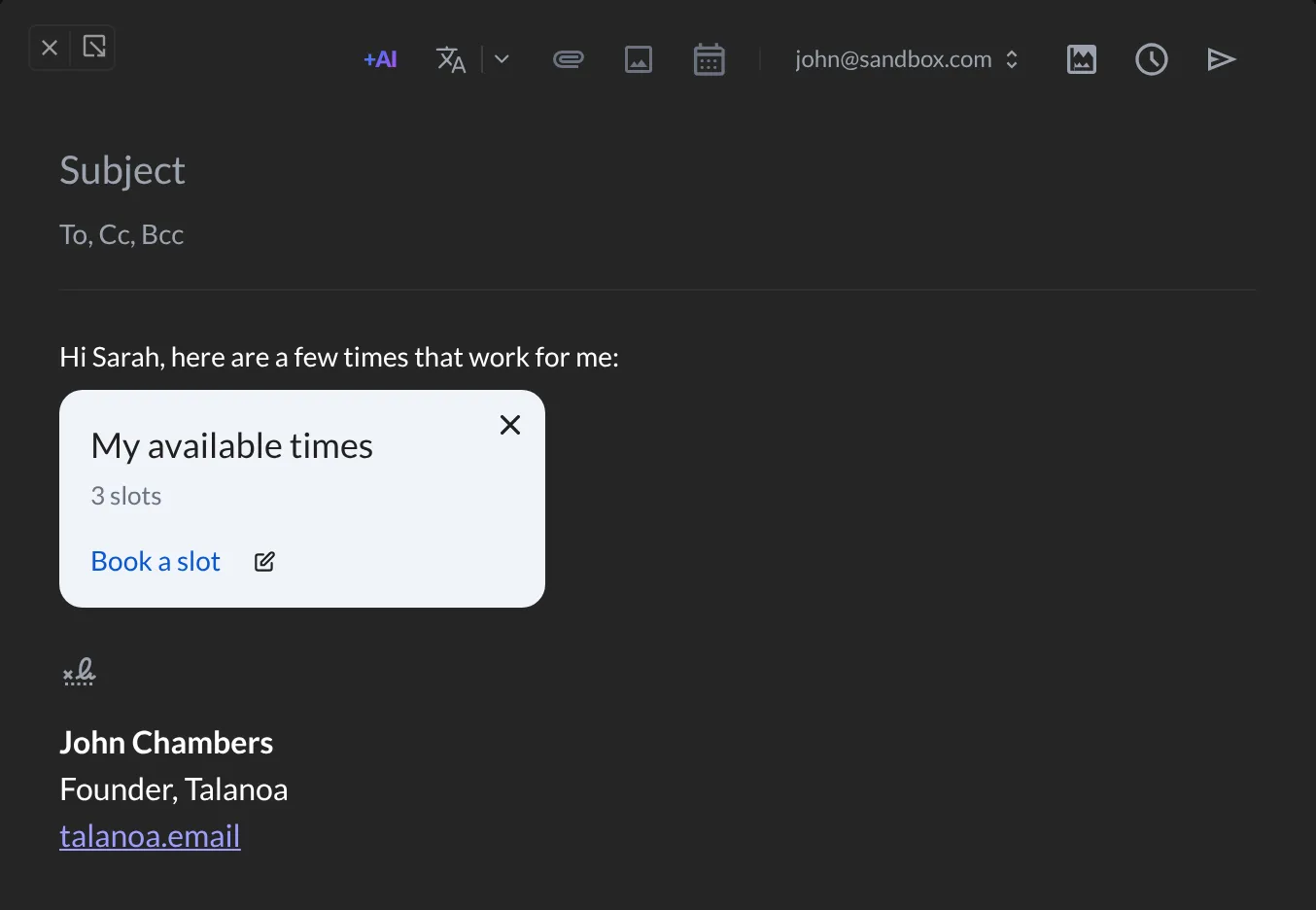
Need to change the times? Click the pencil next to Book a slot (Edit availability). To remove the card, click its ×.
Then send your email as usual.
And… that’s it! 🎉 Your friend opens the link in their web browser, sees only the times you offered, and picks one. The meeting is added to your calendar, and the time is saved for both of you.
Your calendar stays private. The other person only sees the times you picked. They never see the rest of your week, or what your other meetings are about.
Something went wrong?
“Clicking the calendar button shows a little tour instead of the menu.” That means no calendar is connected yet. Click Connect your calendar at the end of the tour, or follow Connect your Google or Outlook calendar.
“It says No booking pages.” That’s fine if you don’t use one. To add one, go to Settings → Calendar Accounts and click Add URL under Booking pages.
“It says This slot overlaps an existing event.” You dragged over a meeting. Pick a free spot instead.
Still stuck? Write to us at [email protected]. A real human will answer.
