How to use emojis, formatting and @mentions
Make your emails clear and friendly: bold and colors, lists and quotes, emojis, and @mentions that add people to the email for you.
- Time needed
- About 2 minutes
- What you need
- Talanoa, and an email you're writing
Make your words shine ✨
A wall of plain text is hard to read. A few bold words, a short list or a smiley make a big difference.
In Talanoa you dress up your email with three little magic keys:
- Select text to format it.
- Type / to open a menu of styles and tools.
- Type @ to mention someone.
Format your text
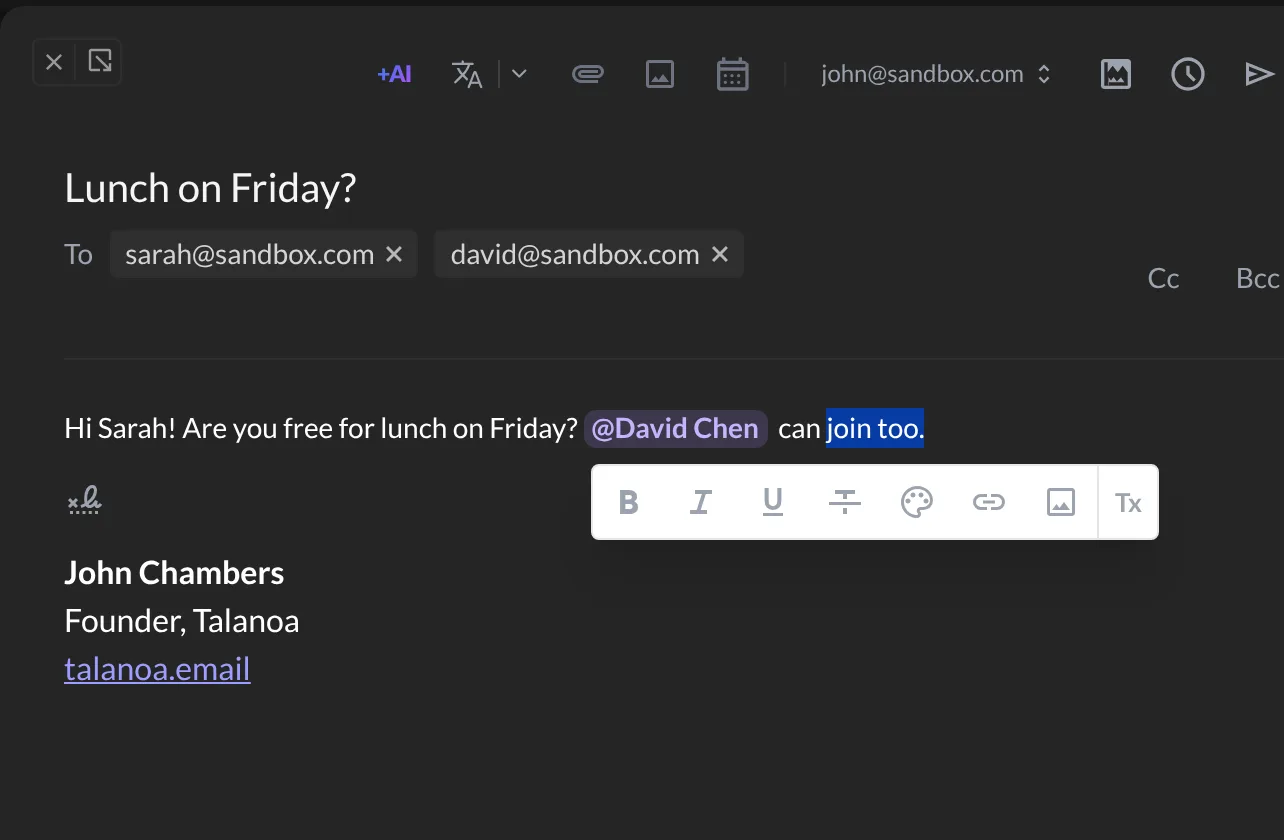
- Select a few words with your mouse.
- A small toolbar pops up above them.
- Click what you want: bold, italic, underline, strikethrough, a text Color or a Background color, a link, or a picture.
To go back to plain text, select it and click Tx (Clear formatting).
You can also use the classic shortcuts: Cmd+B (bold), Cmd+I (italic) and Cmd+U (underline) on Mac. On Windows and Linux, use Ctrl instead of Cmd.
The / menu
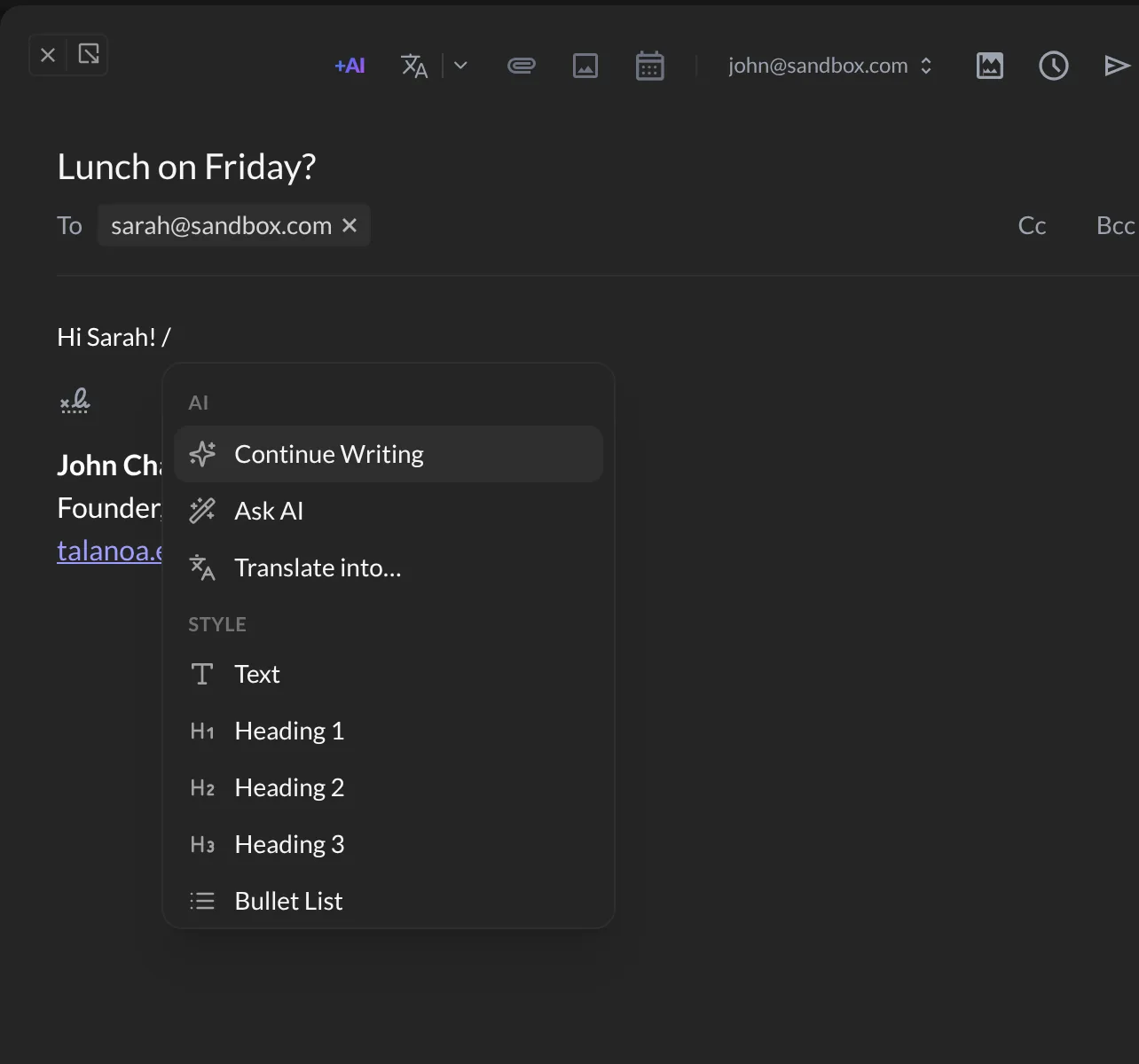
At the start of a line, or after a space, type /. A menu opens:
- Style: Text, Heading 1, Heading 2, Heading 3, Bullet List, Numbered List.
- Insert: Emoji.
- AI: Continue Writing, Ask AI, Translate into… (see Rewrite, shorten & proofread your emails).
Use the arrow keys and Enter, or click. Keep typing after the / to filter, for example /emo for emojis.
Emojis 😄
- Type
/emojiand pressEnter(or pick Emoji in the / menu). - Browse the groups, or type in Search emoji (try “pizza”).
- Click your emoji. It lands right where you were typing.
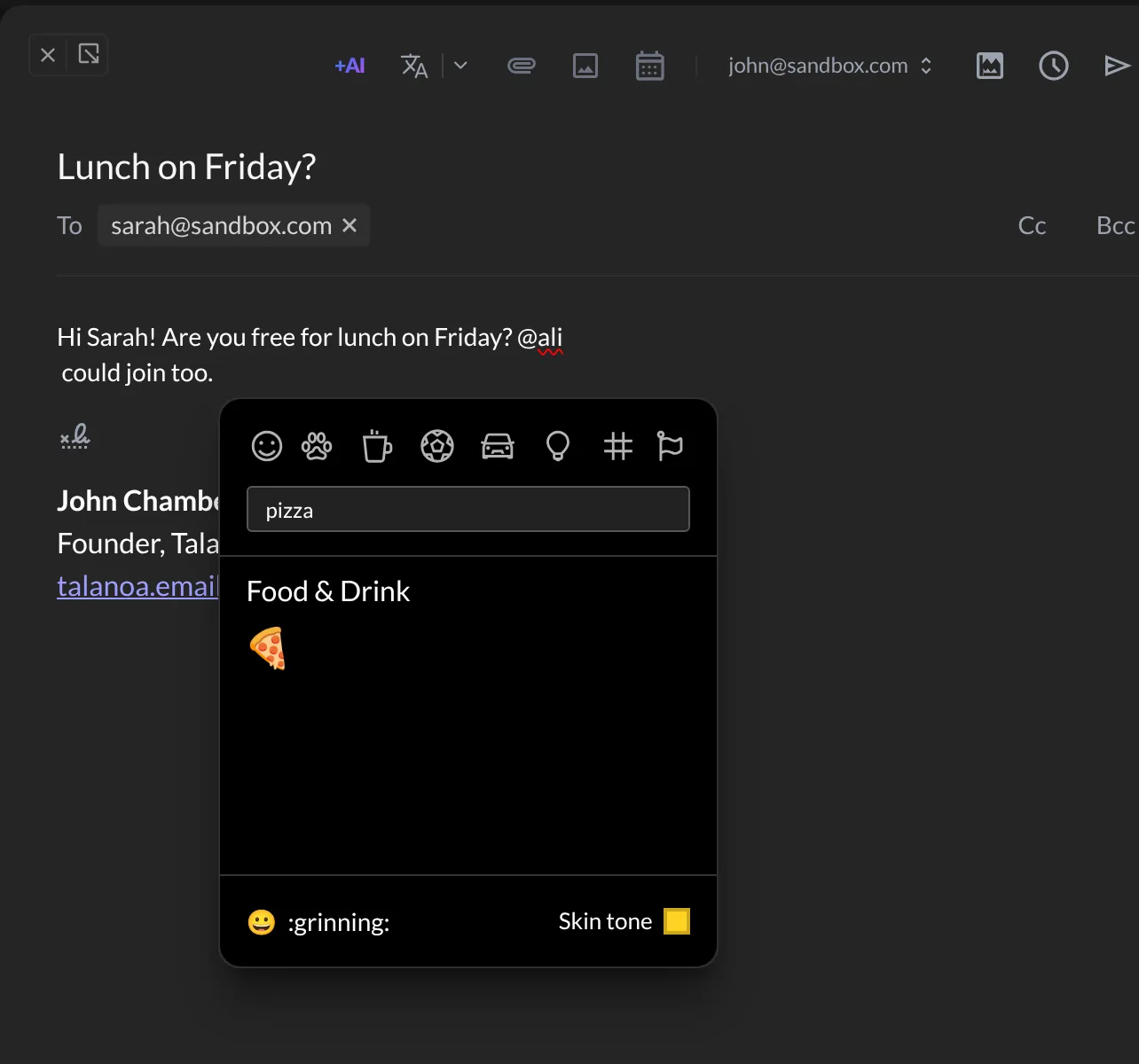
Your favorites show up first next time, under Recently used. You can also pick a Skin tone.
In the quick reply box at the bottom of a conversation, there’s a smiley button that opens the same picker.
@mentions
- Type
@followed by the start of a name, like@dav. - Talanoa suggests matching contacts. Click the right person (or press
Enter).
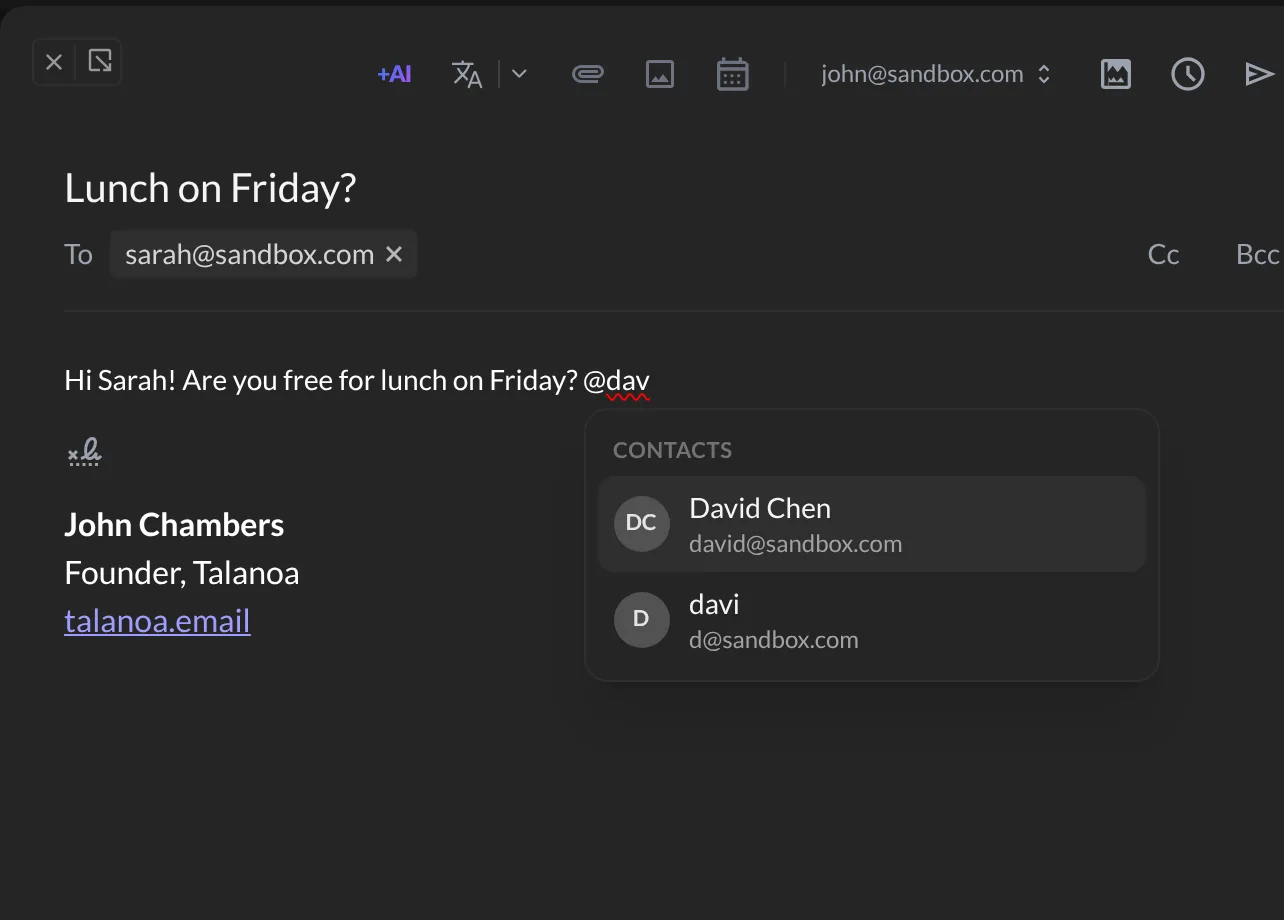
Their name appears highlighted in your text, and Talanoa adds them to the email for you:
- In a new email, they’re added to To.
- In a reply, they’re added to Cc. They’re joining the conversation, not the person you’re answering.
Delete the mention, and they’re removed from the email too. (Unless they were already on it before. Talanoa won’t kick anyone out.)
Quotes and quick lists
Some little typing tricks, at the start of a line:
>then your text makes a quote, with a line on its left. PressEnterto continue the quote,Entertwice to leave it.-starts a bullet list.1.starts a numbered list.
And… you’re a formatting pro now. 🎉
Something went wrong?
“The / menu doesn’t open.”
Type / at the start of a line or after a space. In the middle of a word (like “and/or”), it stays a normal slash, on purpose.
“Typing @ doesn’t show anyone.” Talanoa suggests people you’ve already exchanged emails with. If you see No contact found, add the person’s address in the To field instead.
“The AI options don’t work.” They need the AI helpers to be set up first. See Private AI that stays on your computer.
Still stuck? Write to us at [email protected]. A real human will answer.
