How to use keyboard shortcuts and the command palette
Fly through your inbox without touching the mouse. The handiest shortcuts, the command palette, and how to change any key.
- Time needed
- About 3 minutes
- What you need
- Talanoa, and a keyboard
Your fingers already know the way ⌨️
Clicking is fine. But once you know a few keys, your inbox goes fast. Press E and an email is archived. Press R and you’re replying. It feels a bit like playing the piano, except every note cleans your inbox.
Don’t learn them all. Pick three, use them for a week, then add three more.
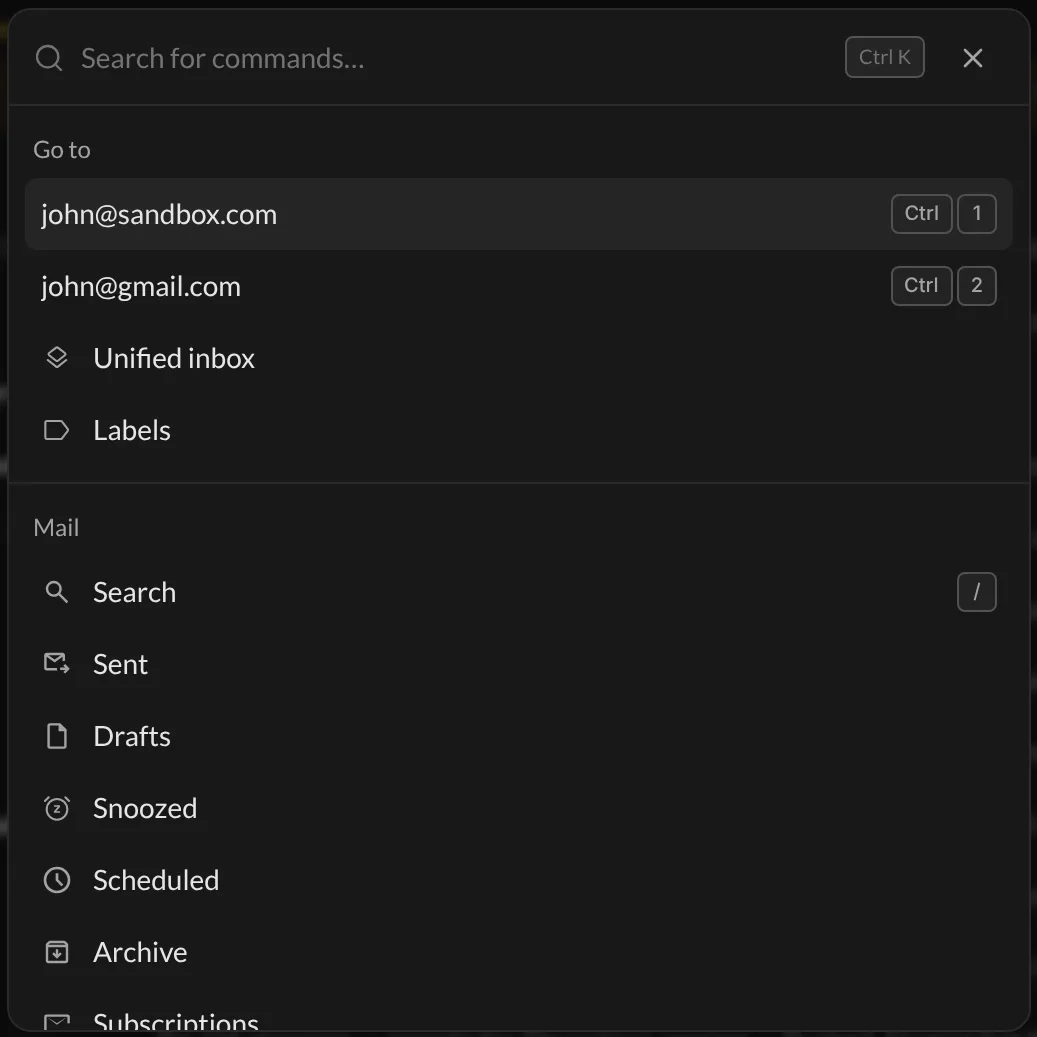
The command palette: one shortcut to rule them all
If you remember only one shortcut, make it this one:
- Press
Cmd+Kon Mac,Ctrl+Kon Windows and Linux. - Type a few letters of where you want to go: an inbox, Sent, Drafts, Snoozed, a label, Settings…
- Use the arrow keys, then press
Enter.
You’re there. No clicking around. The palette also shows the shortcut for each place, so you learn them along the way.
The most useful shortcuts
On Mac, Cmd is the ⌘ key. On Windows and Linux, use Ctrl instead.
| What it does | Keys |
|---|---|
| Command palette | Cmd+K |
| Search | / |
| Write a new email | C |
| Reply (Reply All when there are several people) | R |
| Forward | F |
| Archive | E |
| Move to trash | D (or Backspace / Delete) |
| Mark as unread | Shift+U |
| Add or remove labels | L |
| Add to your to-do list | T |
| Add a private note | N |
| Switch between chat and classic view | V |
| Find text in a conversation | Cmd+F |
| Send the email you’re writing | Cmd+Enter |
| Open Ask AI | Cmd+J |
| Open Settings | Cmd+, |
| Go to inbox 1, 2, 3… | Cmd+1 to Cmd+9 |
| Next / previous inbox | Ctrl+Tab / Ctrl+Shift+Tab (Ctrl on Mac too) |
| Close a window or menu | Esc |
Two-key shortcuts: G, then H
Some shortcuts are two keys pressed one after the other, not together. Press G, let go, then press the second key within a second:
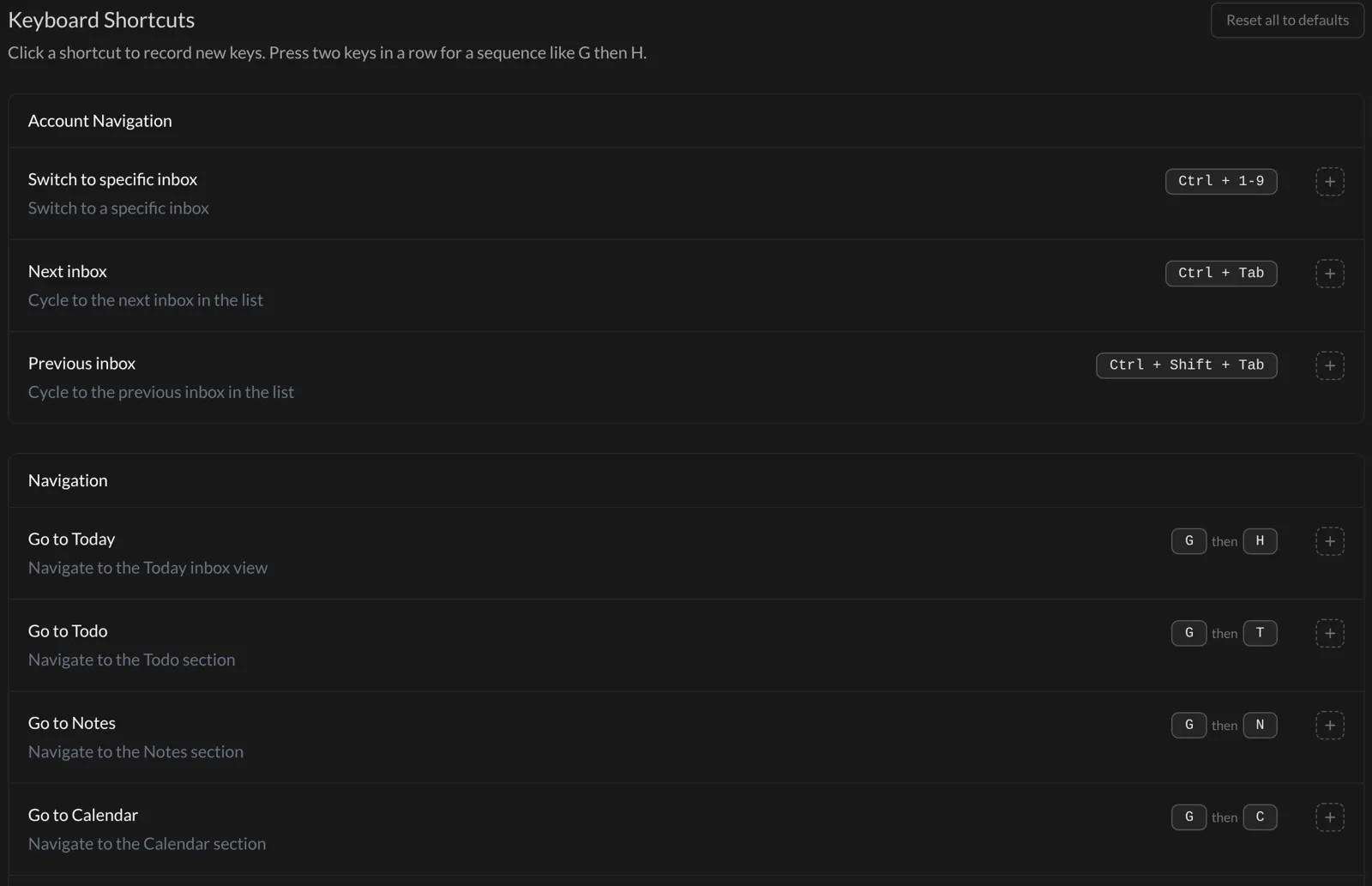
GthenH: go to Today, your inbox (“H” for home)GthenT: go to your Todo boardGthenN: go to your NotesGthenC: go to the Calendar
Think of G as “go to”. Easy.
Change any shortcut
Used to another app’s keys? Change them.
- Click the gear at the bottom left of the window, then Settings.
- Click Shortcuts. You’ll see every shortcut, sorted into groups.
- Click the keys of the shortcut you want to change.
- Press your new keys. For a two-key shortcut, press two keys in a row.
You can also:
- Click the + next to a shortcut to add a second one (both will work).
- Click Reset to default next to a shortcut to undo your change.
- Click Reset all to defaults at the top to start fresh.
A shortcut you changed shows a small Custom tag. Close modal (Esc) is marked Fixed: it can’t be changed.
And… that’s it! 🎉 You’re officially a keyboard person now.
Something went wrong?
“I pressed E and nothing happened.”
Single-letter shortcuts don’t work while you’re typing in a box (like the search bar or an email you’re writing). Otherwise Talanoa would archive things every time you type an “e”. Click outside the box, or press Esc, then try again.
“Talanoa won’t let me pick a key.”
Some shortcuts work even while you’re typing, like Send email. Those need Cmd, Ctrl or Alt (Option on Mac) in them. Talanoa tells you when that’s the case. It also warns you when the keys are already used by another shortcut.
“I’d love a shortcut that doesn’t exist.” At the bottom of Settings → Shortcuts, click contact me and tell us which one.
Still stuck? Write to us at [email protected]. A real human will answer.
