How to use the Smart Inbox
A calm, focused inbox: only your unread emails from the last month, grouped into Teammates, People, your sections and Notifications.
- Time needed
- About 2 minutes
- What you need
- Talanoa, with at least one email account connected
A tidy desk instead of a pile ⚡
The classic inbox is a long line of emails, newest on top. It works. But on a busy morning, it can feel like a scroll marathon.
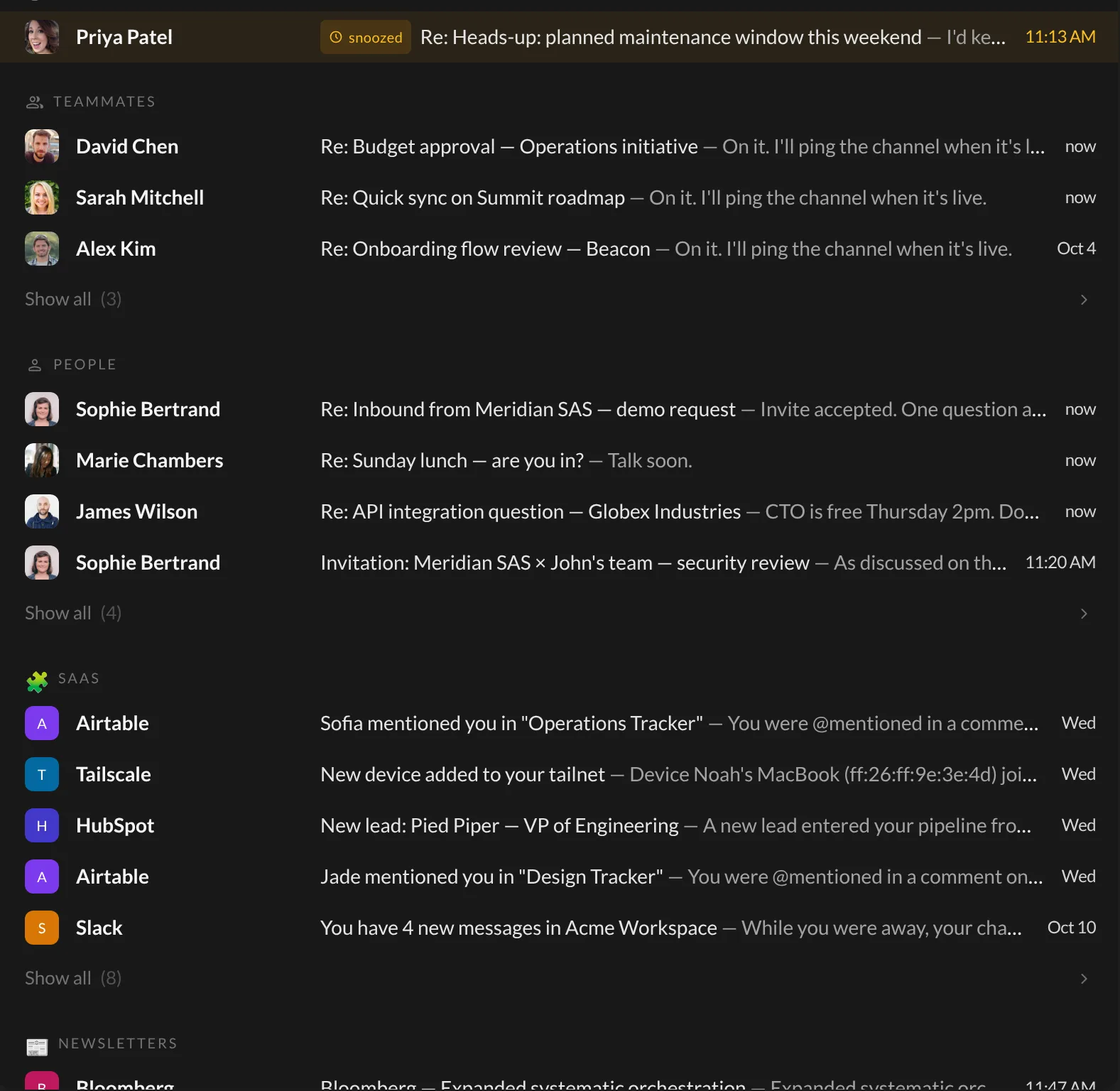
The Smart Inbox is a different way to look at the same emails. It only shows what you haven’t read yet, and puts it in neat little piles: your teammates, the people you know, your own sections, and the notifications. Like sorting the mail on the kitchen table before you open anything.
Step 1: Turn it on
- Go to your Inbox.
- At the top right of the list, click the Inbox & layout button (a small icon with an arrow).
- Under Reading mode, click Smart inbox.
The title at the top changes to Smart Inbox. That’s how you know it’s on.
Step 2: Read it
Your unread emails now sit in groups, in this order:
- Snoozed: emails that just came back from a snooze.
- Teammates
- People
- Your own sections, if you made some (see Create your own sections).
- Notifications
Each group shows its five newest unread emails. Want the rest? Click Show all under the group. The number next to it tells you how many there are. To come back, click the × next to the title at the top.
Click an email to open it. Then use the ↓ and ↑ arrow keys to go to the next or previous one, across all the groups.
Step 3: Watch it empty
Once you’ve read an email, it leaves the Smart Inbox. Archive or delete one, and the next one opens all by itself.
Little secret: an email that opens on its own only counts as read if you stay on it for about three seconds. Skip past it quickly and it stays unread, waiting for you.
When every pile is empty, Talanoa says You’re all caught up. 🎉 Go outside. Touch some grass.
Good to know
- The Smart Inbox only looks at the last 30 days. Older unread emails are still in your inbox: switch back to the Classic list to see them.
- Read emails don’t show here. That’s the point. They’re still safe in the classic view.
- Talanoa remembers your choice for each account. You can use the Smart Inbox for work and the classic list for your personal account.
- To go back, open the same Inbox & layout menu and pick Classic list.
Questions you might have
“Where are the Priority, People, Notifs and All tabs?” They belong to the classic list. In the Smart Inbox, the groups do that job. Switch back to Classic list to get the tabs again.
“An email I was reading disappeared.” It was read, so it left the unread piles. Find it in the classic list, or in the sender’s conversations by clicking their name in the sidebar.
“A person is in the wrong group.” Move them, and Talanoa will remember. See How Talanoa sorts your emails.
Still stuck? Write to us at [email protected]. A real human will answer.
