Summaries & translations
Turn a long conversation into a few clear lines, and read or write emails in any language.
- Time needed
- About 2 minutes
- What you need
- Talanoa Pro, with AI set up in Settings → AI
The short version, in your language 🌍
Some conversations are 27 emails long. Some are in a language you only half speak. Some are both, on a Monday morning.
Talanoa’s AI can help with both:
- Summaries turn a long conversation into a few bullet points, like the back cover of a book.
- Translations turn an email into your language, and your reply into theirs.
Both are part of Talanoa Pro and use the AI you set up in Settings → AI (see Private AI that stays on your computer).
Summarize a conversation
- Open the conversation.
- At the top right, click the +AI button (AI actions).
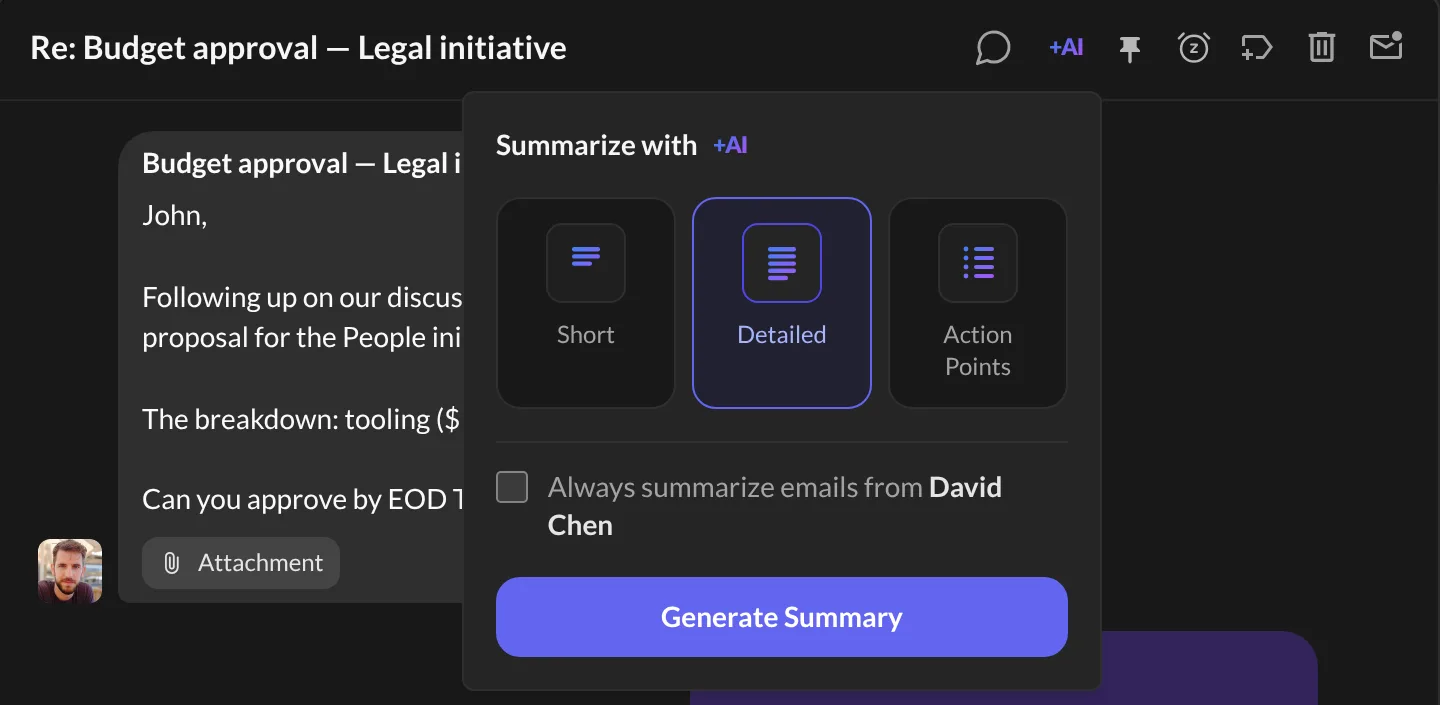
- Under Summarize with, pick a style:
- Short: the gist in a few lines.
- Detailed: who said what, step by step.
- Action Points: only what you need to do.
- Click Generate Summary.
And… that’s it! 🎉 The AI Summary appears at the top of the conversation. Use the little arrow to fold it away, or the × to hide it.
The summary is saved. When new emails arrive in that conversation, Talanoa offers New messages · refresh so your summary stays up to date.
Want it automatic? Check Always summarize emails from… in the same panel. Handy for that one colleague who writes very, very long emails.
Find all your summaries again
Every summary you make is kept in one place.
- Click the ☰ button next to the inbox tabs (Priority, People…).
- Click Summaries.
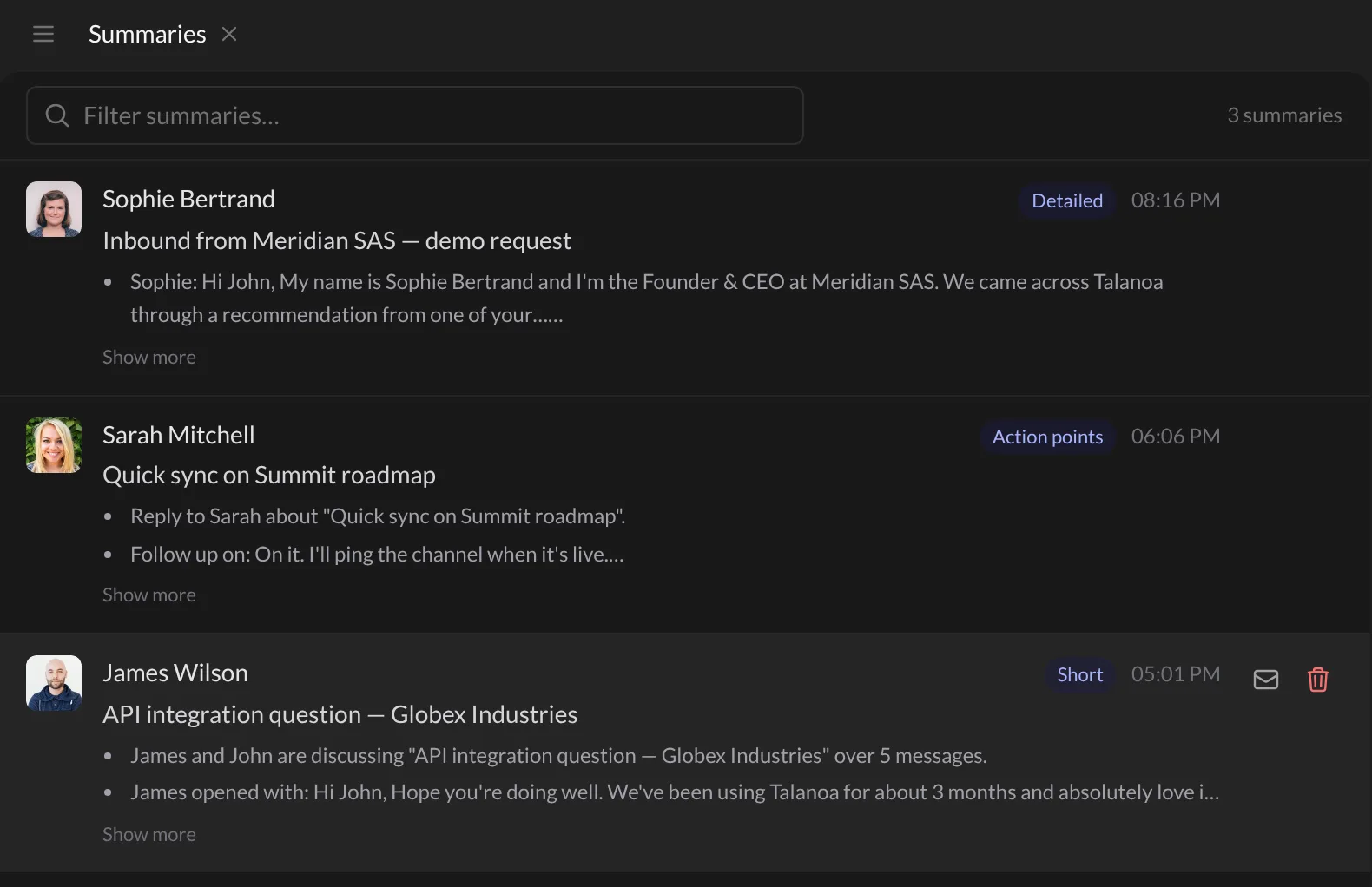
Type in Filter summaries… to find one. Click a summary to open its conversation. Hover it to delete it with the trash can.
Translate an email you received
First, tell Talanoa which languages you read:
- Open Settings → AI.
- In Translation, click Set up (or Change).
- Click Enable translation, pick your languages, and confirm.
Now, every email shows a small translate button (it looks like 文A) at the top of the message. Click it, and pick a language if you chose several. The translation appears, and you can switch back with Show original.
“Always translate” for your favorite people. After you translate an email, Talanoa may ask: Always translate messages from Marie to English? Click Always translate, and her next emails arrive already translated. Click Not now if you’d rather not.
Write in another language
- Write your email in your own language.
- In the toolbar at the top of the email, click the little arrow next to the
文Abutton (Choose a language). - Pick the language, from Suggestions or All languages.
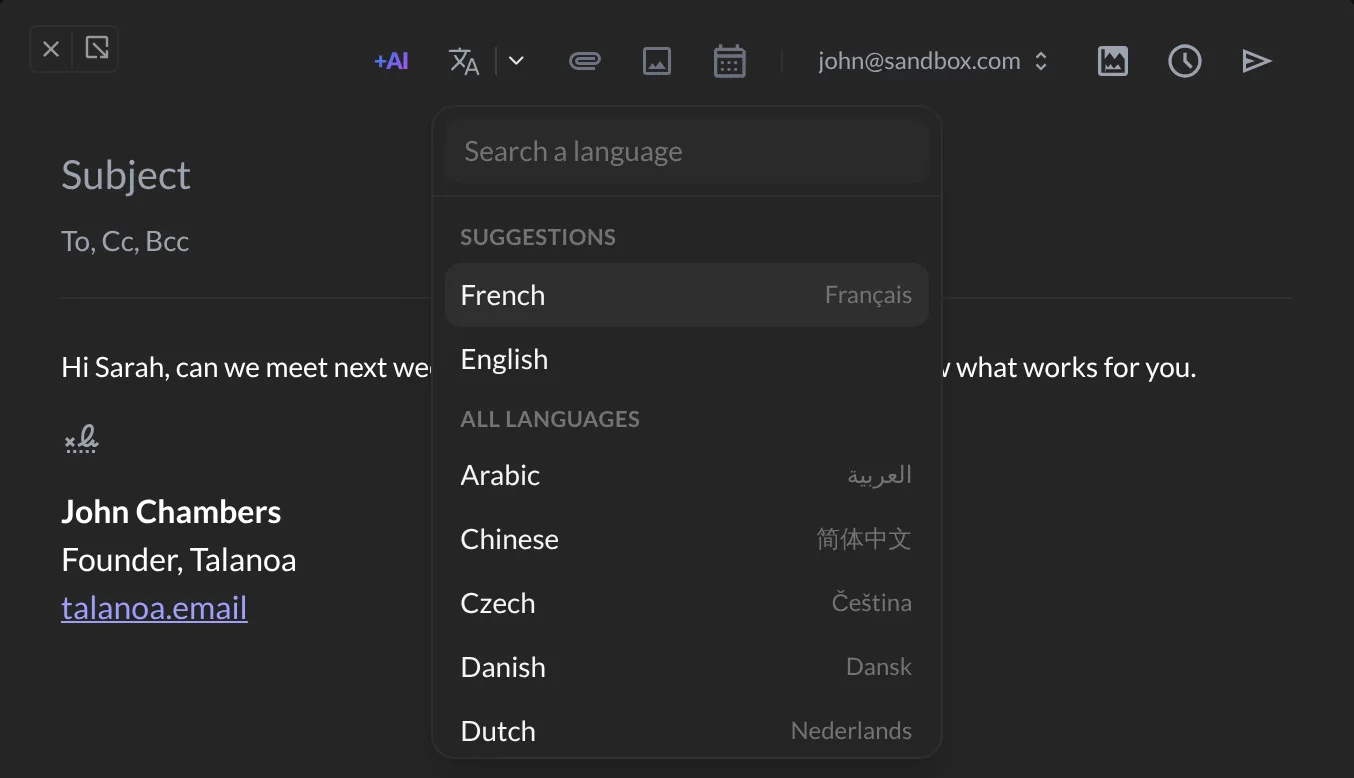
Your email is translated in place. Click Show original to compare, or Keep this version when you’re happy. You can also type / in your email and choose Translate into….
Something went wrong?
“I don’t see the translate button on emails.” Translation is off. Turn it on in Settings → AI, under Translation.
“It says AI summarization failed.” Make sure your AI model has finished downloading in Settings → AI, then try again.
“Clicking +AI shows a little tour.” AI isn’t set up yet. Click Set up AI and follow Private AI that stays on your computer.
Still stuck? Write to us at [email protected]. A real human will answer.
