How to snooze an email
Not ready to deal with an email? Snooze it. It leaves your inbox and comes back right when you need it.
- Time needed
- About 1 minute
- What you need
- Talanoa, and an email you'd rather deal with later
Hide it now, see it later 😴
Some emails can’t be handled right now. A party invitation for next month. A bill you’ll pay on Friday.
If you leave them in your inbox, they just sit there and stare at you. If you archive them, you might forget them.
Snooze is the middle path. It’s like asking a friend: “Hold this for me, and give it back tomorrow morning.” The email disappears from your inbox, and pops back at the time you chose.
Step 1: Pick the email
If you’re looking at your inbox list: move your mouse over the email. A row of little buttons appears on the right. Click the clock.
If the email is open: click the snooze button at the top of the email (the little alarm clock with a “z”).
Step 2: Choose when it comes back
A menu called Snooze until… opens. Pick one:
- Later today: about three hours from now.
- This afternoon: today at 5:00 PM. (After 2 PM, this one is grayed out. The afternoon is almost gone!)
- Tomorrow: tomorrow at 8:00 AM.
- Later this week: in two days, at 8:00 AM.
- This weekend: Saturday at 8:00 AM.
- Next week: Monday at 8:00 AM.
Each choice shows the exact day and time next to it, so there are no surprises.
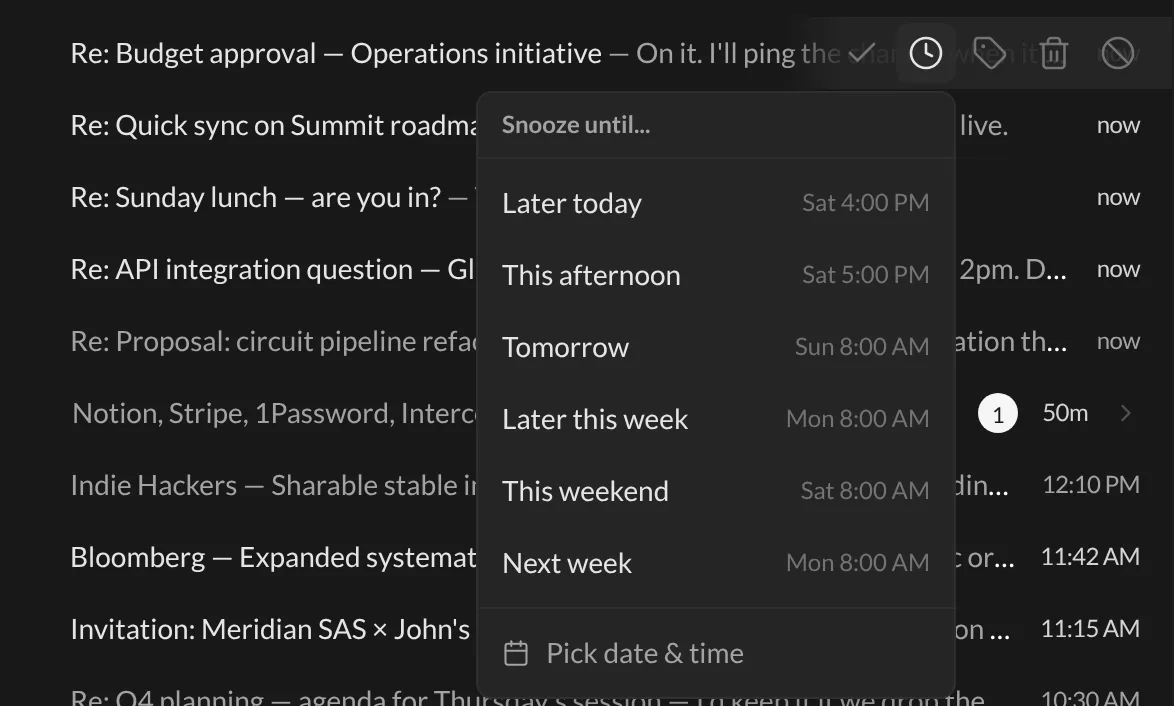
Want a different time? Click Pick date & time, choose a day and an hour, then click Snooze.
And… that’s it! 🎉 The email leaves your inbox. Out of sight, out of mind. For now.
Where do snoozed emails go?
They wait in the Snoozed view. To open it, click the menu button (☰) at the top of your email list, then click Snoozed.
There, each email tells you when it will come back, like Returns tomorrow or Returns in 3h. Changed your mind? Click Unsnooze now and it goes straight back to your inbox.
When it comes back
At the time you chose, the email jumps back to the top of your inbox. It sits under a little orange heading, Snoozed — returned to inbox, so you know why it’s there.
Tips
- Snoozing many emails at once? Select them with their checkboxes, then click Snooze in the bar at the top. See Archive, delete & act on many emails at once.
- Snoozed too fast? Click Undo in the little message that pops up.
- You visit Snoozed often? Click the star next to it in the ☰ menu. It will show up in your left sidebar, one click away.
Something went wrong?
“My snoozed email didn’t come back on time.” Talanoa needs to be open to wake it up. If your computer was off or Talanoa was closed, the email comes back as soon as you open Talanoa again. It’s patient like that.
“I can’t find an email I snoozed.” Look in the Snoozed view (☰ menu, then Snoozed). Everything that’s still waiting is there, sorted by the time it comes back.
Still stuck? Write to us at [email protected]. A real human will answer.
