How to contact support
Found a bug or have an idea? Chat with us right inside Talanoa, or send us an email. A real human reads every message.
- Time needed
- About 2 minutes
- What you need
- Talanoa, or any email app
We’re right here 👋
Talanoa has a little chat built in, called Support. It’s like a mailbox on our desk: you drop a message, we read it, and we reply right there in the app.
Use it to report something that’s broken, or to suggest an idea. We read everything. Many features in Talanoa started as a message in Support.
Step 1: Open Support
- Look at the bottom of the left bar.
- Click the headset icon (it says Support & feedback when you hover it).
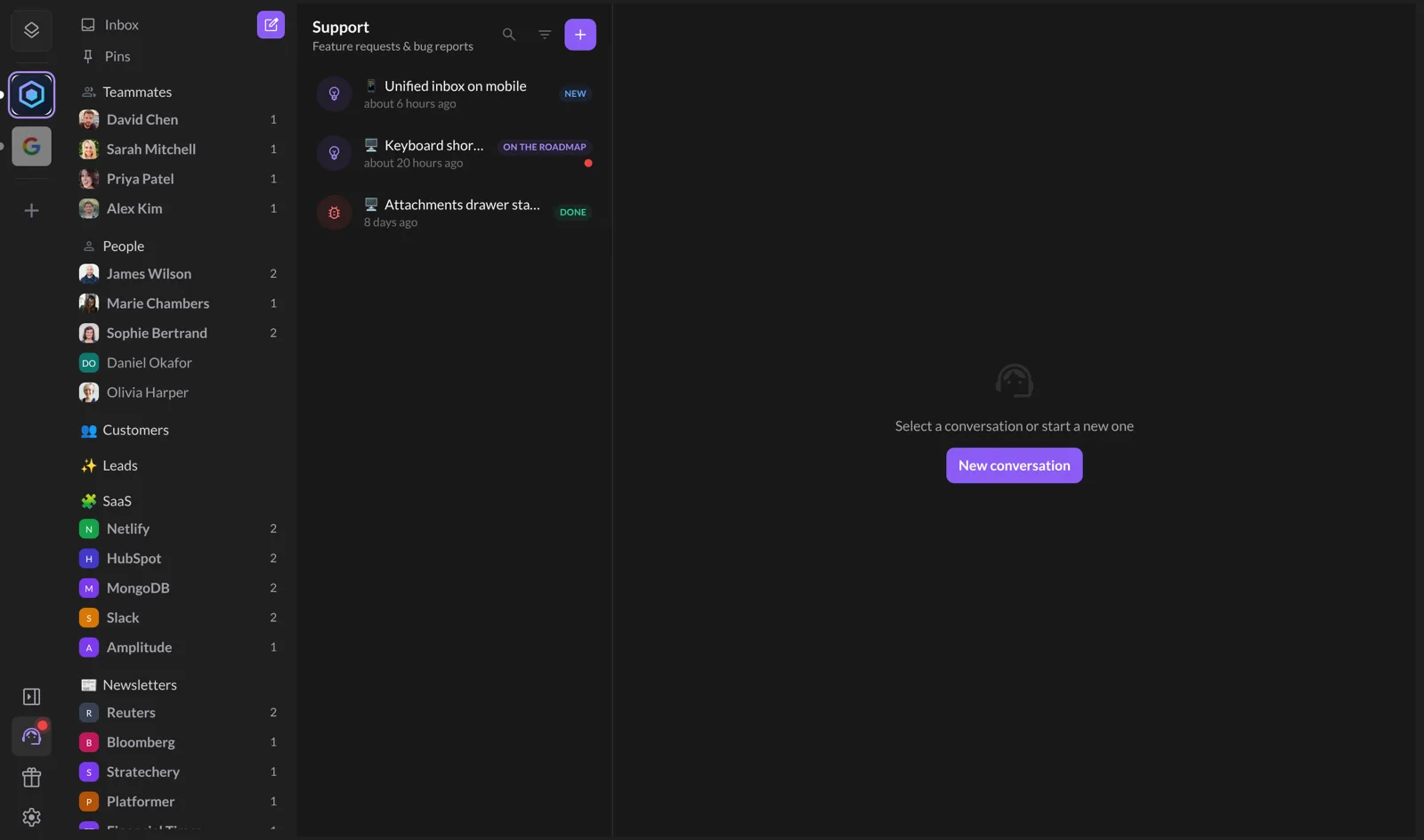
The Support screen opens, with your past conversations on the left.
Step 2: Start a conversation
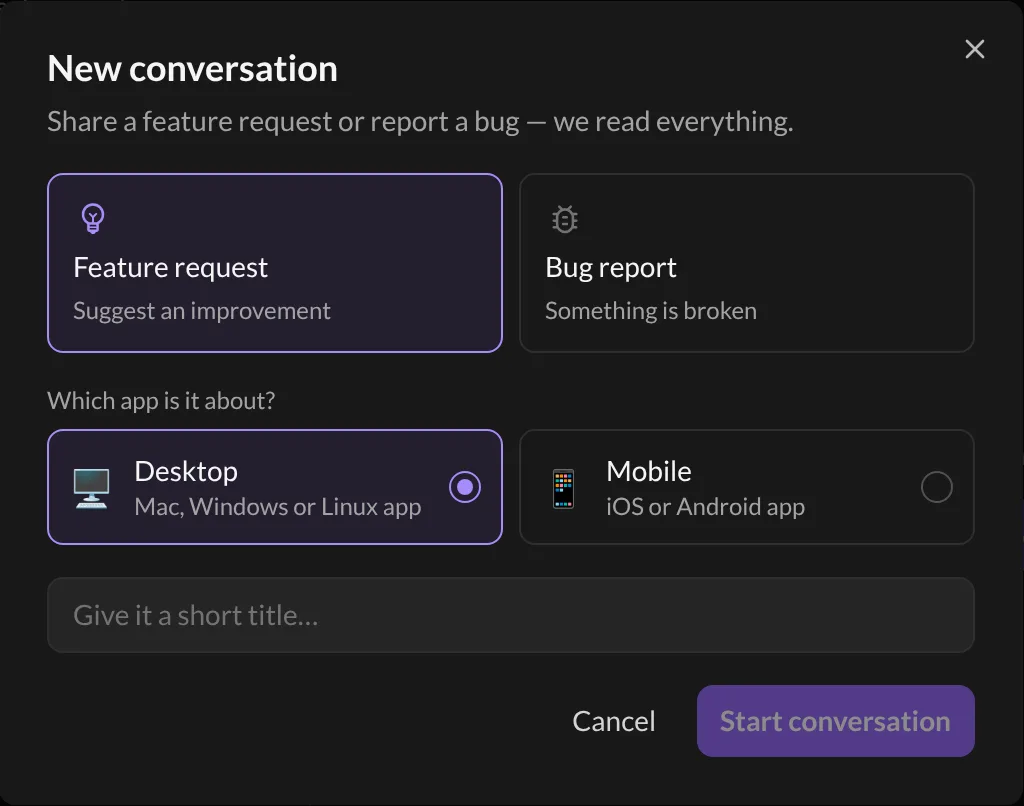
- Click the + button at the top, or New conversation.
- Pick what it is:
- Feature request: suggest an improvement.
- Bug report: something is broken.
- Under Which app is it about?, pick Desktop or Mobile.
- Give it a short title, like “Can’t attach a PDF”.
- Click Start conversation.
Step 3: Write your message
- Type your message in the box at the bottom (Write a message…).
- Want to show us something? Click the paperclip to add a screenshot or a file (up to 5 MB each).
- Click Send.
And… that’s it! 🎉 When we reply, a red dot appears on the headset icon, and Talanoa shows you a little notification. Each conversation also shows a status, like In progress, On the roadmap, In the next release or Done, so you can see where things are.
What to put in your message
The more we know, the faster we can help. A good message answers these:
- What were you trying to do? “I wanted to reply to an email from my Outlook account.”
- What happened instead? “The Send button stayed grey.”
- Can you make it happen again? Tell us the steps.
- A screenshot. One picture is worth a thousand words, and a few minutes of back and forth.
- Which version of Talanoa you use. Click the gear icon at the bottom left: the version is written at the bottom of the menu.
If your emails aren’t syncing: first go to Settings → Accounts and click Send log report under Diagnostics. It sends us a technical report that helps a lot. See My emails aren’t syncing.
Please never send your passwords. We will never ask for them. Not in Support, not by email.
Prefer email?
No problem. Write to us at [email protected]. This also works if you can’t open Talanoa at all.
Something went wrong?
“Support says No account connected.” Support needs at least one email account in Talanoa. Add one first, or just email us instead.
“My file won’t attach.” Each file can be up to 5 MB. Try a smaller screenshot, or send the file by email.
Still stuck? Write to us at [email protected]. A real human will answer.
