How to archive, delete & act on many emails at once
Clear your inbox fast. Archive or delete one email, a whole pile at once, or everything from one sender in a single click.
- Time needed
- About 2 minutes
- What you need
- Talanoa, and an inbox that could use a little tidying
A tidy inbox in a few clicks 🧹
Your inbox is like your desk. When it’s covered in papers, it’s hard to see what matters.
Talanoa gives you two simple ways to clear it:
- Archive puts an email away. It leaves your inbox, but it’s still safe in your Archive. You can find it again any time.
- Trash throws it in the bin. Changed your mind? It waits in your Trash for a while.
Not sure which one to pick? Archive. It’s the “put it in a drawer” button, and drawers never lose anything.
Step 1: Clean up one email
Move your mouse over any email in your list. A row of little buttons appears on the right.
- Click the ✓ button to Archive it.
- Or click the trash can to Move to trash.
Did you trash something by mistake? Click Undo in the little message that pops up at the bottom. Phew.
You can do the same from inside an open email, with the buttons at the top.
Step 2: Select many emails at once
Got a whole pile to clear? Do it in one go.
- Move your mouse over an email. A small checkbox appears on its left. Click it.
- Click the checkboxes of the other emails you want.
- Want a whole range? Tick the first email, hold
Shift, and click the checkbox of the last one. Everything in between gets selected. Magic. - A bar appears at the top of your list. It says how many emails you picked, like 4 selected.
- Click Archive, Mark as read, Trash or Snooze.
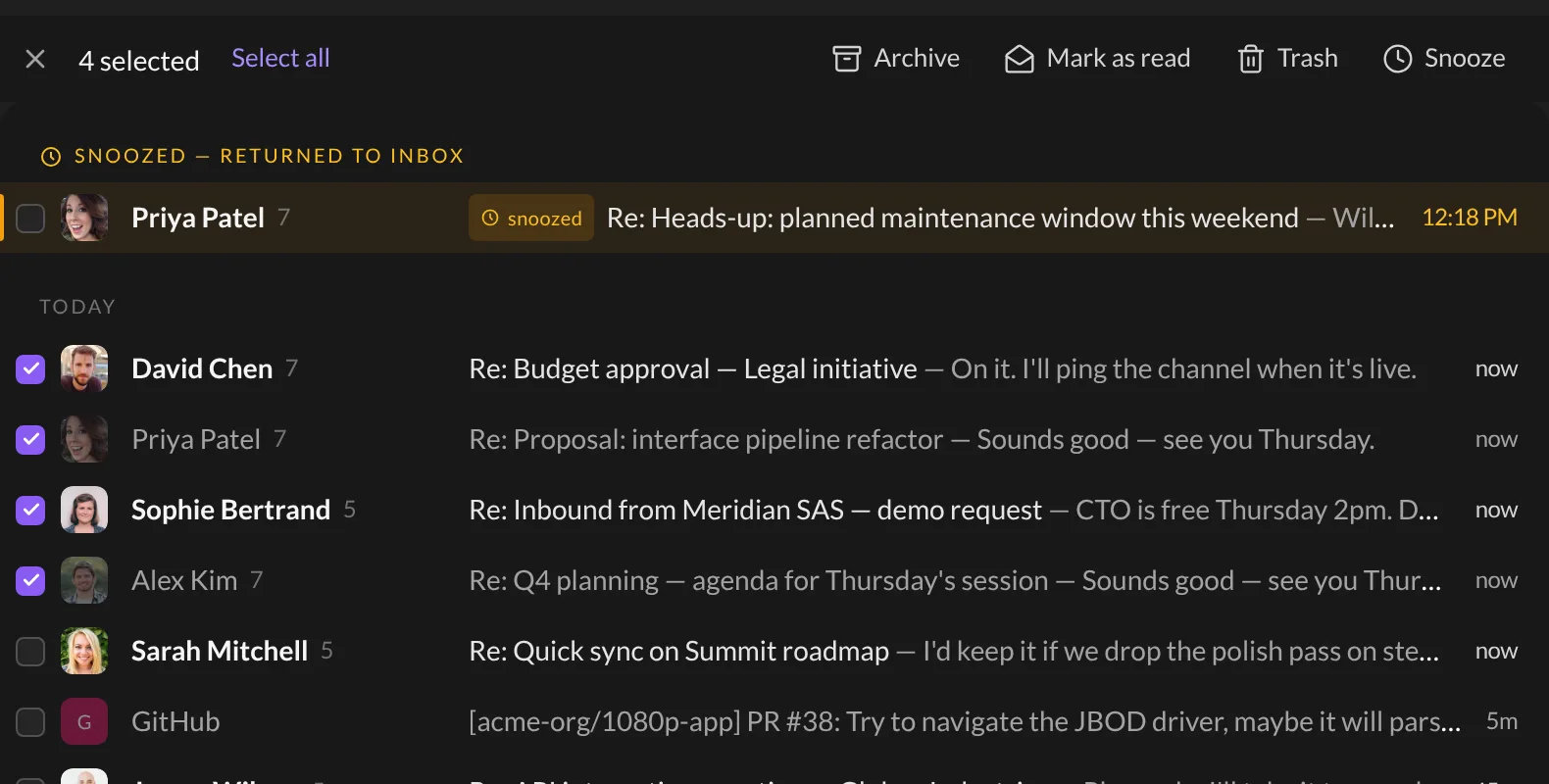
To pick every email you can see, click Select all. To start over, click the ✕ or press Esc.
Step 3: Clear everything from one sender
Some senders write a lot. You can clean up all their emails at once.
- In the left sidebar, click the sender’s name.
- A panel opens on the right, with all their emails in the middle.
- Under Actions, click:
- Archive all to mark all their emails as read and put them away.
- Trash all to throw them all in the bin.
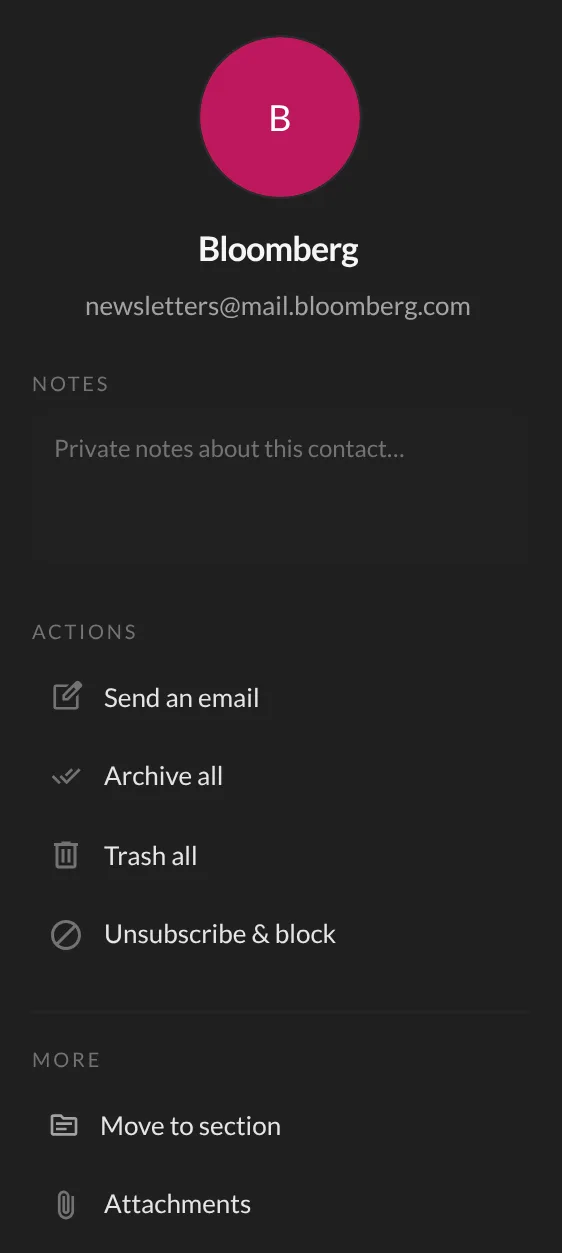
There’s a shortcut too: move your mouse over a sender in the sidebar and click the ⋮ button. You’ll find Mark all as read and Delete all messages there. Deleting asks you to Confirm first, just in case.
And… that’s it! 🎉 Your inbox can breathe again.
Keyboard shortcuts
Love your keyboard? Open an email, then press:
Eto ArchiveD(orBackspace/Delete) to Move to trashShift+Uto Mark as unread
You can change these keys in Settings → Shortcuts. See Keyboard shortcuts & command palette for the full list.
Something went wrong?
“I archived an email and now I can’t find it.” It’s in your Archive. Click the menu button (☰) at the top of your email list, then click Archive. You can also just search for it.
“I can’t see the checkboxes.” They only show up when your mouse is over an email. Once you’ve ticked one, they all stay visible.
“I trashed a pile of emails by mistake.” Open your Trash from the same menu (☰). Your emails are waiting there, and you can bring them back.
Still stuck? Write to us at [email protected]. A real human will answer.
