How to get the mobile app and pair your phone
Put Talanoa on your iPhone or Android phone, then bring your accounts and settings over from your computer with one scan.
- Time needed
- About 5 minutes
- What you need
- Talanoa on your computer, and your phone
Your inbox, in your pocket 📱
Talanoa also lives on your phone. Same people-first inbox, same calm, just smaller. Like your computer had a little sibling.
The phone app is still in beta. That means it’s brand new and we’re polishing it every week. It isn’t on the App Store or Google Play shop pages yet, so you install it a slightly special way. Don’t worry, Talanoa shows you every step.
Here’s the plan: first you install the app, then you scan a code on your computer. That scan copies your accounts and settings to your phone. No need to type all your passwords again.
Step 1: Open Devices on your computer
- In Talanoa on your computer, open Settings (
Cmd+,on Mac,Ctrl+,on Windows and Linux, or click the gear at the bottom left, then Settings). - Click Devices in the list on the left.
- Under Which phone do you use?, click iPhone or Android.
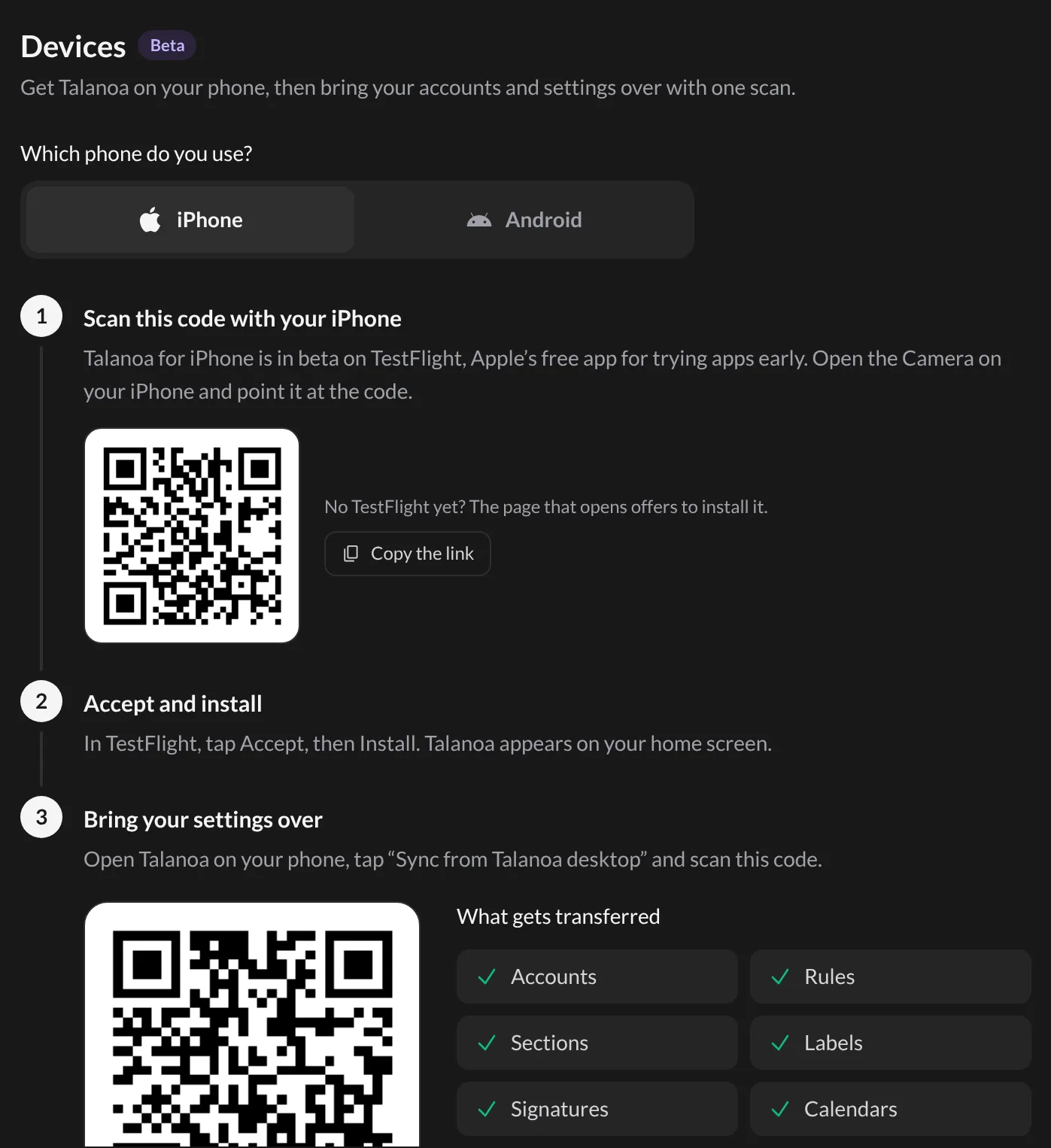
Step 2: Install the app on your phone
If you have an iPhone:
- Open the Camera on your iPhone and point it at the first code on your screen.
- Tap the link that pops up. It opens TestFlight, Apple’s free app for trying apps early. (No TestFlight yet? The page offers to install it.)
- In TestFlight, tap Accept, then Install.
Talanoa appears on your home screen. 🎉
If you have an Android phone:
Google only lets invited testers download the beta, so we need to add you first. It’s like a guest list.
- On your phone, open the Play Store and tap your profile picture at the top right. Your Google Play email is shown under your name.
- Back on your computer, type that email in the box and click Send via Support. A message opens in Support, ready to send. Send it.
- We add you and reply right there in Support with a link. Open it on your phone and tap Install.
Step 3: Bring your settings over
- Open Talanoa on your phone and tap Sync from Talanoa desktop.
- Allow the camera if your phone asks.
- Point your phone at the big code under Bring your settings over on your computer.
Keep both screens open while it works. Your computer shows the progress, and then All set, your phone is ready 🎉.
And… that’s it! Your phone now knows your accounts.
What comes over to your phone
The scan copies your Accounts, Rules, Sections, Labels, Signatures, Calendars and your to-dos.
Your emails and attachments are not copied from your computer. Your phone fetches them straight from your email provider, like Gmail or Outlook. At first it brings in the last few days, so give it a few minutes.
It’s a one-time copy, not a live link. If you add a new account or rule on your computer later, scan again: on your phone, open the accounts menu and tap Sync from desktop.
Something went wrong?
“My phone says the QR code has expired.” Close Settings on your computer, open Settings → Devices again, and scan the new code.
“My phone says it can’t reach the internet.” Check that your phone is connected (Wi-Fi or mobile data), then tap Scan again.
“An account on my phone says it needs reconnecting.” Scan your computer again with Sync from desktop. That usually fixes it.
Still stuck? Write to us at [email protected]. A real human will answer.
